Accidentally deleted files from your USB drive? Don't panic — your files are most likely still recoverable. When you delete a file from a USB flash drive, the data isn't immediately erased. The space is simply marked as "available," which means a good recovery tool can still find and restore those files — as long as you act quickly and stop writing new data to the drive.
In this guide, we'll show you exactly how to recover deleted files from a USB flash drive using Data Recovery by Nero, a reliable tool available directly on the Microsoft Store.
How Does USB Data Recovery Actually Work?
Think of your USB drive like a library. When you "delete" a file, it's as if the librarian removes the book's entry from the catalog — but the book itself is still sitting on the shelf. Until someone places a new book in that exact spot, the original book is still there and can be found. Data recovery software works by going directly to the shelves to find those "uncatalogued" books before they get replaced.
Under the hood, there are two distinct technical methods recovery software uses:
File System Scanning (Fast Scan)
✅ Fast, accurate, and preserves original file names and folder structure.
Every USB drive uses a file system (FAT32, exFAT, or NTFS) that maintains a structured index of where each file is stored. On NTFS drives, this index is called the Master File Table (MFT); on FAT32 drives, it's the File Allocation Table (FAT).
When you delete a file, Windows simply marks that entry as "deleted" in the table — the actual data clusters on the drive remain physically intact. Recovery software scans the MFT or FAT for these marked-as-deleted entries, reconstructs the file's cluster chain, and copies the data back out.
Signature-Based RAW Scanning (Deep Scan)
✅ Slower, but can recover files even from corrupted or reformatted drives.
When the file system itself is damaged or the drive has been formatted, the MFT/FAT can no longer be trusted. In this case, the software scans the drive sector by sector at the raw binary level, looking for known file signatures (also called "magic numbers") — unique byte sequences that mark the beginning of each file type.
For example, every JPEG file starts with the bytes FF D8 FF, and every PDF starts with %PDF. By recognizing these signatures, the software can carve files directly from raw data — no working file system needed.
Fast Scan | Deep Scan | |
|---|---|---|
Technical method | File system scan (MFT / FAT) | Signature-based RAW scan |
Speed | Fast (seconds to minutes) | Slow (minutes to hours) |
File names preserved | ✅ Yes | ⚠️ Sometimes lost |
Works on corrupted drives | ❌ No | ✅ Yes |
Works after formatting | ❌ No | ✅ Yes |
Best for | Recently deleted files | Formatted / damaged drives |
Before You Start — Stop Using the USB Drive
The most important rule in data recovery: stop writing new files to the USB drive immediately. Every new file you save to the drive increases the risk of permanently overwriting the deleted data you're trying to recover. Plug it in, run the scan, and don't save anything to it until your files are back.
Step 1 — Download Data Recovery by Nero
Data Recovery by Nero is available on the Microsoft Store. It supports over 1,000 file formats — including photos, videos, music, documents, and more — and works with USB flash drives, SD cards, hard drives, and DVDs.
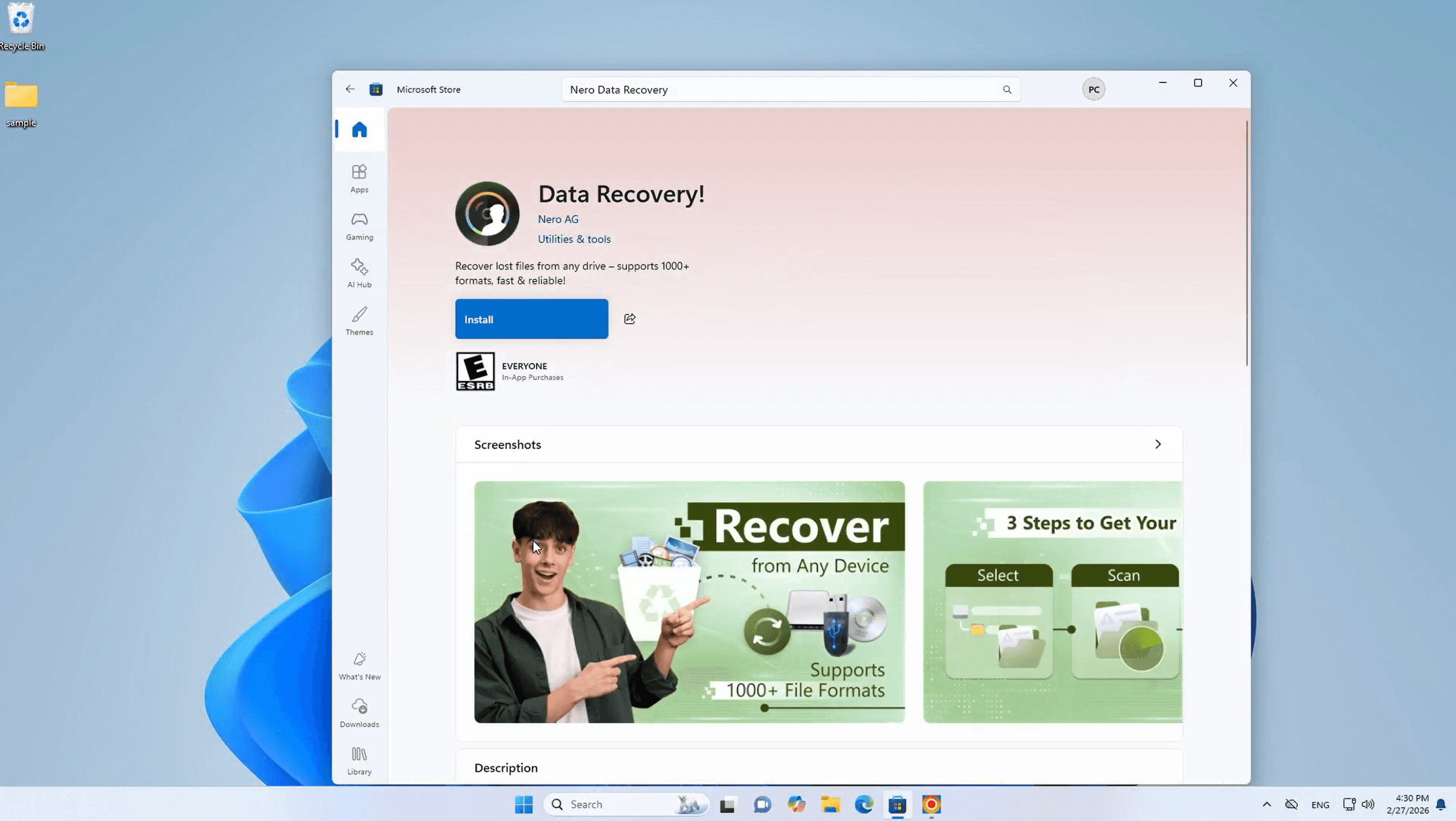
Once installed, launch Data Recovery by Nero from your Start menu. The interface is clean and straightforward — no technical knowledge required.
Step 2 — Select Your USB Drive
In the main window, you'll see a list of all connected drives and media. Select your USB flash drive from the dropdown menu. You'll also be prompted to choose a scan level:
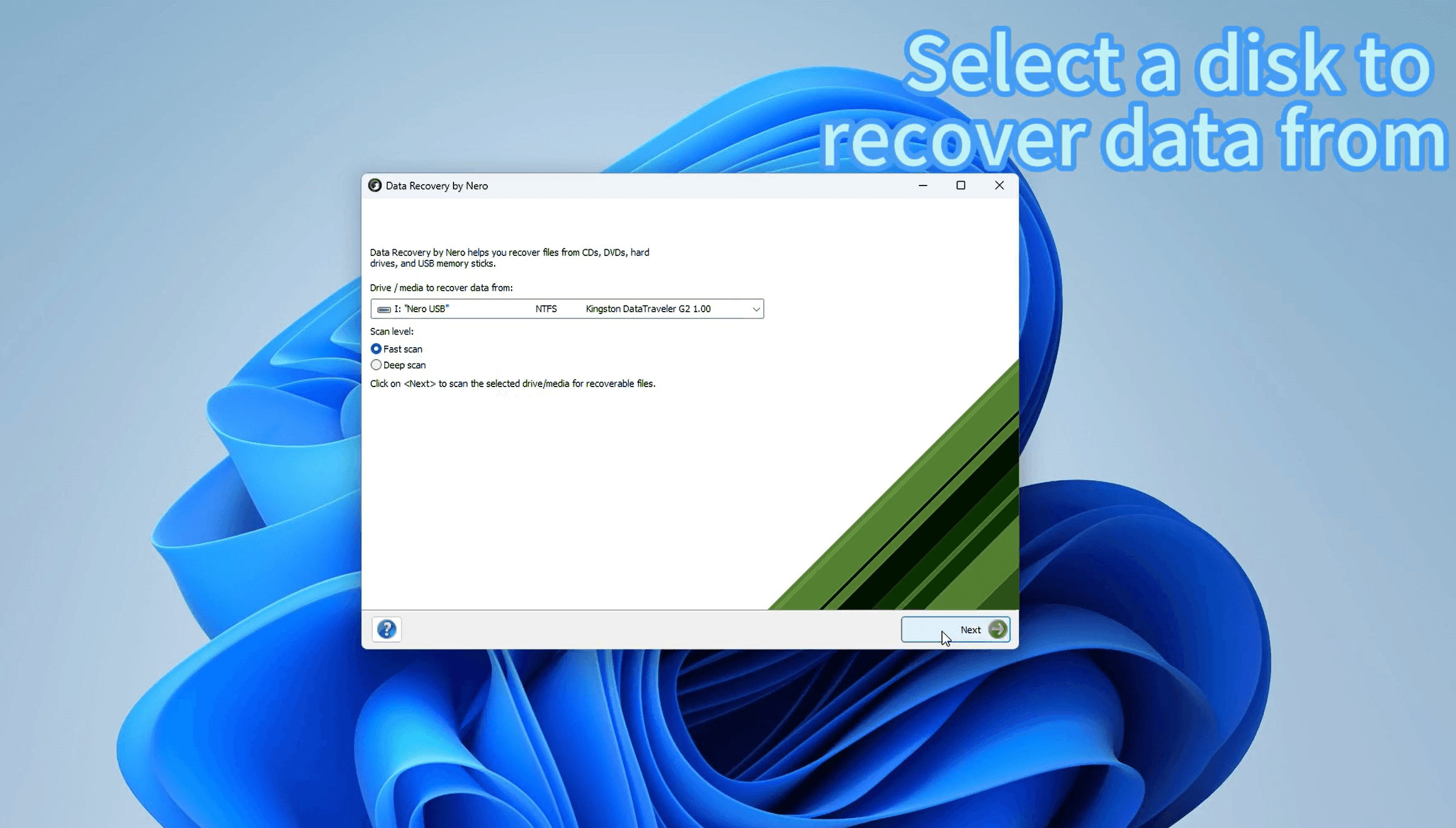
Fast Scan — Quick scan for recently deleted files. Best for files deleted within the last few days.
Deep Scan — Thorough scan that digs deeper into the drive. Recommended for formatted drives or older deletions.
Click Next to begin the scan.
Step 3 — Choose Files to Recover
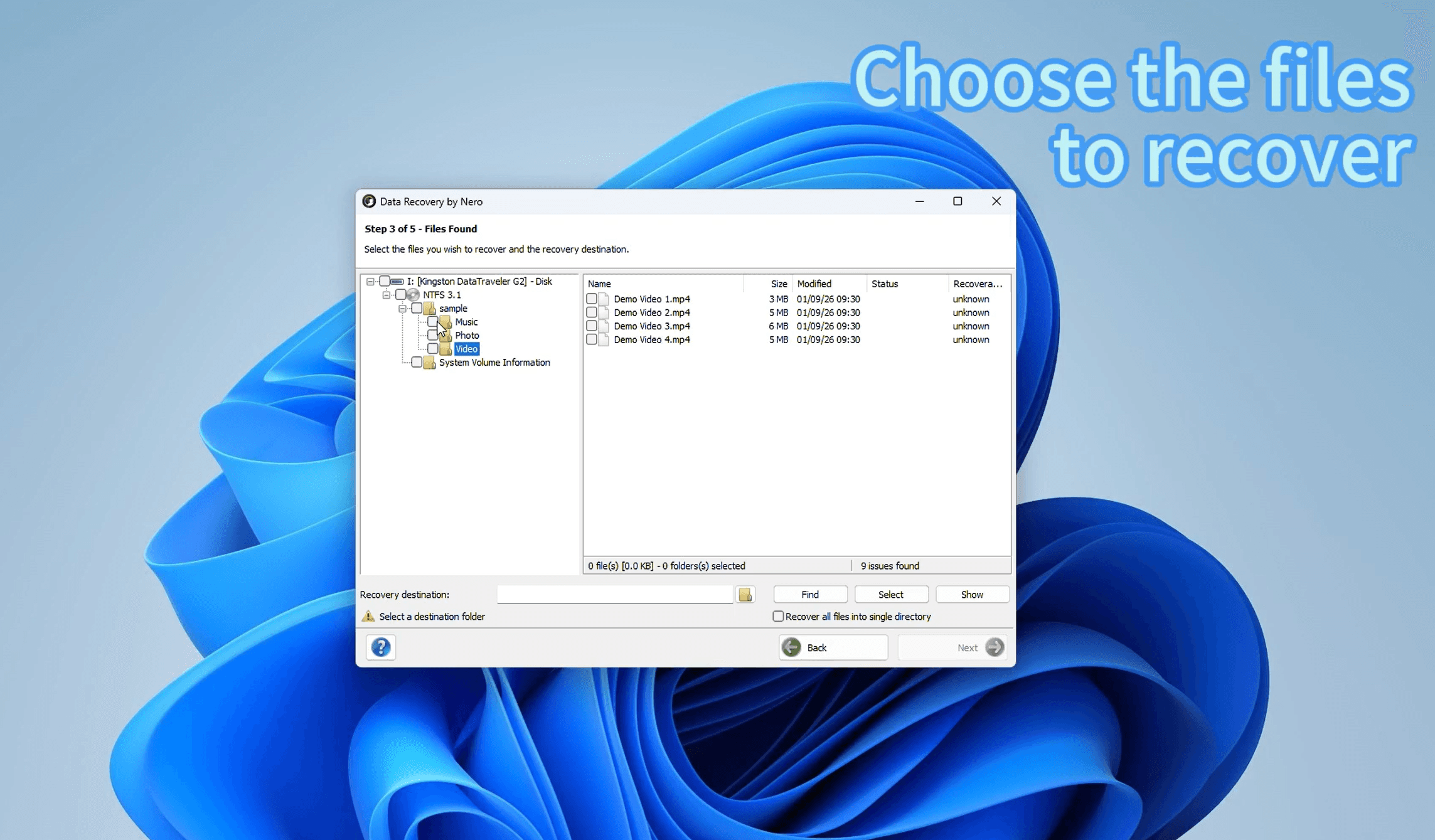
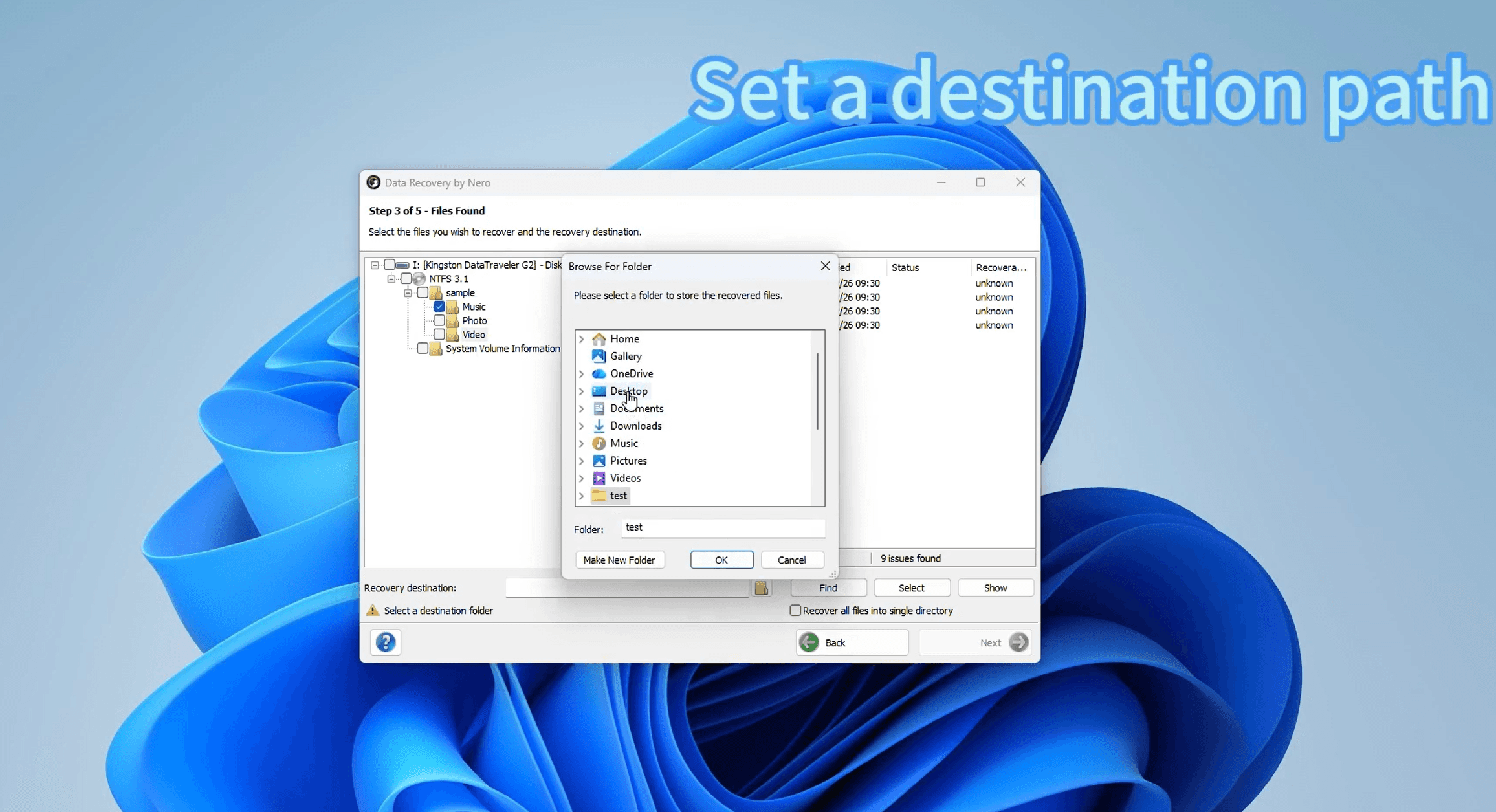
Once the scan is complete, you'll see a full list of recoverable files organized by folder — Music, Photos, Videos, Documents, and more. Browse through the file tree, check the boxes next to the files you want to restore, then set a destination folder to save them to.
Important: always choose a location different from the USB drive itself — for example, your Desktop or Documents folder.
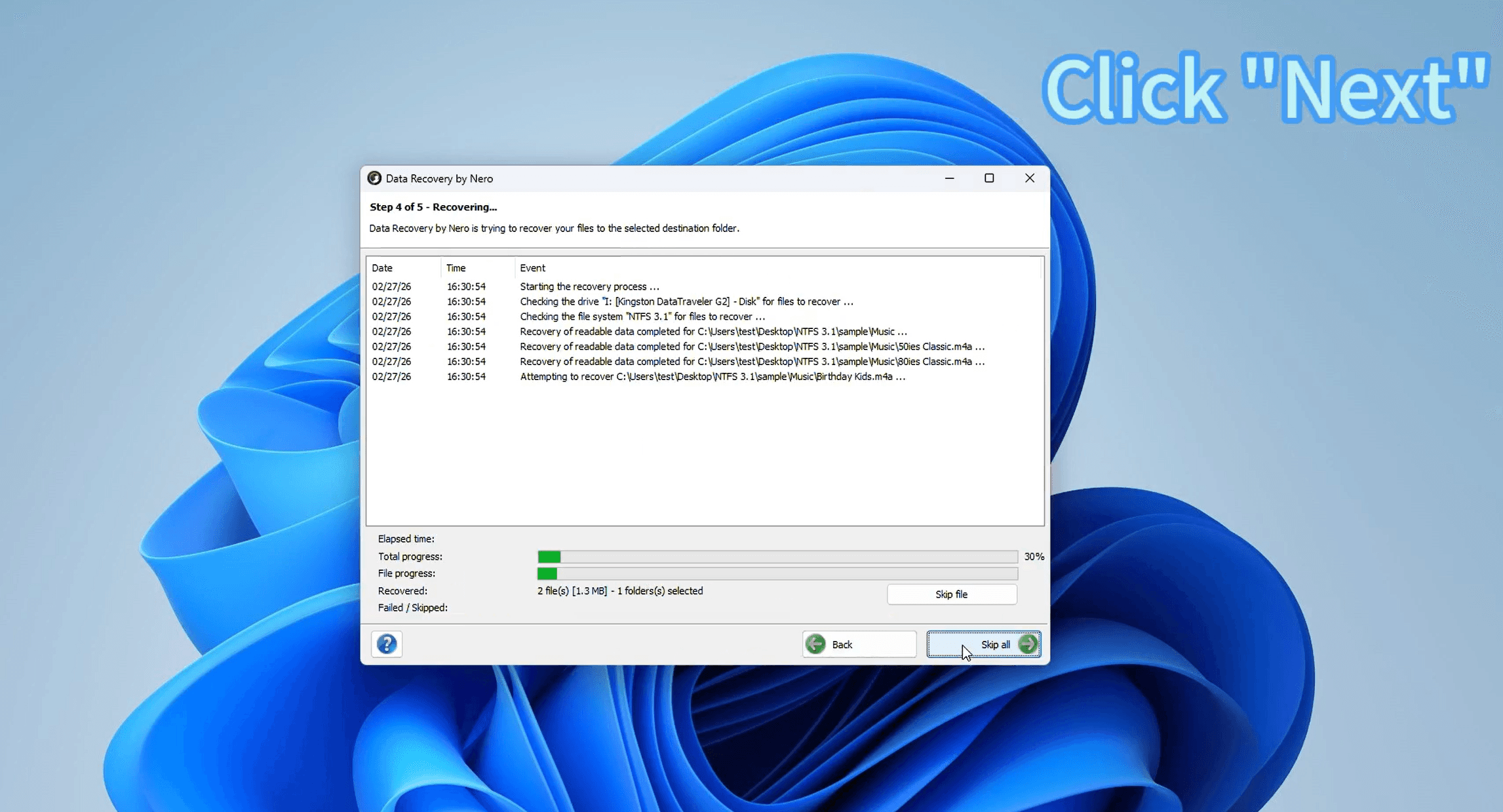
Step 4 — Start Recovery
Click Next and Data Recovery by Nero will begin restoring your files. You'll see a real-time log showing each file being recovered, along with a progress bar. You can monitor the process directly on screen.
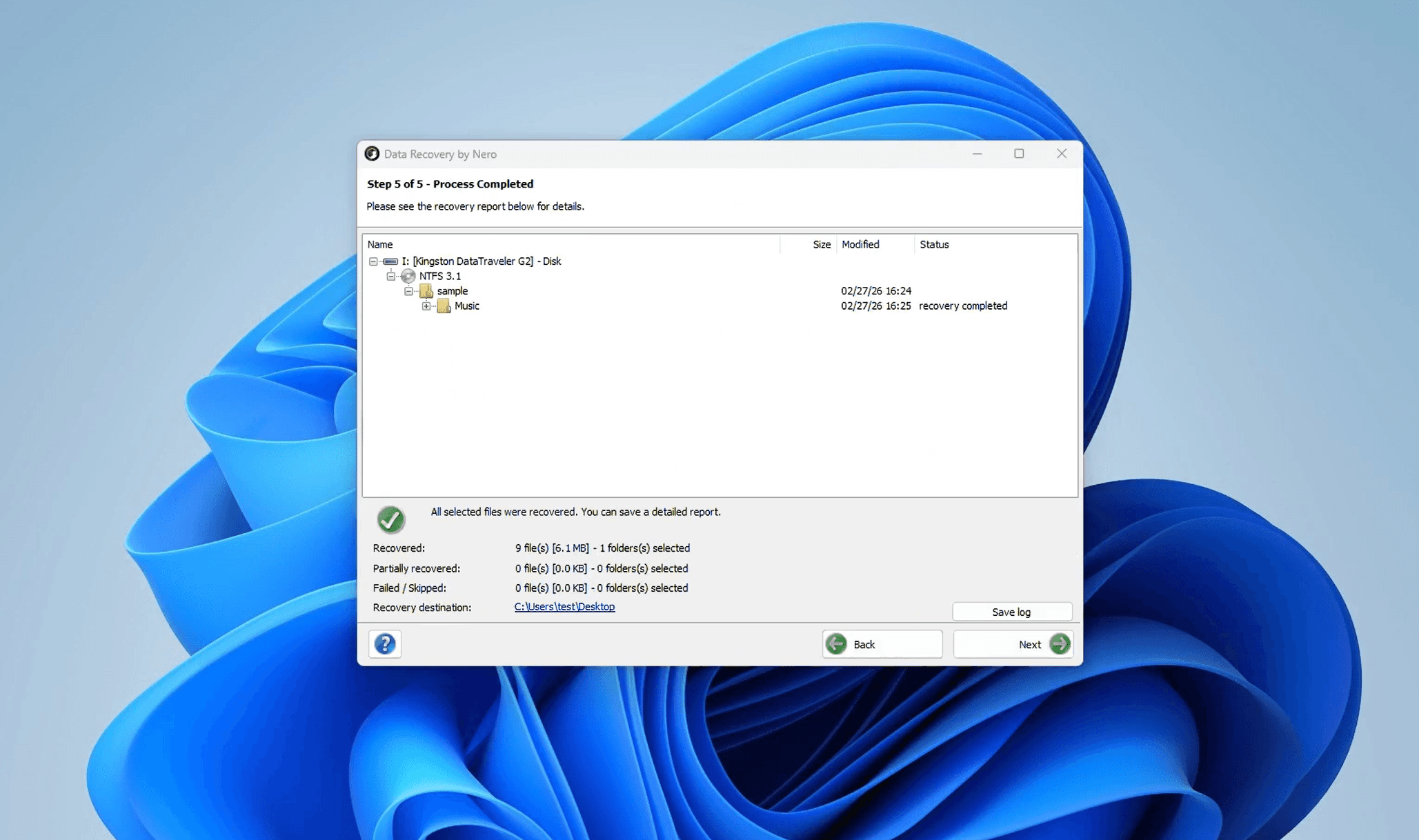
Step 5 — Recovery Complete ✅
Once finished, a summary screen will show you exactly how many files were recovered and their total size. Navigate to your destination folder and your files will be right there, ready to use.
Tips to Prevent Future Data Loss
Losing files from a USB drive is more common than you'd think — and it's not always caused by accidental deletion. Here are a few habits that can save you a lot of stress:
Always eject your USB drive safely. Pulling out a USB drive while files are still being written can corrupt data and damage the file system. Always use the "Safely Remove Hardware" option in Windows before unplugging.
Don't use a USB drive as your only storage. USB flash drives are convenient, but they're not designed for long-term archiving. Always keep a backup copy of important files on your computer or cloud storage.
Act fast when files go missing. The sooner you run a recovery scan after deletion, the higher your chances of getting files back. Every new file written to the drive reduces your recovery window.
Avoid formatting the drive before scanning. If your USB drive is showing errors or asking you to format it, run a recovery scan first before doing anything else. Formatting will make recovery significantly harder.
Why Data Recovery by Nero?
Data Recovery by Nero is designed to be accessible to everyone — not just tech experts. It walks you through the entire process in a simple 5-step wizard, automatically detects your connected drives, and supports over 1,000 file formats. Whether you've accidentally deleted a folder of vacation photos or lost important work documents, the app gives you a straightforward path to getting them back.
✅ Available on the Microsoft Store
✅ Supports USB drives, SD cards, hard drives, DVDs, and more
✅ Recovers photos, videos, music, documents, and 1,000+ file formats
✅ Simple 5-step wizard — no technical knowledge needed
✅ Fast Scan and Deep Scan options for different recovery needs
Ready to recover your deleted files? Download Data Recovery by Nero and get your files back in minutes.
🔽 Download
👉 Download Data Recovery by Nero — Microsoft Store
📖 Learn More