If you have virtual CD image files (ISO, BIN, NRG) sitting on your hard drive and want to extract the audio tracks, you're not alone. Many music enthusiasts and collectors find themselves with CD images but no easy way to play them on modern devices. The good news? Converting these image files to standard audio formats like MP3 or AAC is straightforward with the right tool.
In this tutorial, we'll show you how to use Nero CD Ripper to extract audio from CD image files in just four simple steps.
Why Rip CD Images to Audio Files?
CD image files are exact digital copies of physical discs, but they're not convenient for everyday listening. By converting them to audio files, you can:
Play your music on any device (smartphone, tablet, computer)
Organize your collection with proper metadata and album art
Save storage space with compressed formats
Preserve your music collection without physical media degradation
What You'll Need
Nero CD Ripper - A powerful audio extraction tool for Windows
Virtual CD image files (ISO, BIN, CUE, NRG formats)
A few minutes of your time
Step 1: Download and Launch Nero CD Ripper
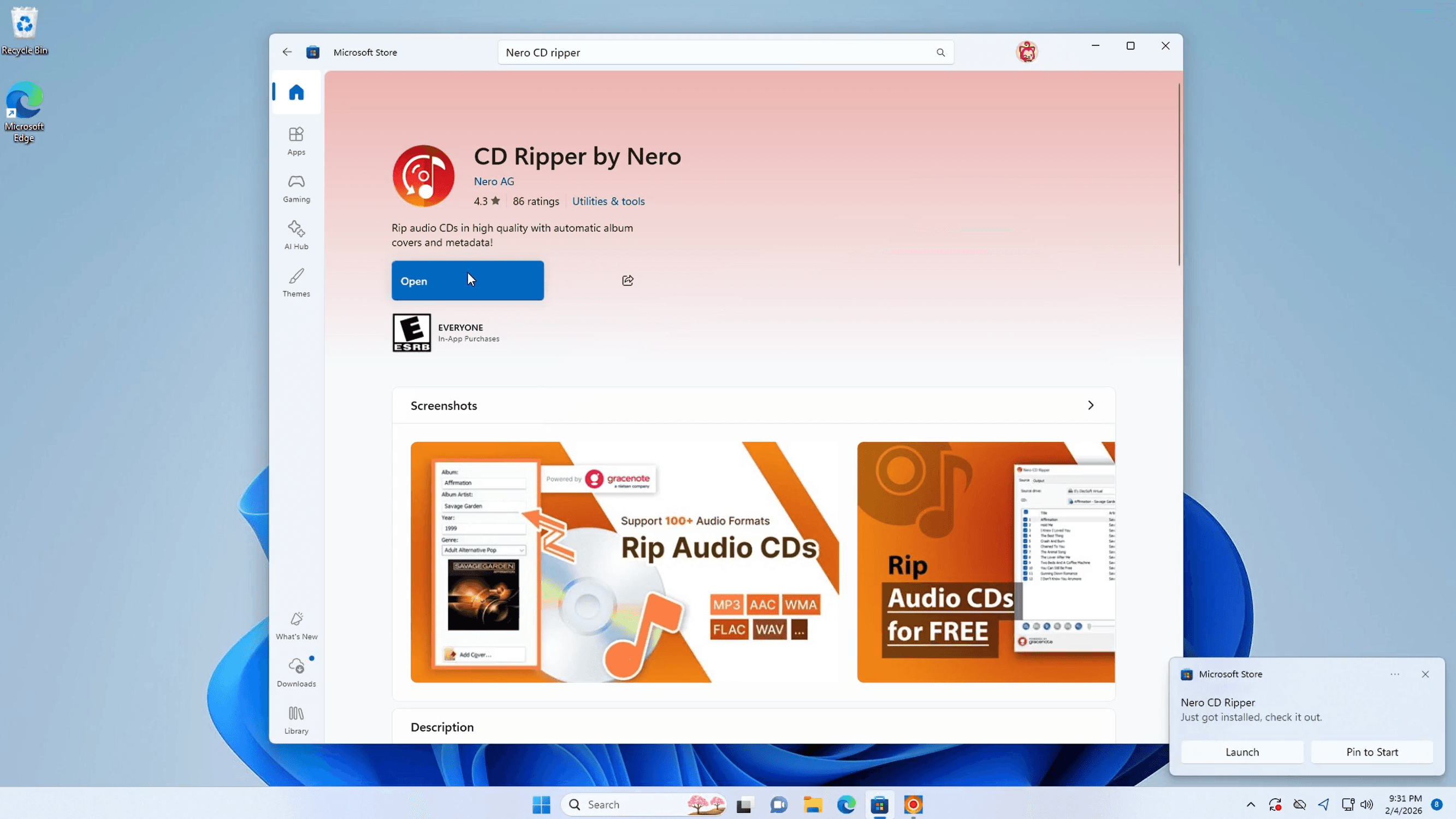
First, you'll need to download Nero CD Ripper if you haven't already. It's available from the Microsoft Store. Built on decades of Nero Burning ROM technology, it offers reliable CD reading methods and high-quality audio extraction.
To download:
Open the Microsoft Store on your Windows PC
Search for "CD Ripper by Nero"
Click Install
You can also download it directly from the Microsoft Store page.
After installation, open Nero CD Ripper from your Start Menu. The interface is clean and straightforward, designed to make the ripping process as simple as possible.
Step 2: Choose Your Image File
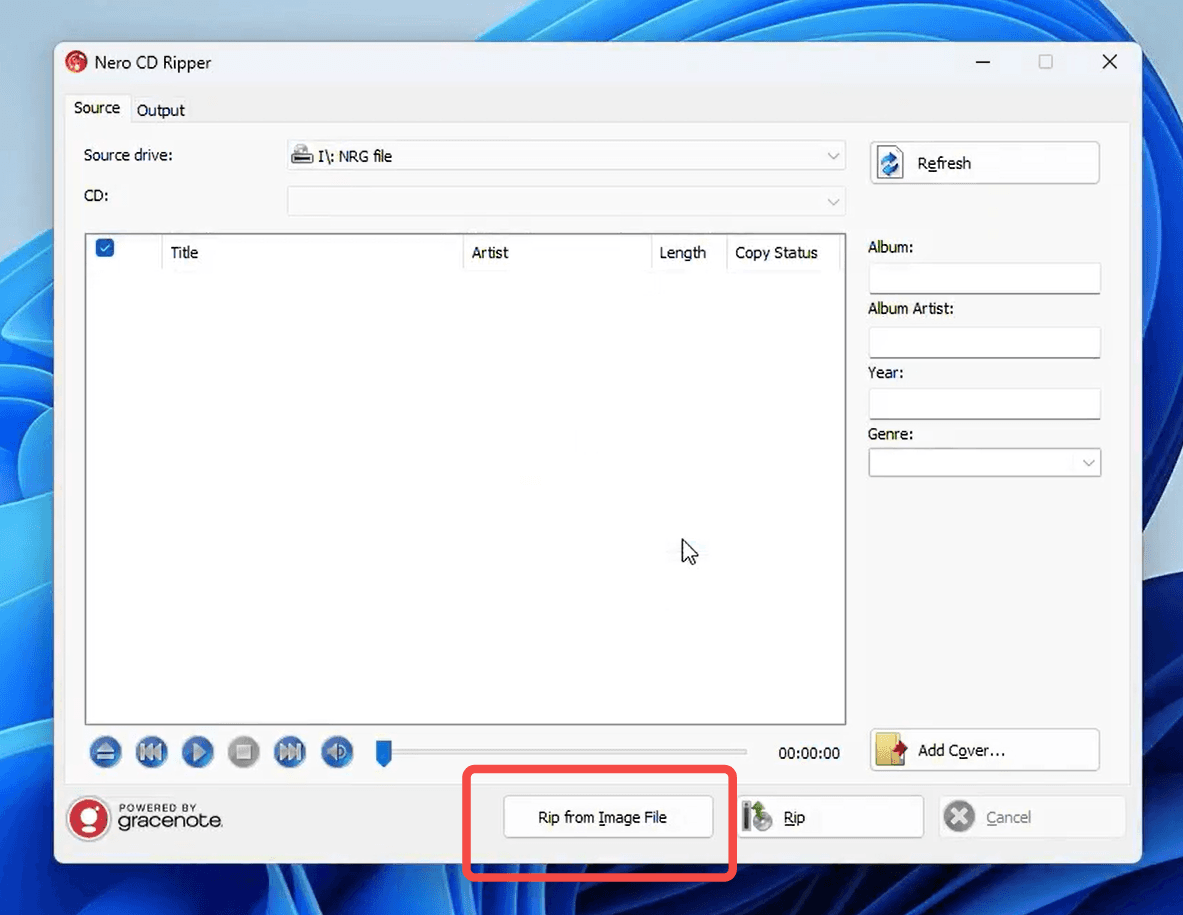
Instead of inserting a physical CD, you'll select your virtual CD image file:
In Nero CD Ripper, click on "Rip From Image File"
Browse to the location of your CD image file
Select the file (ISO, BIN, NRG, or other supported formats)
Click Open
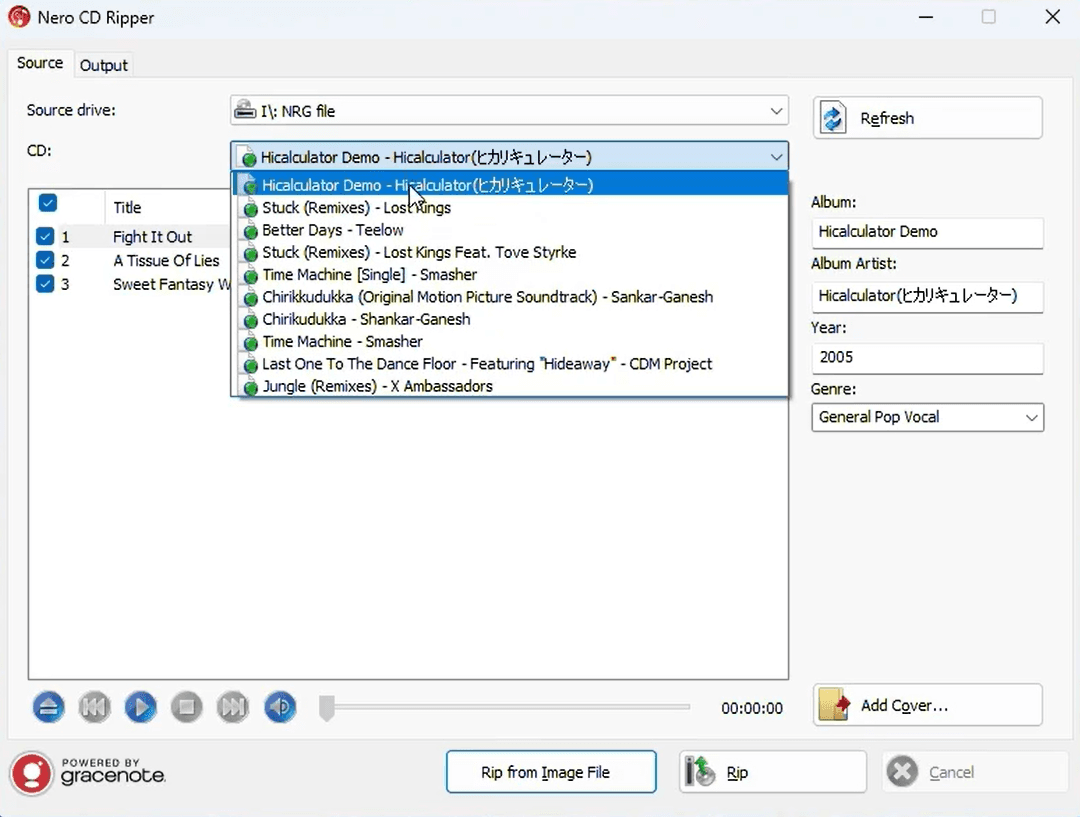
Nero will load the virtual CD and display all available tracks. If metadata is available, it will automatically fetch album information, artist names, and track titles from Gracenote.
If your image file contains multiple CDs, you can select which CD to rip from the dropdown menu. Then choose the specific tracks you want to extract by checking the boxes next to them. The right panel displays complete album details—artist, album name, year, and genre.
Step 3: Configure Output Settings
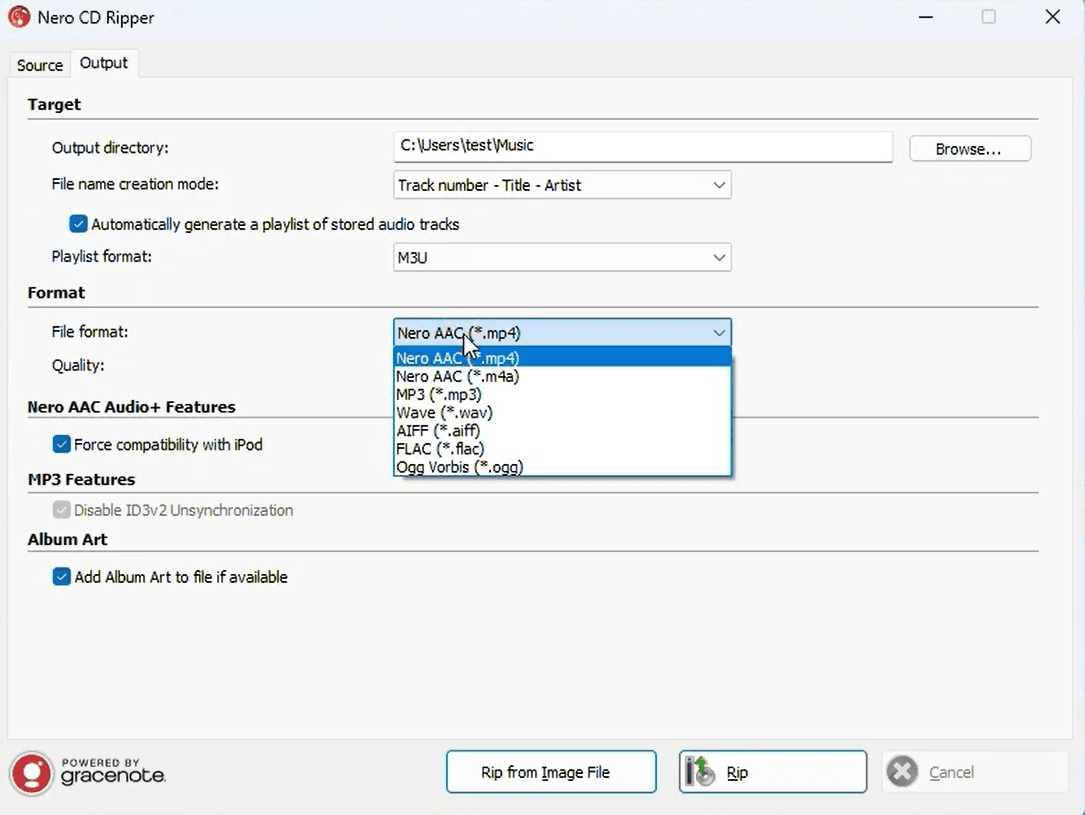
Before ripping, you'll want to set up where your files will be saved and what format to use:
Output Directory: Choose where you want your audio files saved (e.g., Music folder)
File Format: Select your preferred format from the dropdown menu
MP3: Universal compatibility, smaller file size
AAC (M4A): Better quality at similar bitrates, ideal for Apple devices
FLAC: Lossless quality, larger file size
WAV: Uncompressed, highest quality but very large files
File Naming: Nero can automatically name files based on track information
For most users, Nero AAC (M4A) offers an excellent balance of quality and file size.
Step 4: Start Ripping and Find Your Files
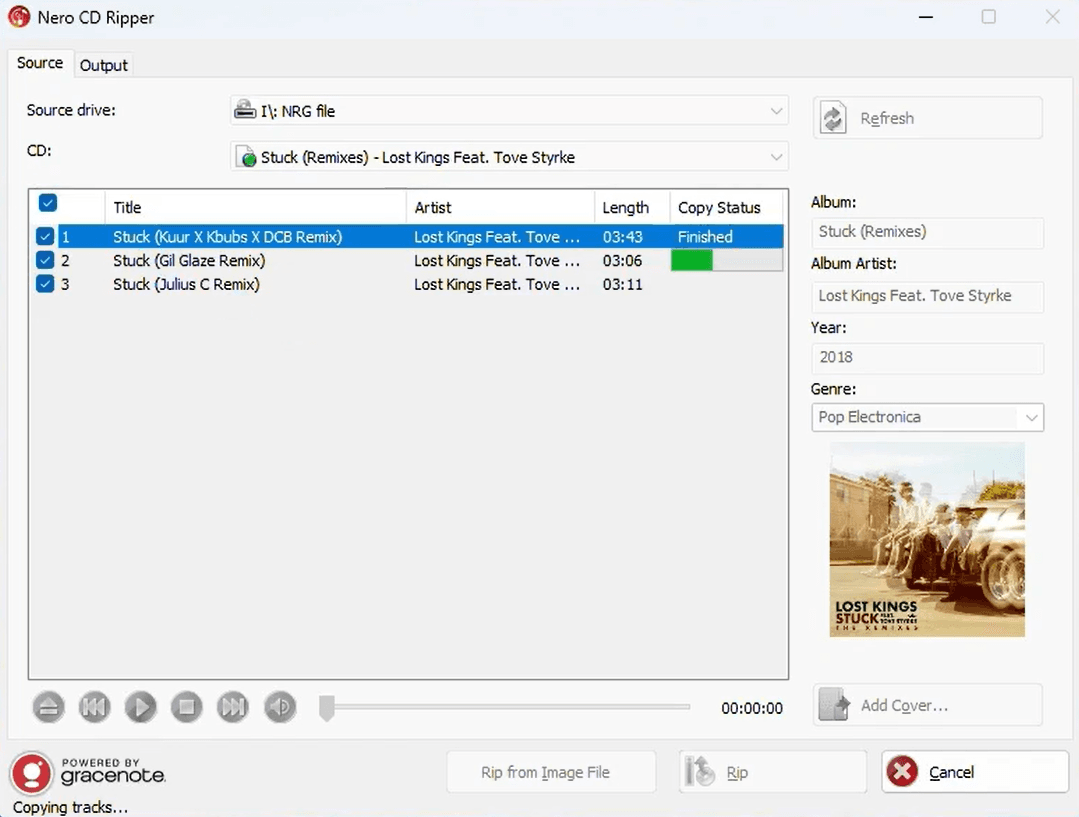
Click the "Rip" button to begin the extraction process. Nero CD Ripper will convert each track from the image file to your chosen audio format.
The process is typically very fast - depending on your system, you can rip an entire album in just a few minutes. Once complete, navigate to your target folder to find your newly converted audio files, complete with metadata and ready to play.
Tips for Best Results
Organize Your Library: Create a clear folder structure (Artist > Album > Tracks) to keep your music collection organized and easy to navigate.
Choose the Right Format: If you're archiving a valuable collection, consider using FLAC for lossless quality. For everyday listening on mobile devices, MP3 or AAC works perfectly.
Verify Metadata: While Nero automatically fetches album information, it's worth double-checking that track names and artist details are correct, especially for rare or custom compilations.
Conclusion
Ripping audio from CD image files doesn't have to be complicated. With Nero CD Ripper's intuitive interface and powerful extraction capabilities, you can digitize your entire collection of virtual CDs in no time. Whether you're preserving rare recordings or simply want to enjoy your music on modern devices, this tool makes the process effortless.
Download Nero CD Ripper today and start enjoying your CD image collection in a format that works for you.
Ready to get started? Download Nero CD Ripper from the Microsoft Store and transform your CD images into a modern digital music library.