Fotor is a useful online editor if you want to create visual content quickly. It gives you AI photo editing, product visuals, background tools, templates, AI image generation, AI video generation, and newer Vibe Marketing features for campaign-ready creatives.
But if your main goal is more specific, such as making an image bigger, sharper, less blurry, or ready for print, you may not need a full creative workspace.
You may need a dedicated Windows image upscaler.
That is where Nero AI Image Upscaler becomes a strong Fotor alternative. Instead of trying to replace every design feature in Fotor, Nero focuses on image enlargement, clarity recovery, large output, and batch enhancement.
Fotor and Nero are only two of the available options. For a broader comparison of features, pricing, AI models, and use cases, see our guide to the best AI image upscalers in 2026.
Fotor vs. Nero AI Image Upscaler
Feature | Fotor | Nero AI Image Upscaler |
|---|---|---|
Main purpose | Online creative workspace for editing, design, product visuals, and Vibe Marketing | Dedicated AI image upscaler for Windows and online use |
Best for | Social posts, product creatives, AI videos, smart listings, templates, background edits | Enlarging, sharpening, unblurring, restoring, and batch-enhancing images |
Upscaler workflow | Built into the Fotor editor with modes such as Standard and Advanced | Focused upscaling workflow with models for different image problems |
Scaling focus | Good for quick browser-based enhancement and common creative use | Built for heavier upscaling, including up to 8x enlargement |
Batch workflow | Batch Editor supports up to 50 images in the current interface | 2027 release supports up to 100 images in one run |
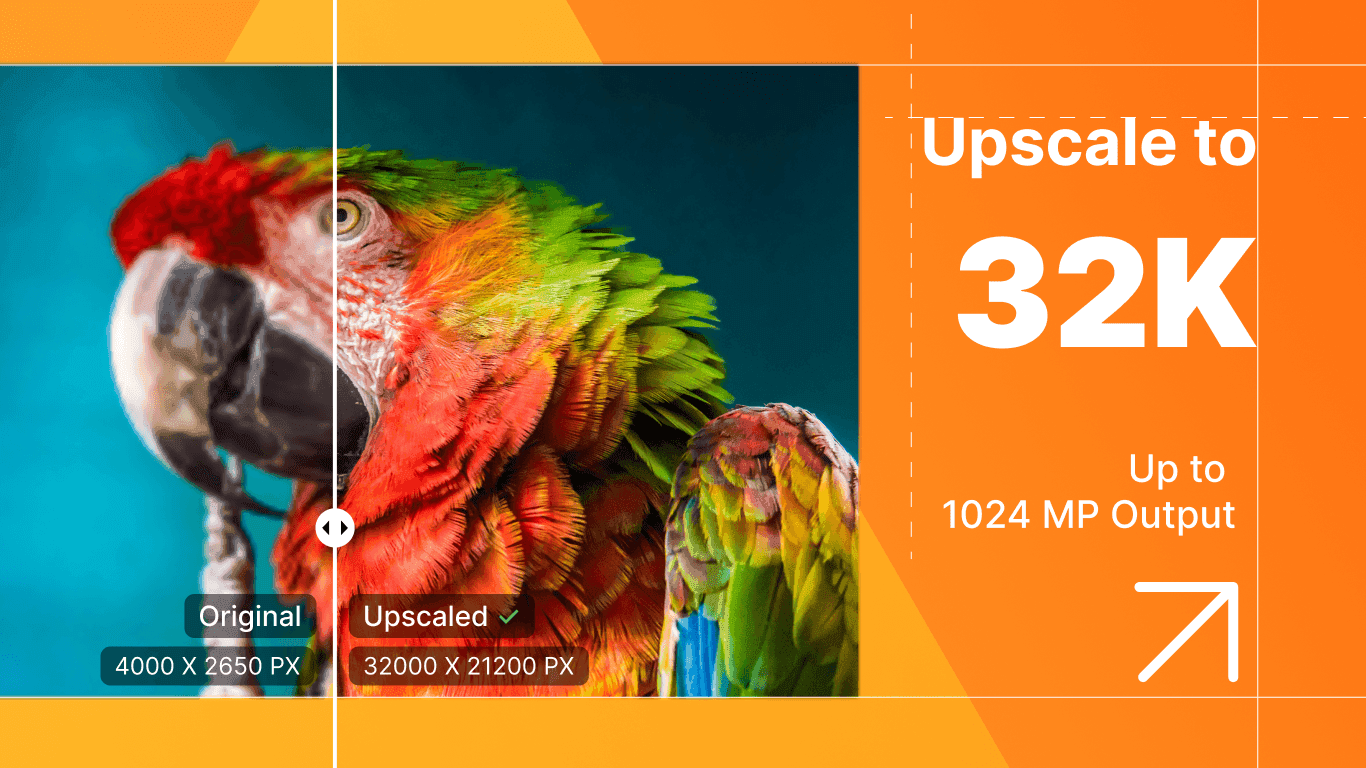
Large output | Better suited for web content and marketing visuals | Supports ultra-large output up to 32K and 1024 MP |
Blur and clarity | Offers general AI enhancement and result comparison | Includes dedicated Sharpen and Unblur models |
Best user fit | Marketers, ecommerce sellers, creators, and casual editors | Windows users, designers, ecommerce teams, photographers, and restoration users |
The practical difference is simple: Fotor helps you create visual content. Nero helps you improve image quality.
Why Fotor Is Not Always the Best Fit for Upscaling
Fotor has grown far beyond a simple photo editor. In its current workspace, you can find tools for Product Visuals, Growth Visuals, AI Photo Editor, AI Image Generator, AI Video Generator, Product Image Editor, Smart Listing, Virtual Model, Product Shot, and Batch Editor.
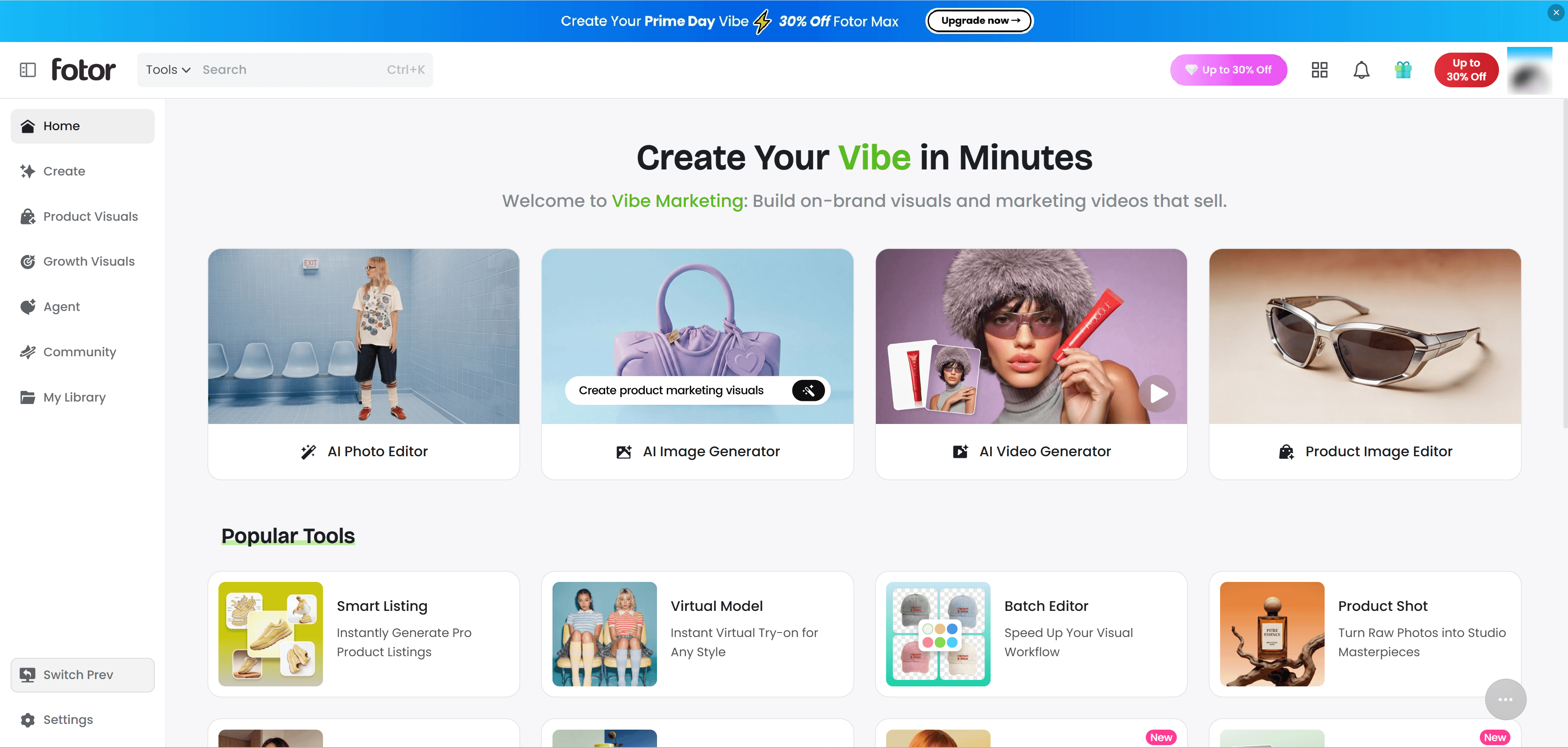
That makes Fotor useful if you are building ads, ecommerce listings, social posts, or branded campaign visuals. Its Vibe Marketing direction is especially clear: Fotor wants to help users create on-brand visuals and marketing videos, not just edit photos.
Fotor also has an AI Upscaler inside the editor. The interface includes modes such as Standard and Advanced, result comparison, scaling options, and batch support. For quick online enhancement, that is convenient.
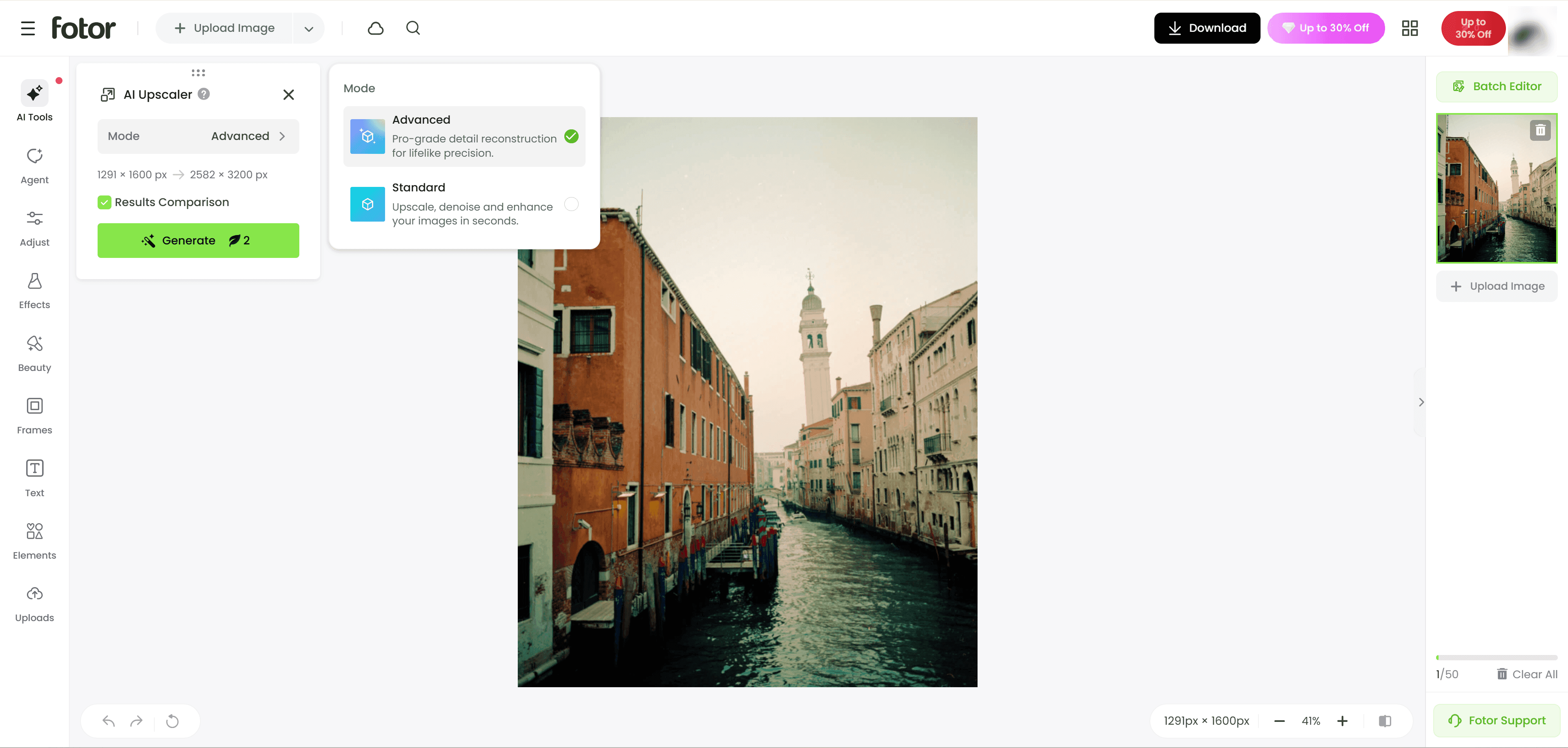
The limitation is focus. If you already have a folder of images and the task is simply to upscale, sharpen, unblur, or prepare them for larger output, a broad creative platform can feel like extra steps around the real job.
That is where Nero feels more direct.
If you want to test it quickly, Nero also has an online upscaler. But for larger projects, the Windows version is the better fit: Download Nero AI Image Upscaler for Windows from pcai.nero.com/image-upscaler.
What’s New in Nero AI Image Upscaler 2027
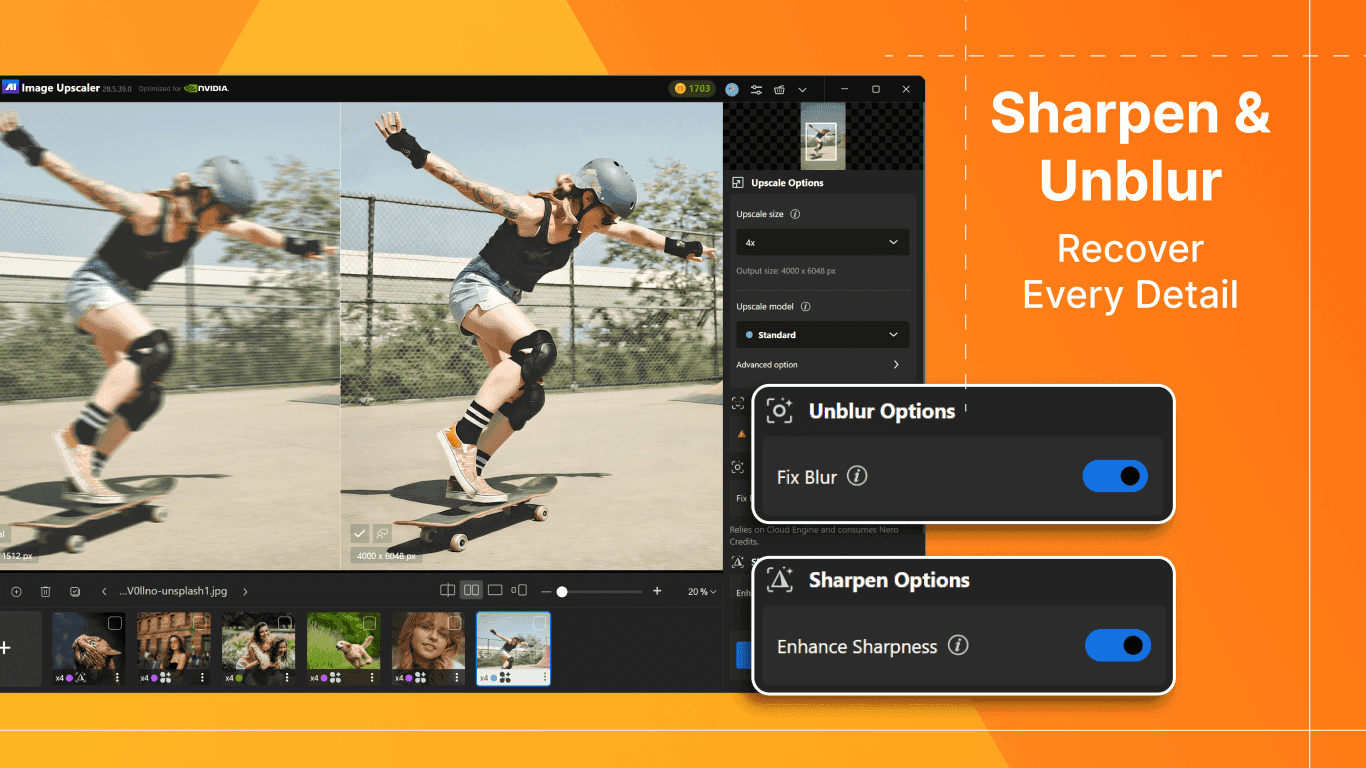
Nero AI Image Upscaler 2027 is the main reason Nero stands out as a Fotor alternative in 2026. This release is not just a small update. It improves the parts that matter most for serious image enhancement: scale, clarity, output size, and batch productivity.
Nero AI Image Upscaler 2027 feature | What it does |
|---|---|
8x AI upscaling | Enlarges low-resolution images for bigger use cases |
Up to 32K resolution | Helps prepare images for high-resolution creative work |
Up to 1024 MP output | Supports large-format printing, posters, banners, and production assets |
Sharpen model | Improves soft images, edges, textures, and fine details |
Unblur model | Helps recover images affected by motion blur, camera shake, focus issues, or compression |
Batch processing up to 100 images | Lets users process large folders with fewer interruptions |
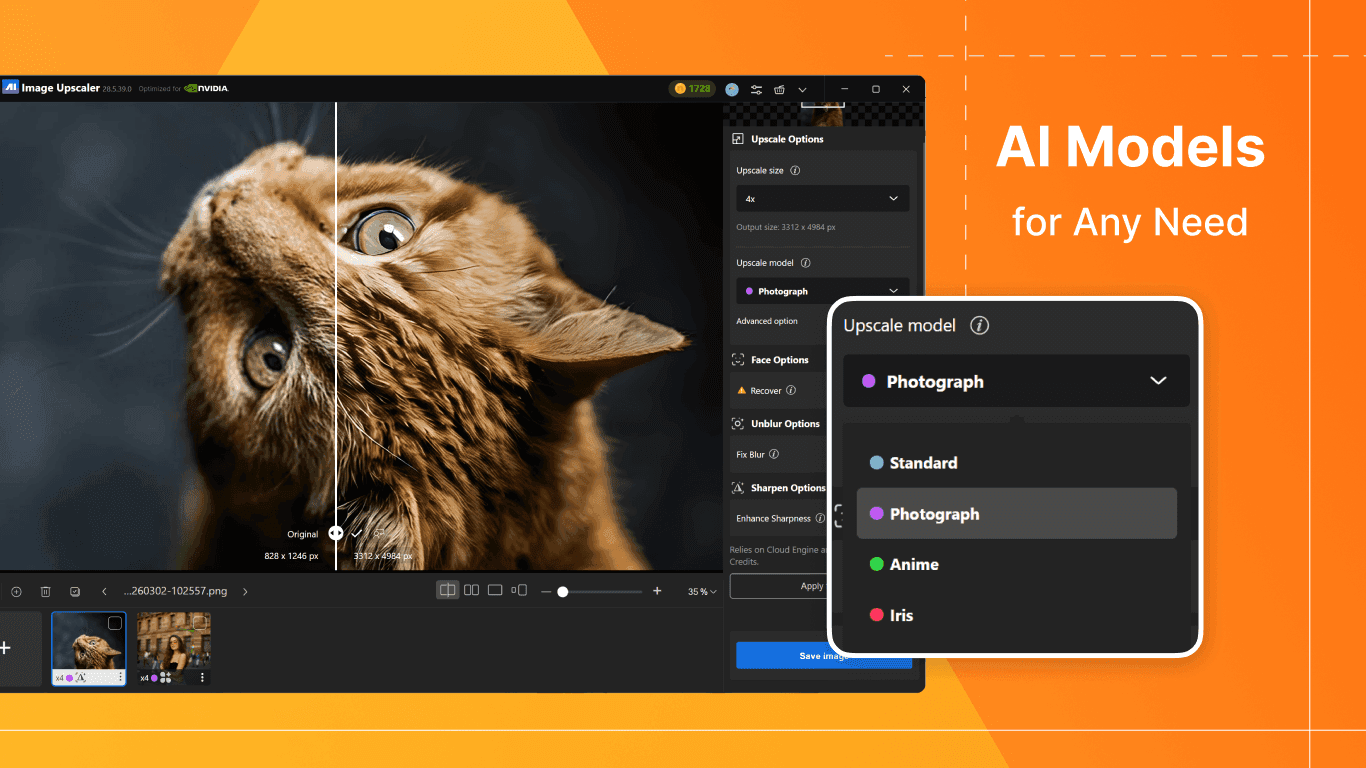
Multiple enhancement models | Supports different image types such as photos, faces, anime, and artwork |
These features are useful because most upscaling work is not just about one nice preview. It is often about preparing real image assets for another purpose: printing, ecommerce, design, archiving, or publishing.
Best Nero AI Image Upscaler Use Cases
Nero is most useful when the image itself needs to be improved before you use it in a design, store listing, print project, or creative workflow.
Use case | Why Nero fits |
|---|---|
Old photo restoration | Unblur, face enhancement, and upscaling help make old or low-quality photos clearer |
Ecommerce product photos | Sharpen and batch processing help improve large product image sets with consistent quality |
AI-generated artwork | 8x upscaling helps prepare AI images for larger display, printing, or portfolio use |
Posters and banners | Up to 32K resolution and 1024 MP output support large-format creative projects |
Anime and illustrations | Dedicated image models help preserve line art, edges, and illustrated details |
Photography projects | Photo enhancement and sharpening can improve soft images before editing or delivery |
Scanned images | Unblur and enhancement tools help improve low-quality scans and archived materials |
Marketing image libraries | Batch processing up to 100 images saves time when preparing many visuals at once |
This is where Nero feels different from a general online editor. Fotor is useful when you need to create or redesign content. Nero is more useful when you already have images and need them larger, sharper, clearer, or ready for heavier use.
Why Windows Users May Prefer Nero
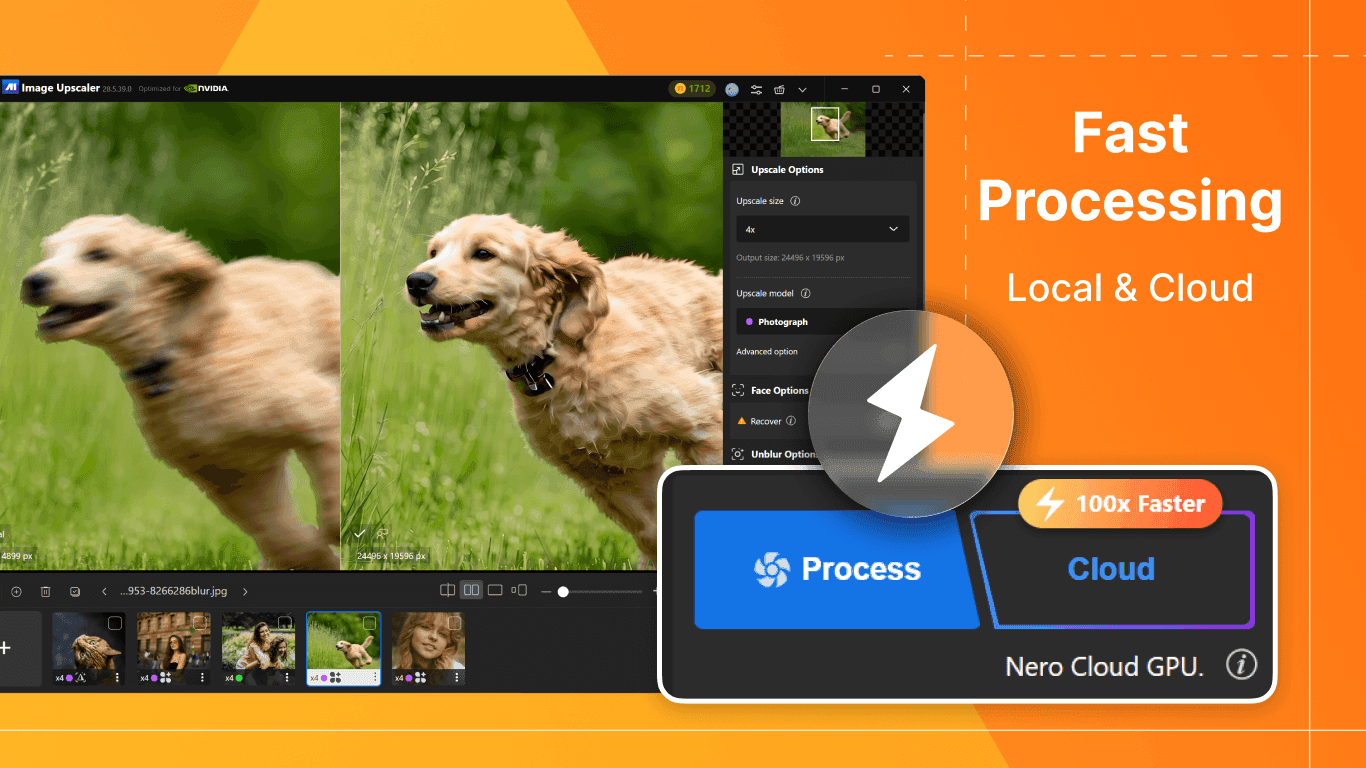
Browser-based tools are convenient, but repeated upscaling work can become repetitive when you need to upload, process, download, and organize many files.
Nero AI Image Upscaler for Windows is better suited for users who work with image folders, large files, or repeat enhancement tasks. The 2027 update’s 100-image batch capacity is especially useful for people handling product catalogs, scanned archives, AI artwork collections, or marketing asset libraries.
If your workflow is mostly one or two casual edits, Fotor or Nero Online may be enough. If you regularly process many images, the Windows version is the more practical choice.
You can download it here: Nero AI Image Upscaler for Windows.
FAQ
Is Nero AI Image Upscaler a full replacement for Fotor?
No. Nero is not a full replacement for Fotor’s templates, collages, background editing, AI video tools, product visuals, or Vibe Marketing features. Nero is a better replacement only if your main need is image upscaling and enhancement.
Does Fotor have an AI Upscaler?
Yes. Fotor includes an AI Upscaler inside its editor, with modes such as Standard and Advanced, result comparison, and browser-based enhancement. It is useful for quick online upscaling, especially if you also need creative editing tools.
What is the best Fotor alternative for AI image upscaling on Windows?
Nero AI Image Upscaler is a strong option for Windows users because it supports 8x upscaling, 1024 MP output, dedicated Sharpen and Unblur models, and batch processing for up to 100 images.
What makes Nero AI Image Upscaler 2027 different?
The 2027 version adds stronger upscaling and productivity features, including 8x enlargement, ultra-large output up to 1024 MP, new Sharpen and Unblur models, and larger batch processing.
Which tool is better for ecommerce product photos?
Use Fotor if you need product ads, virtual models, smart listings, background changes, or campaign visuals. Use Nero if you need to upscale, sharpen, or batch-enhance product photos before using them.
Which tool is better for printing?
Nero is the better fit for print-focused upscaling because it supports larger output, including up to 32K resolution and 1024 MP images.
Does Nero work online too?
Yes. You can try the online version here: Nero AI Image Upscaler Online. For larger batches and heavier Windows workflows, use the desktop version.
Where can I download Nero AI Image Upscaler?
You can download the Windows version here: Nero AI Image Upscaler for Windows.
Final Verdict
Fotor is a strong online creative platform. Its current workspace is clearly built for modern content creation, with AI photo editing, product visuals, AI video generation, virtual models, smart listings, batch editing, and Vibe Marketing tools.
But if you are searching for a Fotor alternative for AI image upscaling on Windows, Nero AI Image Upscaler is the more focused choice.
Its 2027 release brings the features that matter most for serious upscaling work: 8x enlargement, 1024 MP output, Sharpen, Unblur, and batch processing for up to 100 images.
Use Fotor when you want to create content.
Use Nero when you want to make images bigger, sharper, and clearer.
To start with the Windows version, download Nero AI Image Upscaler here: https://pcai.nero.com/image-upscaler.