If you've set up an Emby media server and want a seamless way to stream your personal media collection on Windows, Nero DVD Player offers an elegant solution.
This guide walks you through connecting Nero DVD Player to your Emby server using DLNA, enabling you to browse and stream your movies, TV shows, and music with professional-grade playback quality.
What is Emby?
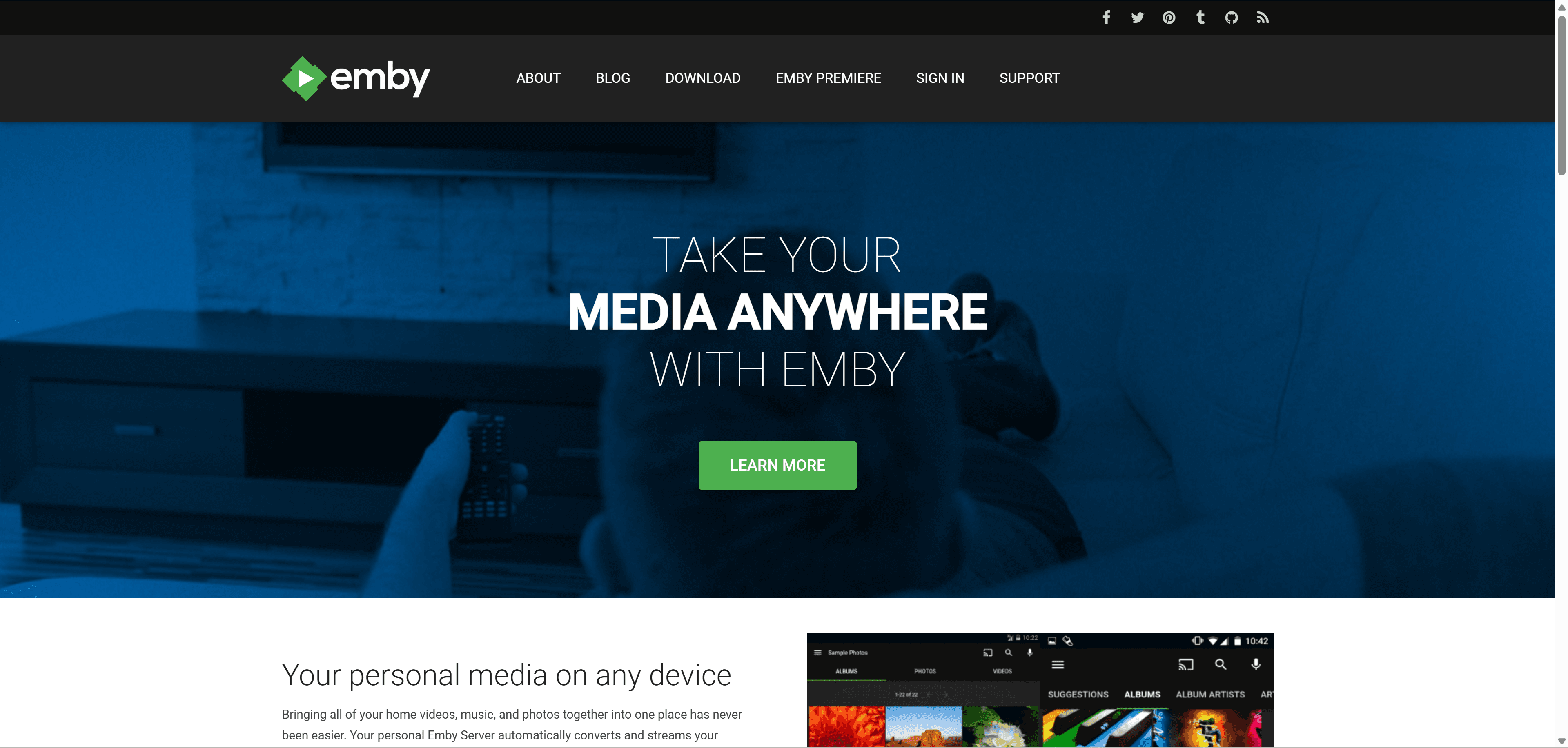
Emby is a personal media server that centralizes your digital entertainment—movies, TV shows, music, and photos—into one organized hub. Think of it as your private Netflix, with complete control over your content and privacy.
Key Features:
Universal Media Management: Automatically organizes files with metadata, cover art, and descriptions
Cross-Platform Streaming: Native apps for Windows, macOS, Linux, iOS, Android, and smart TVs
DLNA Server: Broadcasts your media library to any DLNA-compatible device on your network
Live TV & DVR: Watch and record live television alongside your personal media
What is Nero DVD Player?
Nero DVD Player is the most popular DVD and video player, developed by Nero AG—the legendary DVD recording software company with 15+ years of multimedia expertise. It transforms your Windows PC into a home theater system while delivering smarter playback through AI-powered enhancements.
Core Features:
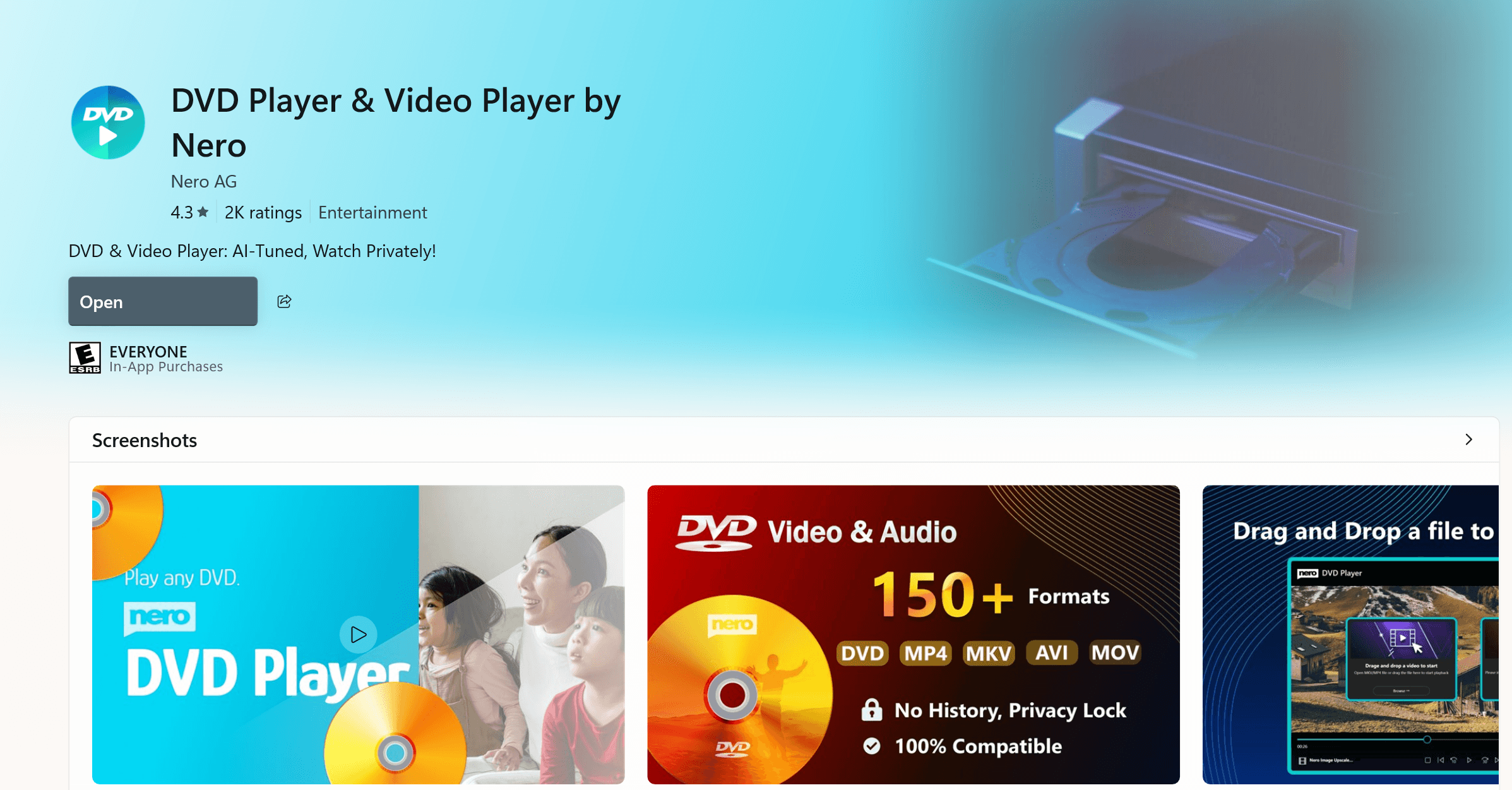
Universal Playback: DVD-Video™ discs, MP4, MKV, AVI, and all popular video/audio formats
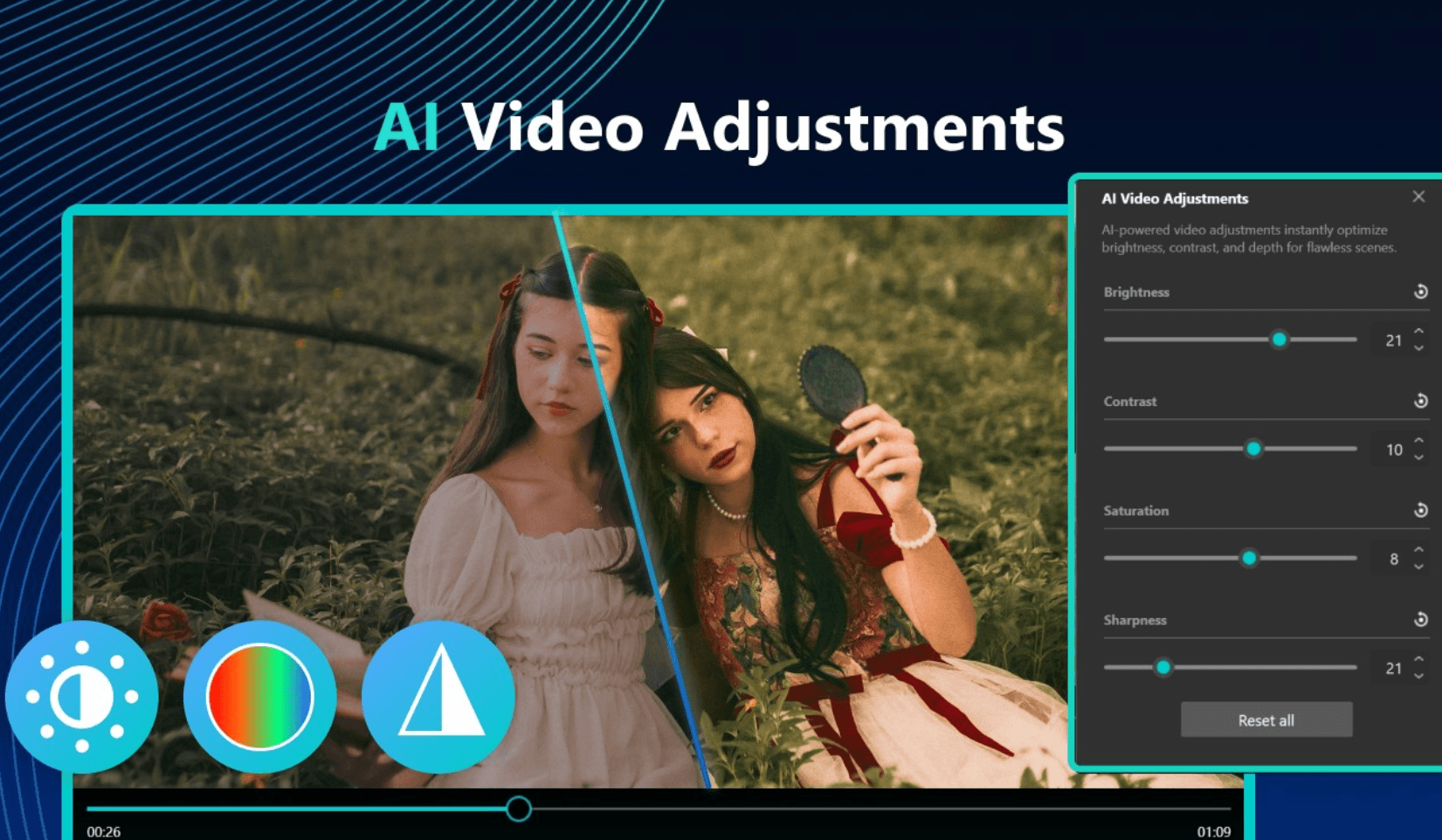
AI Video Enhancement: Optimizes brightness, color, and clarity in real-time
Native DLNA & WebDAV: Stream from Emby and other network storage seamlessly
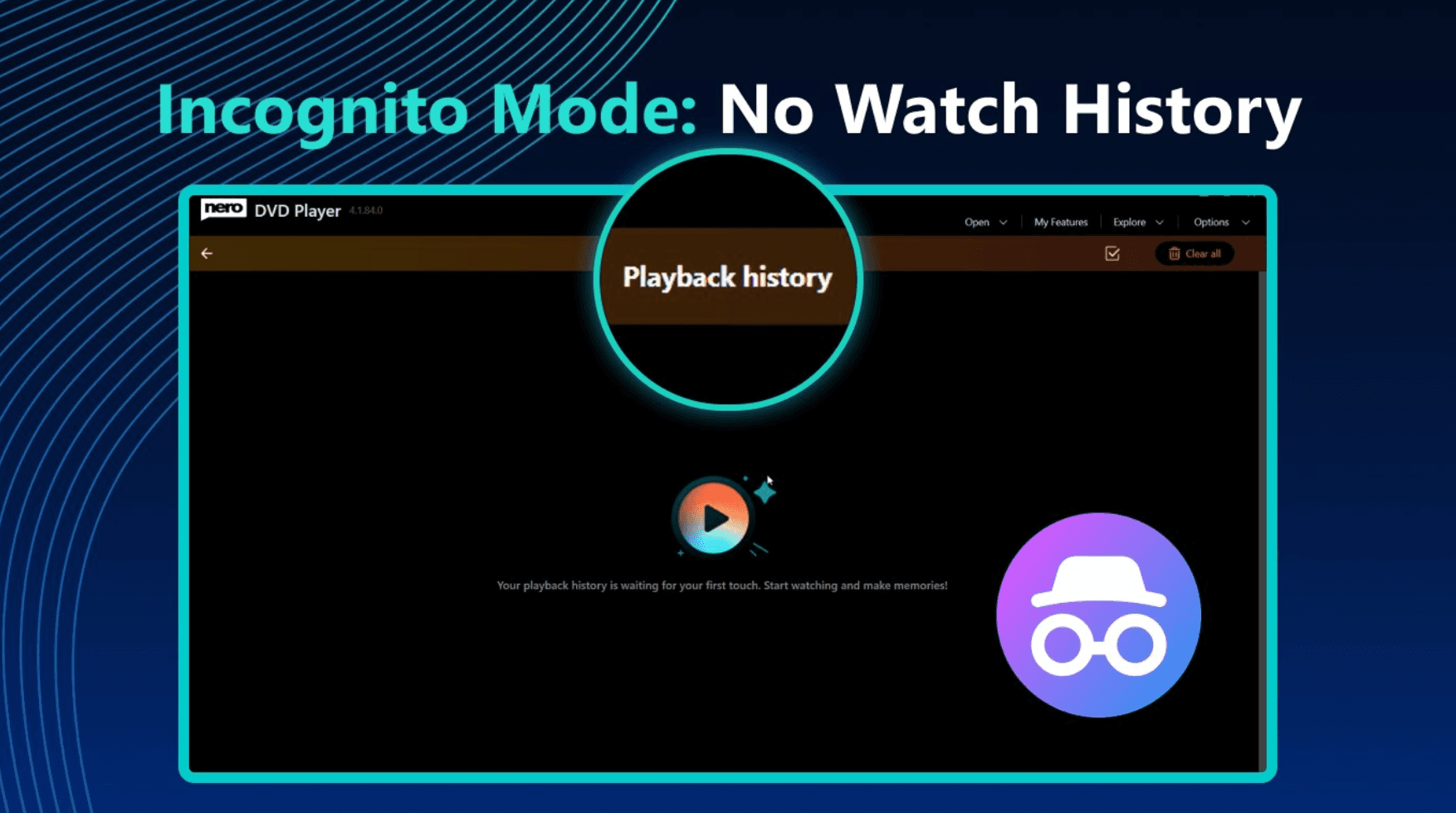
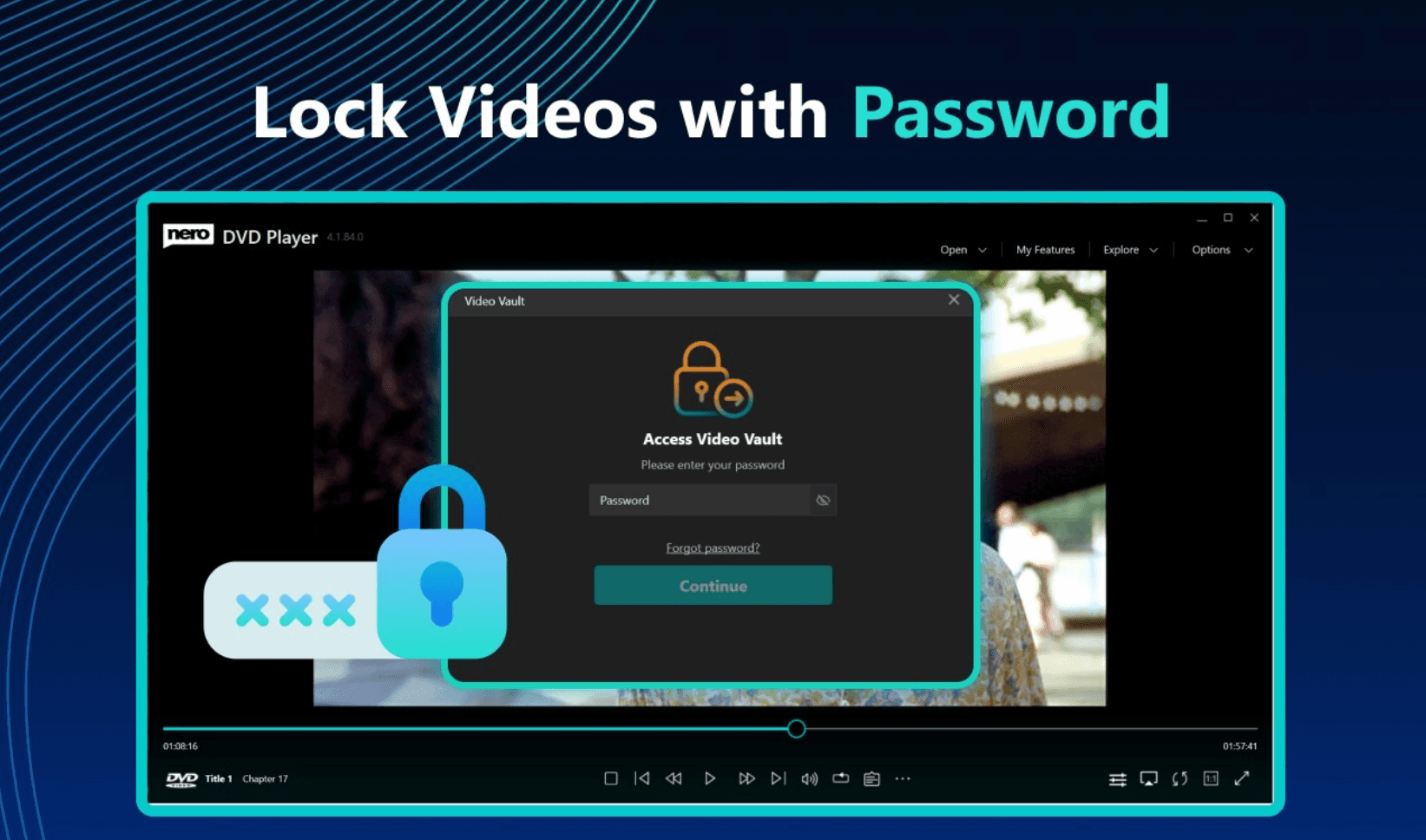
Privacy Protection: Incognito Mode leaves no viewing history; Video Vault locks private content with passwords
Region-Free: Play DVDs from any region instantly
Hardware Acceleration: Smooth 4K playback with optimized performance
Perfect for Emby Users:
Nero DVD Player excels at playing files natively without transcoding, reducing server load while delivering cinema-quality playback with AI-enhanced visuals.
👉 Download the latest version of Nero DVD Player
Step 1: Prepare Your System
Before starting, ensure you have:
Emby Server: Version 4.0+ running on Windows, Linux, macOS, FreeBSD, or NAS
Windows PC: Windows 10 or 11 with 4GB RAM minimum (8GB recommended for 4K)
Network: Both devices on the same local network (Wi-Fi or Ethernet)
Step 2: Install Nero DVD Player
Option A: Download from Microsoft Store
Get Nero DVD Player from Microsoft Store
Option B: Download Direct Installer
Download Nero DVD Player Installer
Launch the application after installation.
Step 3: Enable DLNA Server in Emby
First, activate DLNA broadcasting on your Emby server:
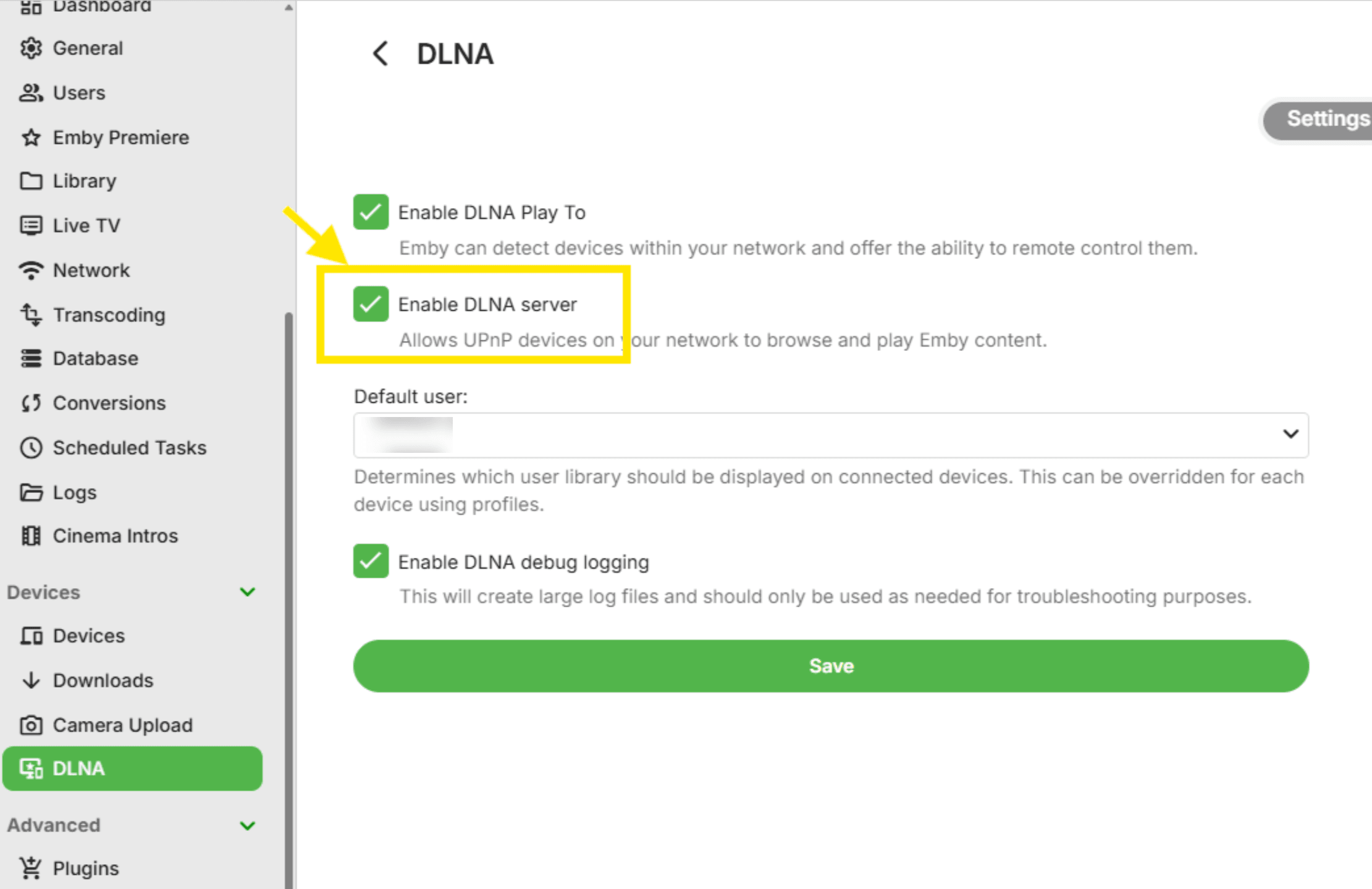
Open your Emby server dashboard
Under Devices, select DLNA
Toggle Enable DLNA server to ON
Ensure Enable DLNA PlayTo is also enabled
Click Save
Restart Emby Server if prompted
Your Emby server will now appear as "Emby" (or your custom name) on your network.
Step 4: Connect to Emby via DLNA
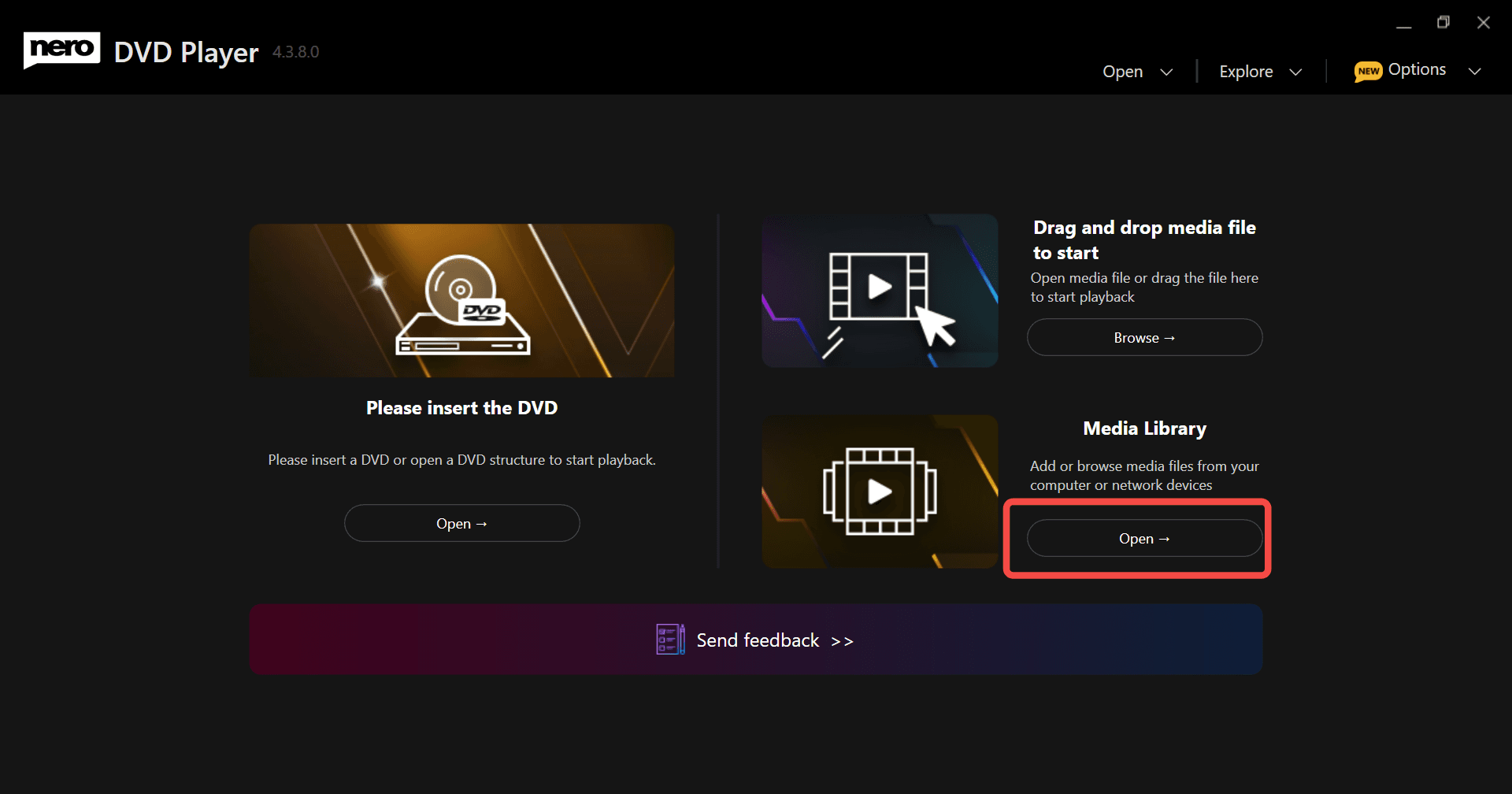
In the Nero DVD Player home screen, find the Media Library section and click Open
Click Media Server (or select Add Network Device if this is your first time)
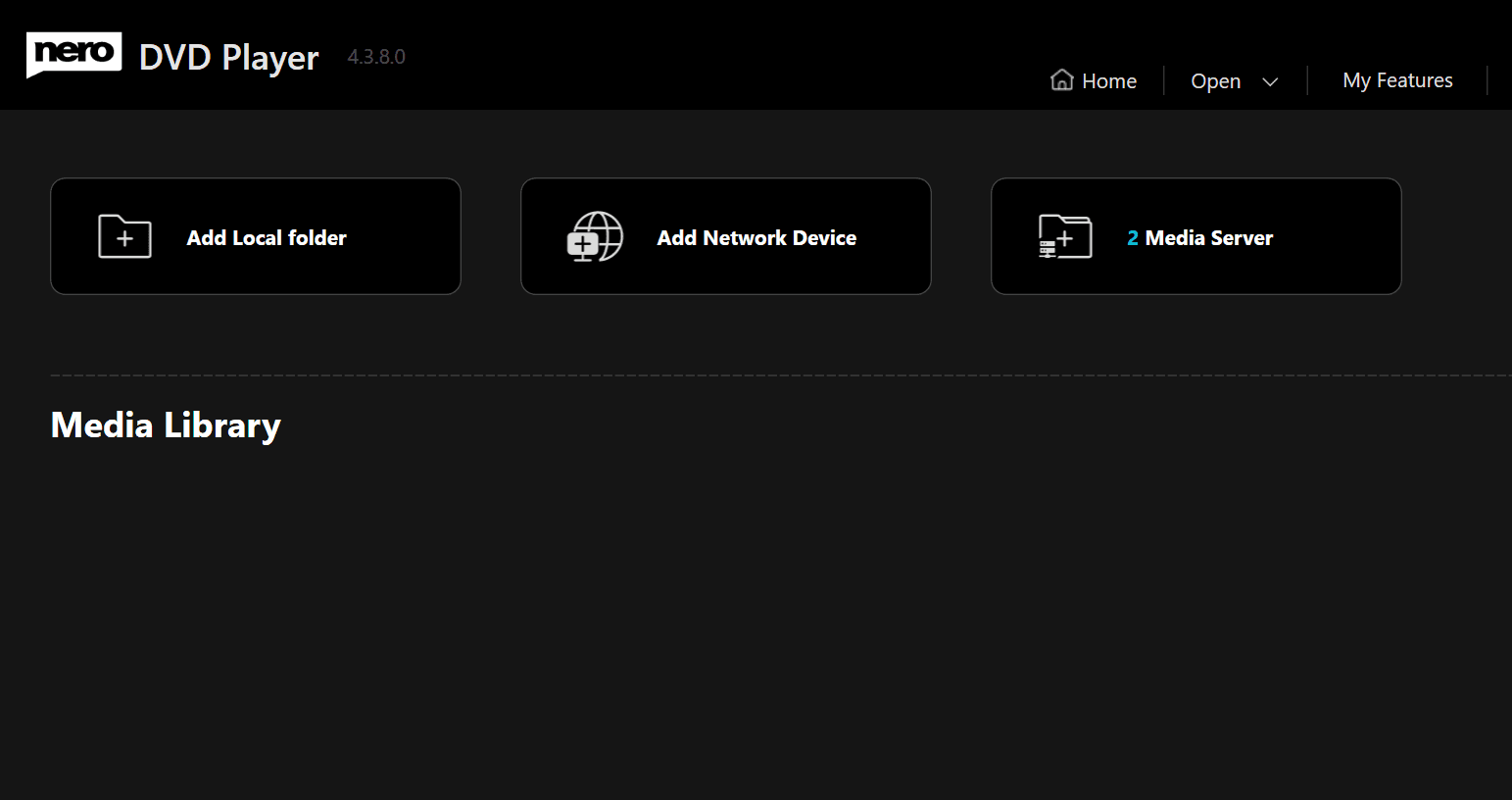
Nero DVD Player will scan your network and display available DLNA servers
Click on your Emby server from the list—it will appear with your server name or as "Emby"
If prompted, enter your Emby username and password
Step 5: Browse and Play Media
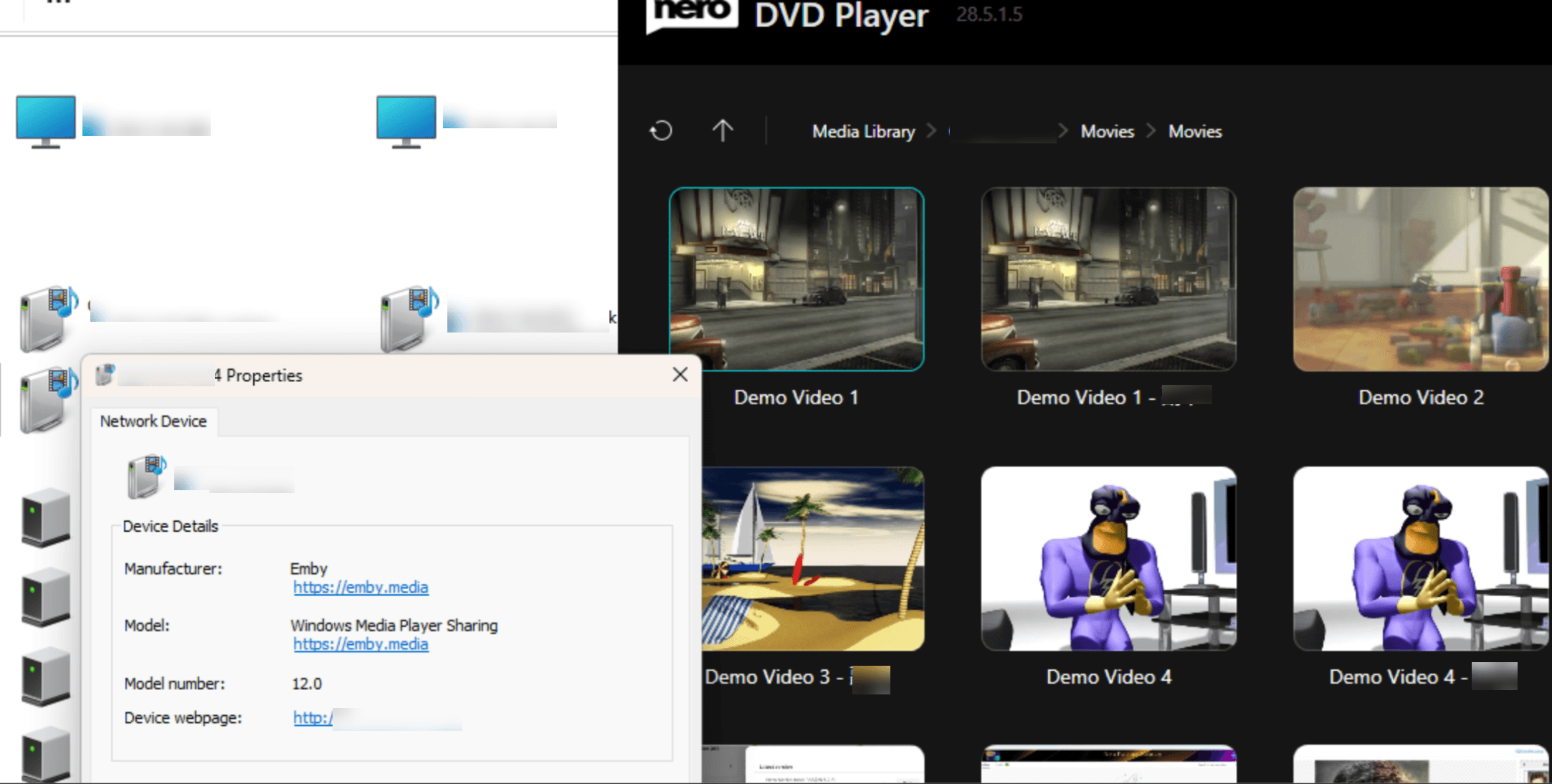
Your Emby library now appears in Nero DVD Player.
Once connected, your Emby media is ready to play. Simply click any movie, TV show, or music file to start playback.
Advanced Nero DVD Player Features:
AI Video Enhancement: Access the AI adjustment panel to auto-optimize brightness, contrast, saturation, and sharpness in real-time—perfect for older content from your Emby library
Incognito Mode: Enable privacy browsing to leave no viewing history (ideal for shared devices)
Video Vault: Password-protect sensitive media files for private viewing
Real-World Use Cases
Home Theater PC Setup
You've built a dedicated HTPC connected to your living room TV. Instead of juggling multiple apps, Nero DVD Player serves as your all-in-one media hub—streaming from your Emby server while also handling your DVD collection. The clean interface works perfectly with a remote control, and hardware acceleration ensures smooth 4K playback even on modest hardware.
Family Media Sharing
Your household has diverse needs: kids want cartoons on the tablet via Emby's native app, parents prefer the big screen experience on the family PC. With Nero DVD Player connected to Emby, everyone accesses the same centralized library through their preferred method. Parental controls set up in Emby automatically apply, ensuring age-appropriate content for each family member.
Reducing Server Load
Your Emby server struggles during peak usage when multiple family members stream simultaneously and the server has to transcode incompatible formats. Nero DVD Player's extensive codec support means files play natively without server-side transcoding. This reduces CPU load dramatically, allowing more concurrent streams without upgrading your server hardware.
Offline and Online Flexibility
You travel frequently with your laptop. When at home, Nero DVD Player streams seamlessly from your Emby server via DLNA. When traveling, the same player handles local files you've synced to your device. One application, consistent experience, regardless of connectivity.
Enhancing Older Content
Your Emby library contains cherished home videos and older films in standard definition. Nero DVD Player's AI enhancement features upscale and improve these files in real-time—denoising, sharpening, and color correction—without requiring you to re-encode hundreds of gigabytes of media. Your memories look better without the storage overhead.
Conclusion
Connecting Nero DVD Player to your Emby server via DLNA creates a seamless home theater experience. With zero configuration complexity, universal format support, and professional playback quality—this setup transforms your Windows PC into a powerful media endpoint.
Whether you're building a dedicated HTPC, managing a multi-user household, or simply want better playback quality for your Emby library, this combination delivers. Your media is organized by Emby, beautifully presented by Nero DVD Player, and always ready to play.
Curious how Nero DVD Player stacks up as a standalone DVD player? We put it head‑to‑head against VLC, PowerDVD, and the rest — see the full comparison of the best DVD players for Windows 11.
Your Emby library is now just a few clicks away, ready to deliver cinema-quality entertainment whenever you want it. Happy streaming! 🎬🍿