If you are choosing between Aiarty Video Enhancer and Nero AI Video Upscaler, one fact decides it for a large share of readers before any quality argument starts: Aiarty ships for both Windows and macOS, while Nero AI Video Upscaler is a Windows-only desktop application. If you work on a Mac, the comparison is already over. If you are on Windows, the real question is which model set and which output ceiling match the footage sitting on your drive — and that is what the rest of this article works through.
Both tools sit in the same category on purpose: desktop software that processes video on your own machine rather than uploading it to a credit-metered web service. Neither is a cloud tool with a per-minute meter, and both support batch jobs. The differences are narrower and more practical than most comparison pages suggest.
AI models: tune one engine or pick from six
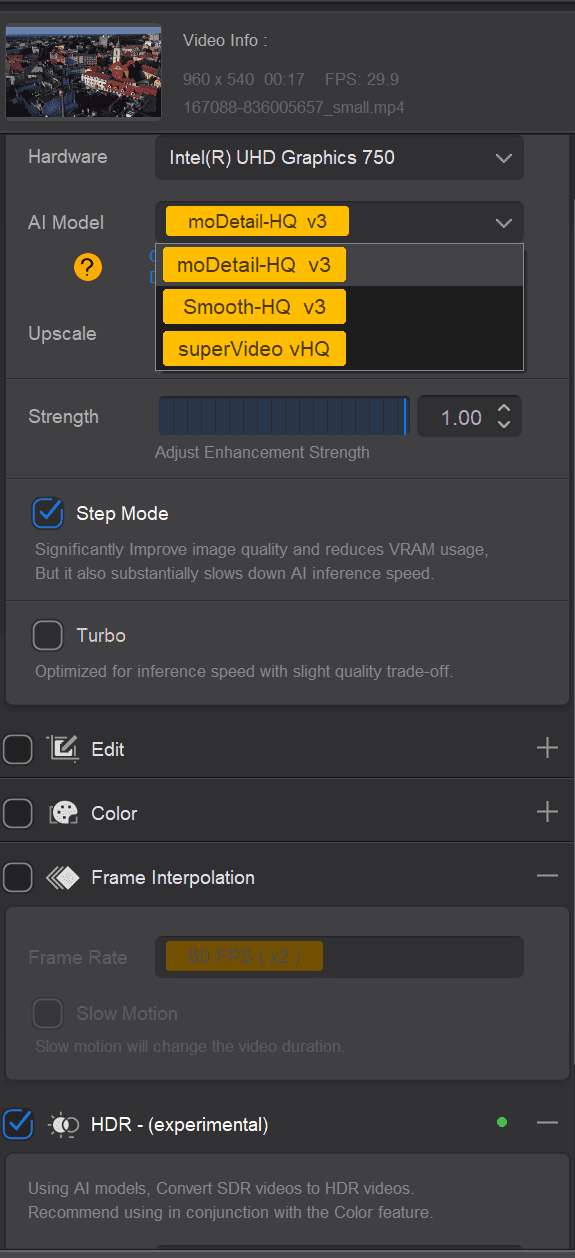
Aiarty Video Enhancer is organized around a small set of general-purpose enhancement models rather than a long menu.
Aiarty model | What it's for |
|---|---|
moDetail HQ v2 | Fine textures such as hair, skin and foliage |
Smooth HQ v2 | General video restoration |
superVideo vHQ | Grainy or low-light clips |
Around those three models sits a tuning layer: a Strength Control slider for dialing enhancement intensity, SDR-to-HDR 10-bit output, built-in white balance, contrast, exposure, highlight and shadow controls, and a Step Mode that manages VRAM during long high-resolution renders. The design assumption is that you point a broadly capable model at ordinary footage and then tune the result.
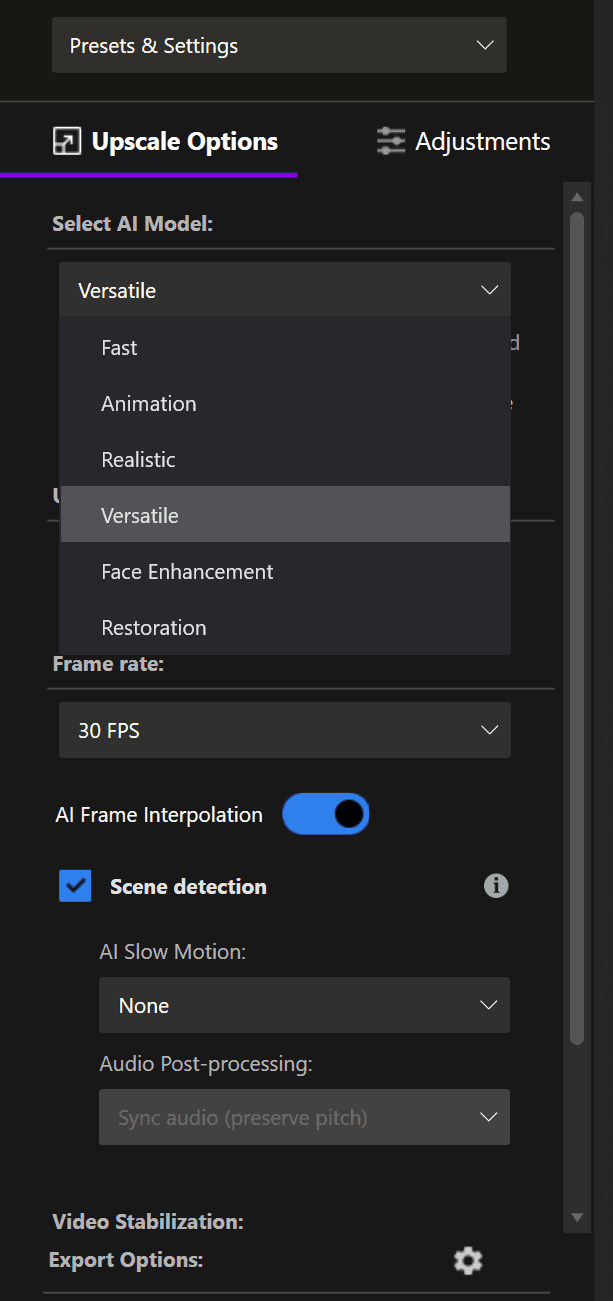
Nero AI Video Upscaler takes the opposite approach: pick the model that matches the content type.
Nero model | What it's for |
|---|---|
Fast | Quick processing when speed matters more than maximum quality |
Animation | Anime, cartoons and other 2D animated footage |
Realistic | Real-world, live-action video with human faces |
Versatile | Softer enhancement that preserves more detail |
Face Enhancement | Clearer facial detail in close-ups, interviews and portraits |
Restoration | Blurry, compressed or degraded footage needing finer detail |
Beyond the model menu, Nero adds AI frame interpolation up to 120 FPS and a real-time side-by-side preview of original against enhanced output.
How to choose between the two model lineups:
Start from your footage, not the feature list. If your library is dominated by one identifiable content type — anime, interview close-ups, badly compressed archive footage — Nero's named models give you a direct mapping from problem to setting: match the row in its table and go. If your footage is mixed, or you would rather adjust one result with a strength slider than choose between six starting points, Aiarty's tune-one-engine workflow fits better. And if you cannot tell which model a clip needs, that itself is the answer: it points to Aiarty's general-purpose approach.
Beyond the models: what else is in the box
The models are only half the toolset. Both apps surround them with supporting functions, and the two feature sets pull in noticeably different directions.
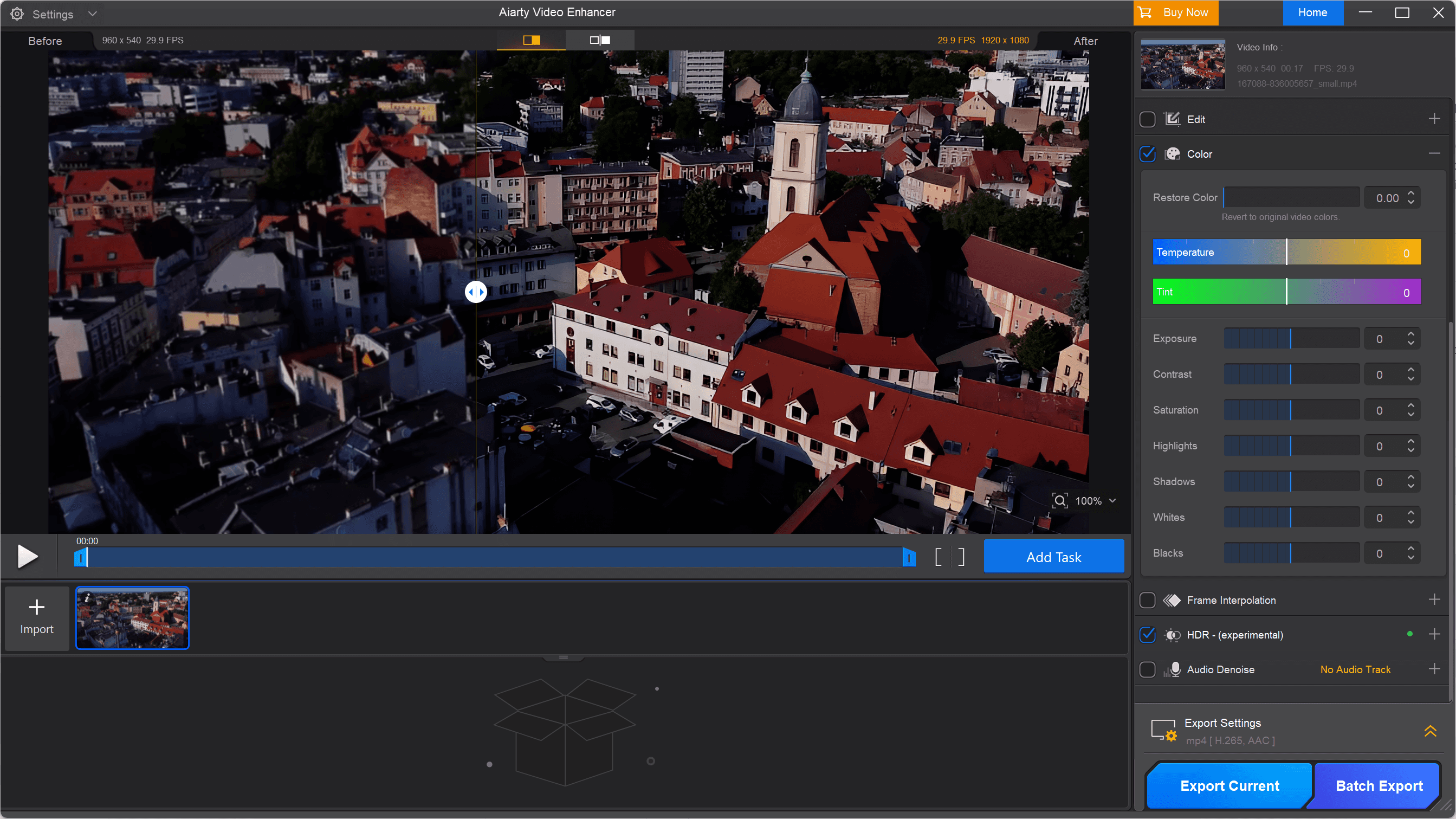
(Aiarty Video Enhancer Interface)
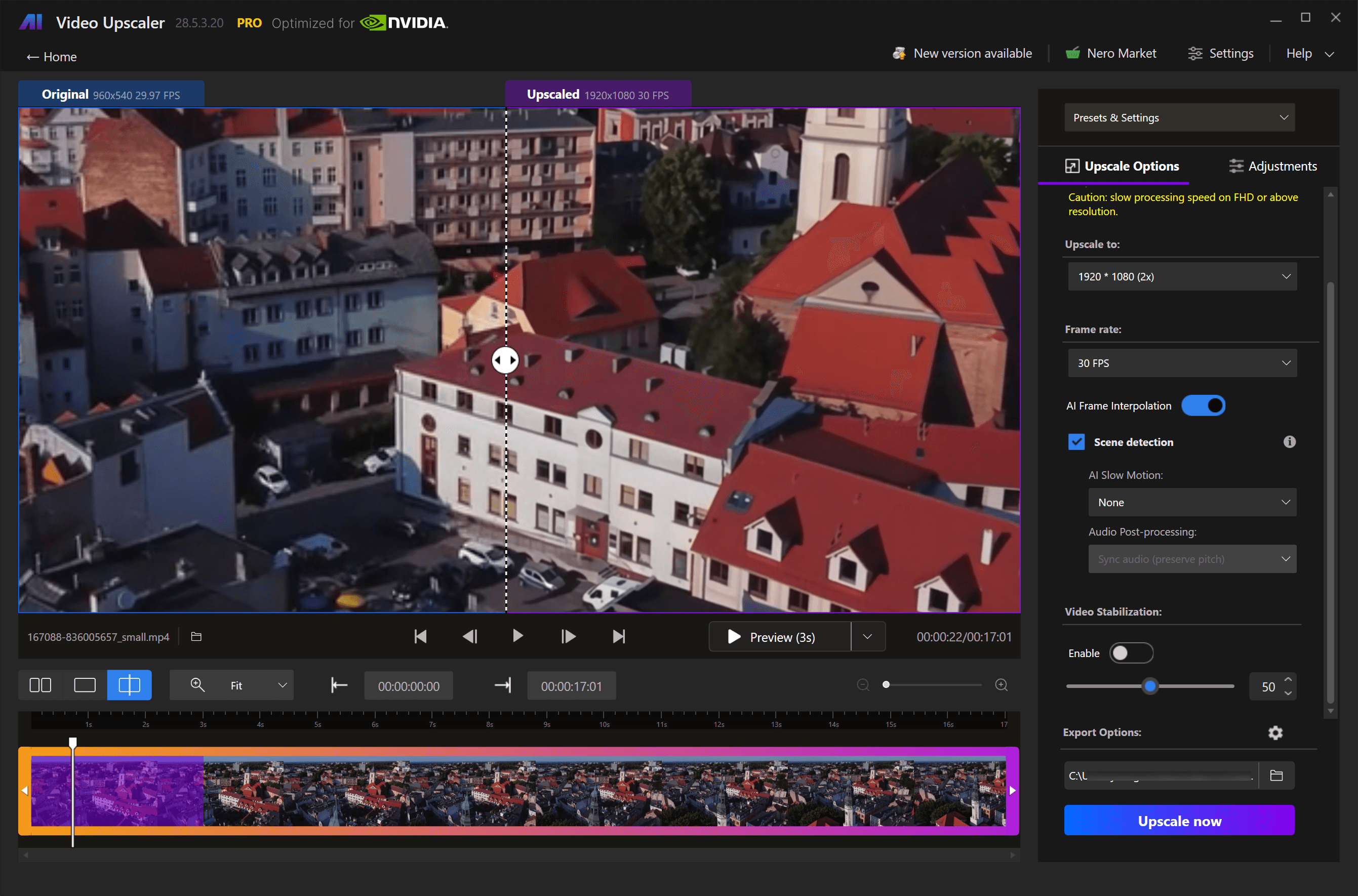
(Nero AI Video Upscaler Interface)
Function | Aiarty Video Enhancer | Nero AI Video Upscaler |
|---|---|---|
Frame interpolation | Up to 120 FPS, plus AI slow motion | Up to 120 FPS, plus AI slow motion with audio sync |
Color adjustment | White balance, contrast, exposure, highlights, shadows | Brightness, contrast, saturation, sharpness, white balance |
HDR conversion | SDR to HDR 10-bit output | No |
Video Stabilization | No | Yes |
Audio | AI denoise for background noise, clicks, echoes and wind; vocal clarity enhancement | No |
Basic editing | Cut, crop, rotate, flip | Clip selection: enhance a section of a video without pre-cutting. Crop (coming soon in future update) |
Presets | No | Save custom presets or use built-in ones; apply across the queue |
Preview | Real-time preview | Real-time side-by-side comparison, from 1 second to full video |
Batch handling | Batch export with shared or per-video settings | Batch import of multiple clips or whole folders |
Read as a whole, Aiarty's extras are about finishing a video in one pass. Audio denoise, HDR conversion, color correction and cut-crop-rotate trims mean a noisy holiday clip or a vlog take can go in rough and come out ready to share, without a round trip through a separate editor. If you work clip by clip and the enhanced file is your deliverable, that is the workflow this set serves.
Nero's extras are about throughput on repetitive jobs. Presets capture a known-good combination of model, resolution and frame rate; folder-level batch import applies it across an entire library; clip selection lets you enhance only the section that matters instead of processing an hour of footage. If you are working through a large archive — a season of anime, a box of digitized family tapes — where every file gets the same treatment, that is what this set is built for.
The gaps matter as much as the features. Nero has no audio enhancement tools, so soundtrack cleanup means separate software. Aiarty has no preset system, so high-volume repetitive work means re-applying settings more often. Neither replaces an editor: these are enhancement passes with conveniences attached, not editing suites.
Platform and hardware: the constraint that usually decides
Aiarty Video Enhancer | Nero AI Video Upscaler | |
|---|---|---|
Platform | Windows and macOS, including Intel and Apple Silicon | Windows 10 / 11 (64-bit) only |
Processing | Local, on your machine | Local, on your machine |
Minimum GPU | DirectX 12 device with 4 GB VRAM; NVIDIA TensorRT path from 4 GB VRAM | AMD Radeon 500 series or NVIDIA GTX 900 series, 4 GB VRAM for Full HD to 4K |
Recommended for the heaviest jobs | Step Mode to manage VRAM on long high-res renders | RX 6700 XT / RTX 3060 or higher, 12 GB VRAM for 4K to 8K |
Output ceiling discussed officially | Up to 4K | Up to 4K and 8K |
Batch processing | Yes | Yes |
Nero publishes the more demanding hardware curve, and that is a direct consequence of the 8K ceiling: 4 GB of VRAM covers Full HD to 4K, but Nero recommends a 12 GB card for 4K-to-8K work, along with a CPU released in 2017 or later.[[citation:{"links":["https://pcai.nero.com/video-enhancer","https://pcai.nero.com/video-upscaler"]}]] Aiarty's published floor is comparable at the entry level — a DirectX 12 GPU with 4 GB VRAM, with an NVIDIA TensorRT acceleration path — and it addresses VRAM pressure through Step Mode rather than by asking for a bigger card.
If your target output is 1080p or 4K, both are within reach of a mid-range GPU. If you specifically need 8K, Nero is the one that documents it, and you should plan for the recommended card rather than the minimum.
Licenses, price and what the trial actually lets you do
Prices below were checked on 2 September 2026 and change frequently with promotions; verify at checkout.
Aiarty publishes its pricing openly: a Standard License at $79 per year with a year of updates, and a Lifetime License at $165 with lifetime updates. Both license types cover up to three machines and include commercial usage rights at no extra cost — with one catch worth knowing before checkout: Windows and Mac licenses are sold separately and cannot be swapped across platforms.
The trial watermarks output, caps clips at 120 seconds and disables batch export, so treat it as a quality check, not a way to finish a job.

Nero AI Video Upscaler provides yearly license at $84.95 per year with one year of free updates, covering one Windows PC, and a lifetime license at $195. The trial runs seven days, needs no credit card and, per Nero's current pages, exports without a watermark.

Performance: our spot test and what reviews report
Our Test
We ran one direct comparison: Aiarty's moDetail-HQ model against Nero's Versatile model on the same footage.
Versatile came out ahead on detail — it rebuilt fine texture naturally and convincingly, while moDetail-HQ's output read more like an aggressive sharpening pass than genuine detail recovery. Which model performs better really depends on your need.
Processing time is not worth comparing in the abstract — it depends mostly on your machine.

What Reviews Say
On Aiarty, independent reviewers praise its speed — Shotkit found it quick even on a base MacBook Air M1, with Turbo mode halving processing time — while UniFab's competitor-run test echoes our detail concern, reporting overexposed portraits from moDetail and leftover grain from superVideo vHQ.
On Nero, the consensus is solid results at a friendlier price than Topaz: Aiseesoft found output sharper and cleaner with limits on badly degraded footage, and Trustpilot users note fast processing with minor artifacts on complex motion.
Which one fits your workflow
Choose Aiarty Video Enhancer if you work on macOS, since Nero's desktop upscaler does not run there at all. It is also the better structural fit if your footage is mixed rather than one content type, if you want colour and HDR adjustments in the same pass rather than round-tripping to an editor, or if you want a lifetime licence that covers up to three machines at a published price.
Consider Nero AI Video Upscaler if you are on Windows and your work maps cleanly onto its named models — a large anime or cartoon library, portrait-heavy interview footage, or degraded archive material where the Restoration model is the specific tool you want. It is also the option to look at if you genuinely need 8K output or frame interpolation up to 120 FPS as part of the same job, and you have a card in the 12 GB class to feed it.
Neither is the automatic choice if your footage is severely damaged rather than merely low-resolution, or if you need enhancement inside a larger editorial pipeline. Both are single-purpose enhancement apps, and for hard restoration work the more heavily customizable tools in this category remain worth evaluating alongside them. Our existing comparisons of HitPaw, AVCLabs and Topaz alternatives cover that ground.
The decision, in one line: platform first, then content type, then output ceiling. Price is the tiebreaker, not the argument.