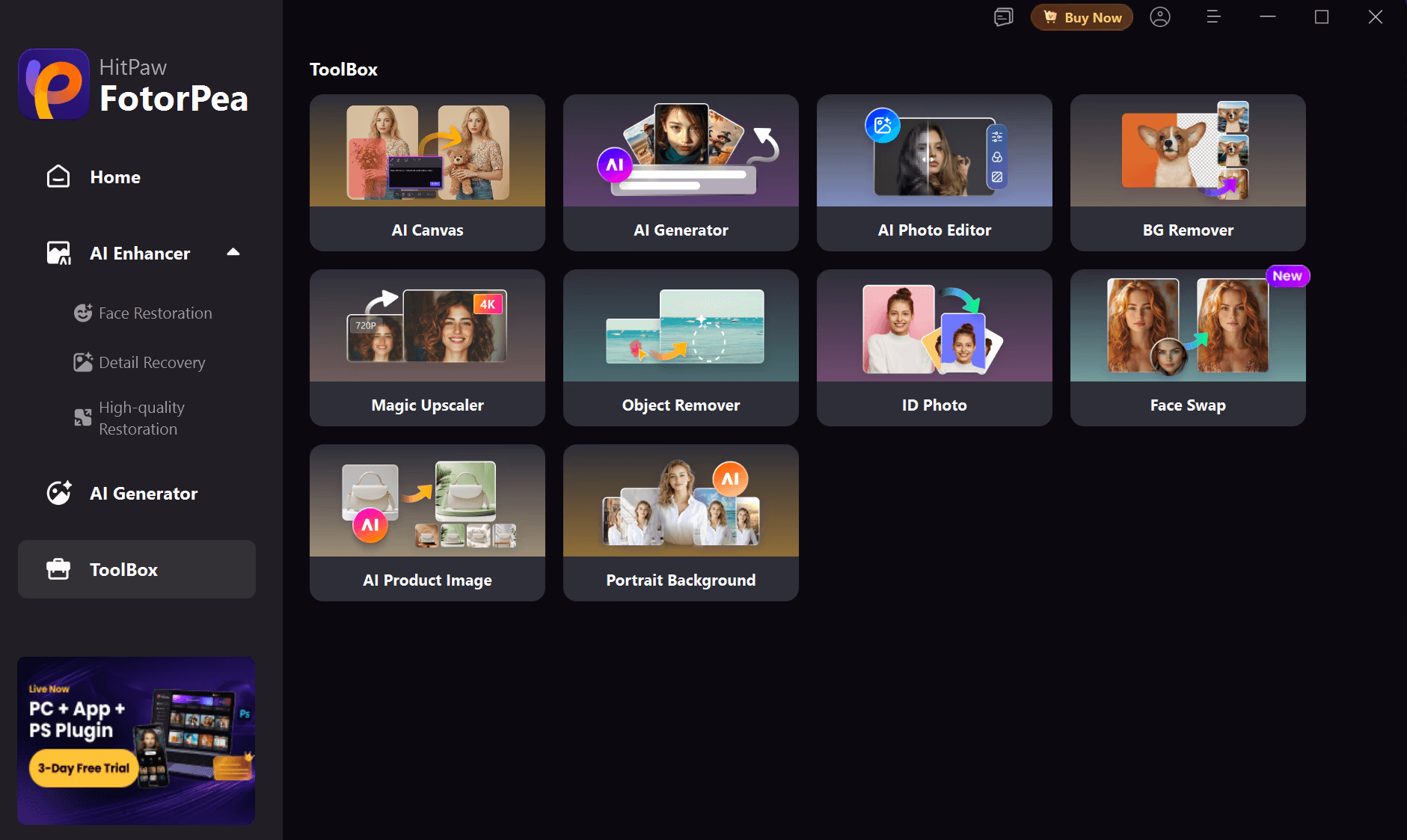
HitPaw FotorPea—formerly HitPaw Photo Enhancer—can restore faces, remove noise, repair old photos, and upscale images to very large resolutions. But it is still a desktop application. If you only need to enlarge one portrait, product photo, anime image, or AI artwork, installing or opening a full editor and waiting for a heavy enhancement model can feel like too much work.
That is where Nero AI Image Upscaler Online makes sense. Open it in a browser, upload an image, choose the model that fits the source, and enlarge it by up to 8× with cloud AI. There is no desktop installation and no dedicated local GPU requirement.
For users looking for a HitPaw Photo AI alternative, Nero Online offers a practical first step: it is faster to start, easier to access on a weaker computer, supports 2×, 4×, and 8× enlargement, and connects to a broader collection of online image tools. If the project later needs 32K/1024 MP output, large batch processing, or local processing, Nero also offers a more powerful desktop version.
Try the no-install option: Upscale an image with Nero AI Image Upscaler Online.
Why Can HitPaw FotorPea Feel Slow?
Slow processing does not automatically mean FotorPea is broken. AI enhancement is demanding, especially when the software is rebuilding faces, texture, hair, text, or damaged details.
Four factors usually matter most:
Large output: An 8× enlargement creates 64 times as many pixels, so processing becomes much more demanding as the target size increases.
Heavy models: Face repair, denoising, colorization, and blur reconstruction can take longer than general upscaling.
Local hardware: HitPaw lists 8 GB RAM and a GPU comparable to an NVIDIA GTX 950 or AMD Radeon 460 among its Windows requirements.
Desktop setup: Installation, model loading, importing, previewing, and exporting add friction before the image is ready.
Nero Online moves the AI workload to cloud infrastructure. This does not justify a universal “30-second” promise—actual time depends on the image, model, network, service load, and account—but it removes the local computer as the main processing bottleneck and eliminates the installation step.
A Faster No-Install Alternative: Nero AI Image Upscaler Online
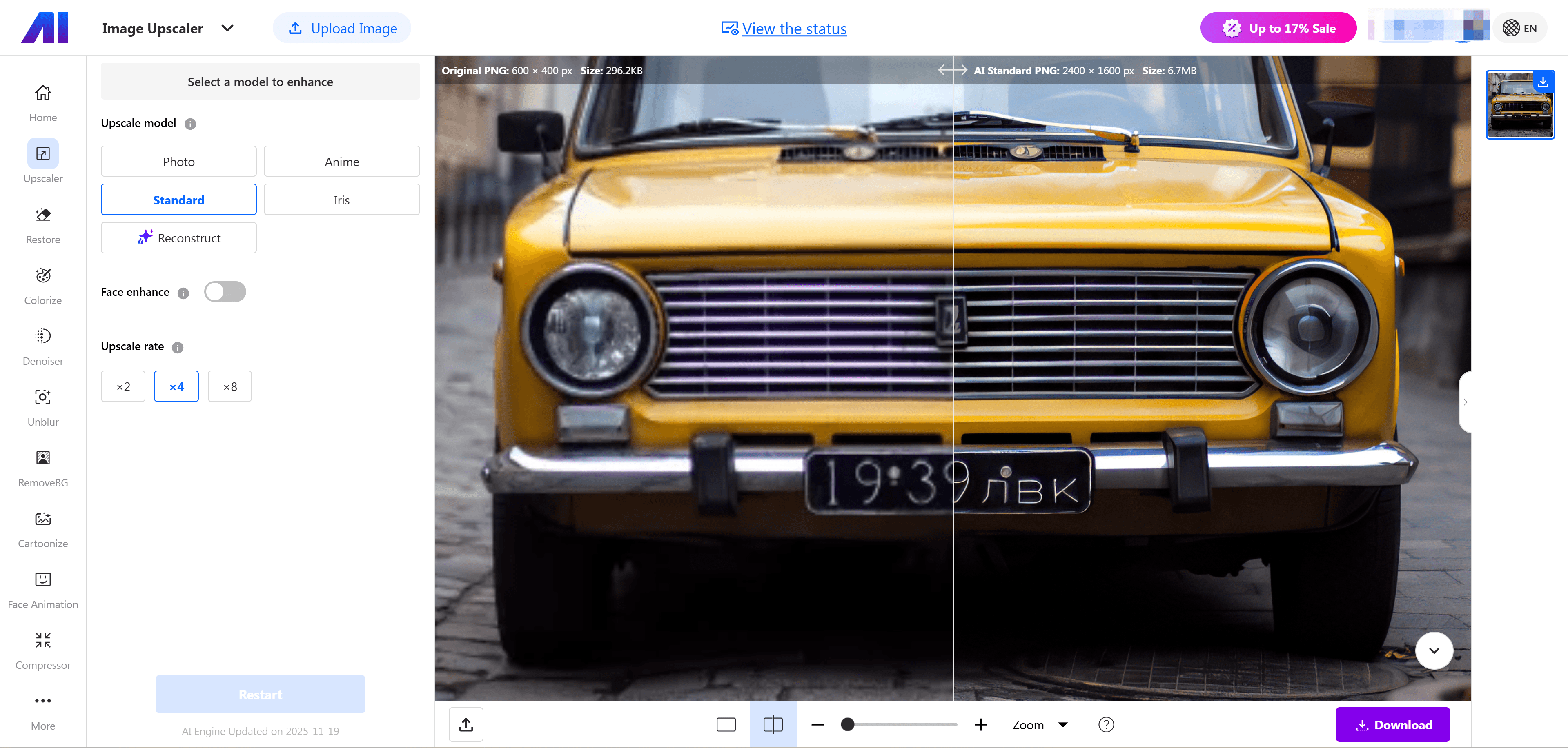
Nero Online is designed for the moment when you want a result without setting up another desktop application.
How to upscale an image online
Upload a JPG, JPEG, PNG, WebP, or BMP image.
Choose the model that matches the source.
Select 2×, 4×, or 8× enlargement on the online page.
Process the image, inspect it with the Single, Slider, or Split comparison view, and download the result.
Choose a model instead of using one setting for every image
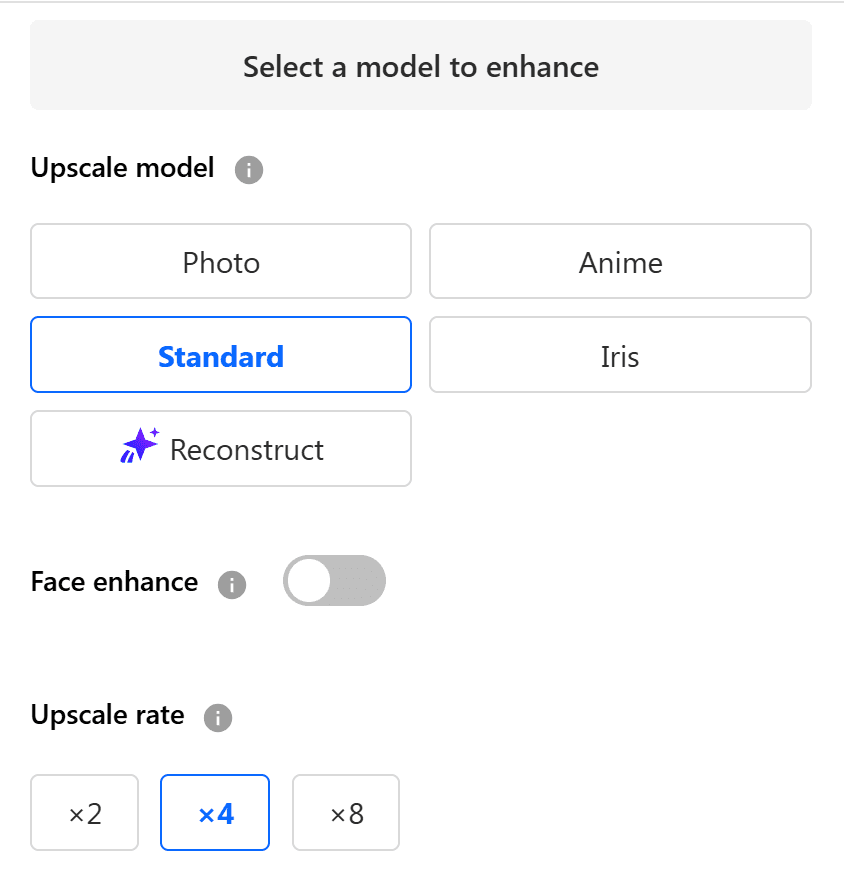
The current online upscaler presents options such as:
Face Enhancement for small or blurry portraits.
Photograph for realistic camera photos and photorealistic AI images.
Standard for general-purpose enhancement.
Anime for anime, illustrations, cartoons, and digital artwork.
Iris for recovering fine details in portraits, hair, fur, and textured subjects.
Reconstruct for sources that need stronger detail reconstruction, subject to the current interface.
This model choice is important. Portraits, line art, and compressed web photos fail in different ways. Using a source-specific model can produce a more useful result than simply applying the strongest sharpening to every file.
HitPaw Photo Enhancer vs Nero Online: The Comparison That Matches This Title
This article is for users who find the FotorPea desktop workflow too slow or too heavy for a quick upscaling job. The relevant comparison is therefore HitPaw FotorPea Desktop vs Nero Online.
What matters | HitPaw FotorPea Desktop | Nero AI Image Upscaler Online |
|---|---|---|
Getting started | Download, install, and launch the desktop application | Open the web page and upload an image—no installation required |
What affects speed | Processing time can depend on the selected model, image size, and computer hardware | Processing runs in the cloud, so no dedicated local GPU is required; speed still varies by file, model, network, and server load |
Enlargement | Enhances images toward 4K/8K output; the available result depends on the source, model, and version | Select 2×, 4×, or 8× directly in the browser |
AI enhancement options | Nine AI enhancement models, including General/Upscale, Face, Denoise, Low-light, Colorize, Sharpen, and restoration options | Photo, Anime, Standard, Iris, and Reconstruct models, plus optional Face Enhancement in the current interface |
Before/after comparison | Preview the enhanced result inside the desktop workflow | Inspect the result in the browser with Single, Slider, and Split comparison views |
Batch processing | Paid desktop plans support bulk enhancement | A separate online batch page supports up to 5 images at once on the current free tier; paid limits may be higher |
File support | Supports common image formats as well as RAW and NEF input | Supports common web image formats; RAW files should be converted before upload |
Free access | The free Photo Enhancer can preview results, but exporting the enhanced image requires a paid plan | New accounts receive limited free credits, allowing users to test the browser workflow before paying |
Best fit | Users who need RAW support, broader restoration tools, or frequent large batches | Users who want fast access, up to 8× enlargement, and no desktop installation or local GPU requirement |
FotorPea remains the more complete desktop editing suite, especially for RAW files and frequent bulk work. But if the immediate task is simply to upload an image, choose the right AI model, enlarge it by as much as 8×, and download the result, Nero Online removes the installation and local-hardware steps that made the original workflow feel slow.
HitPaw does offer a separate HitPaw Online service, so the brand is not desktop-only. However, its online feature set is much more limited and covers only a small portion of the broader enhancement workflow. For users who need more than a basic browser operation, it is difficult to treat HitPaw Online as a practical replacement for FotorPea. Nero Online provides a wider and more usable collection of browser tools, which is why this article focuses on it as the stronger no-install alternative.
Three Image Tests: Can Nero Online Replace a FotorPea Job?
Use the same source, final pixel dimensions, and export format in both products. Because 8× browser upscaling is a key reason to consider Nero Online, run all three tests at 8×. Choose source dimensions that both products can enlarge to the same final size, then record total time from import or upload to the saved result. This keeps the HitPaw image upscaler and Nero Online comparison fair while testing Nero’s full online enlargement range.
Across these three tests, Nero AI produced the stronger overall results, with the clearest advantage on anime and AI-generated artwork.
Test 1: Portrait Enlargement
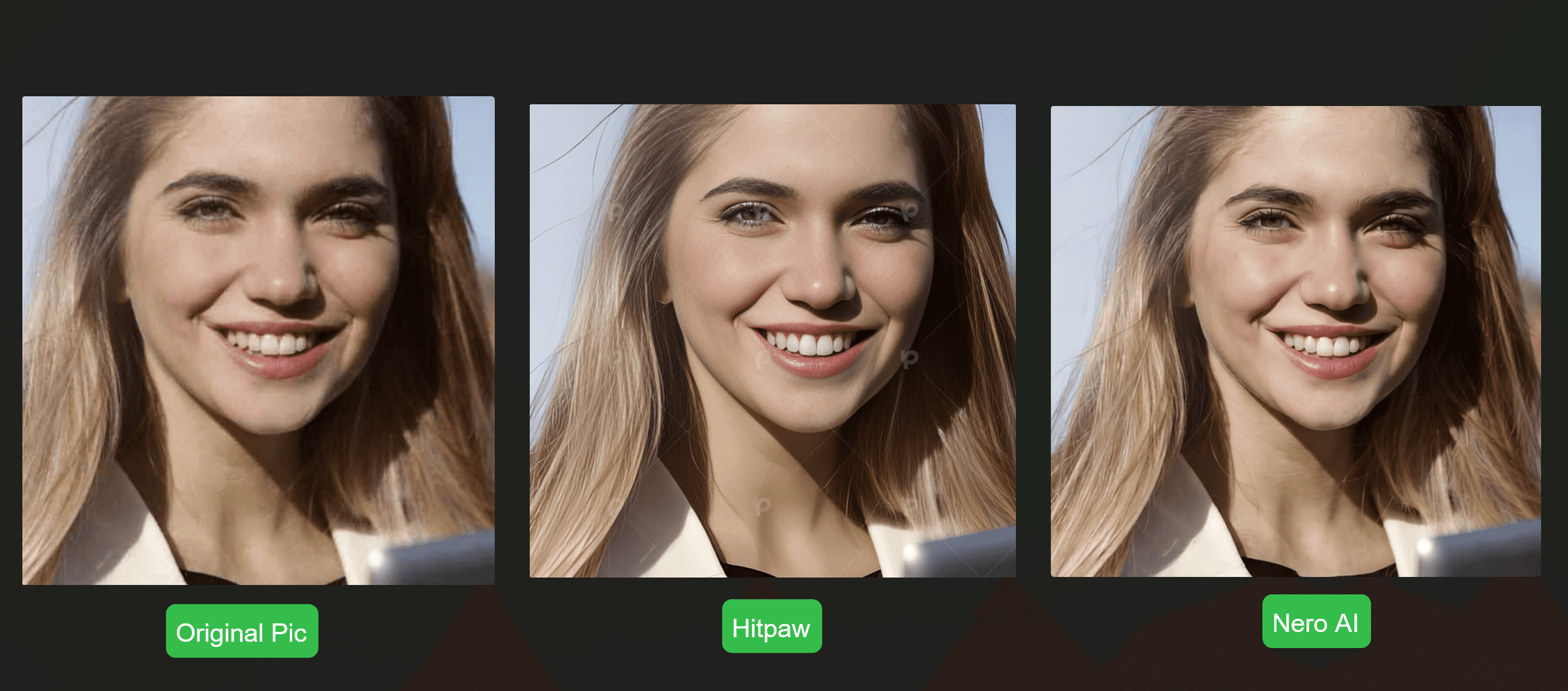
At 100% zoom, check whether the face remains recognizable. Look for altered teeth, invented eyelashes, plastic skin, or strange hairlines. The best portrait is the one that improves clarity without changing identity—not necessarily the sharpest output.
In the portrait comparison, Nero AI produced the more natural-looking result. Facial structure, skin texture, eyes, teeth, and hair stayed closer to the source, while the HitPaw output looked less natural and showed more noticeable artificial facial detail. Nero AI improved clarity without making the subject look overprocessed.
Test 2: Noise Reduction
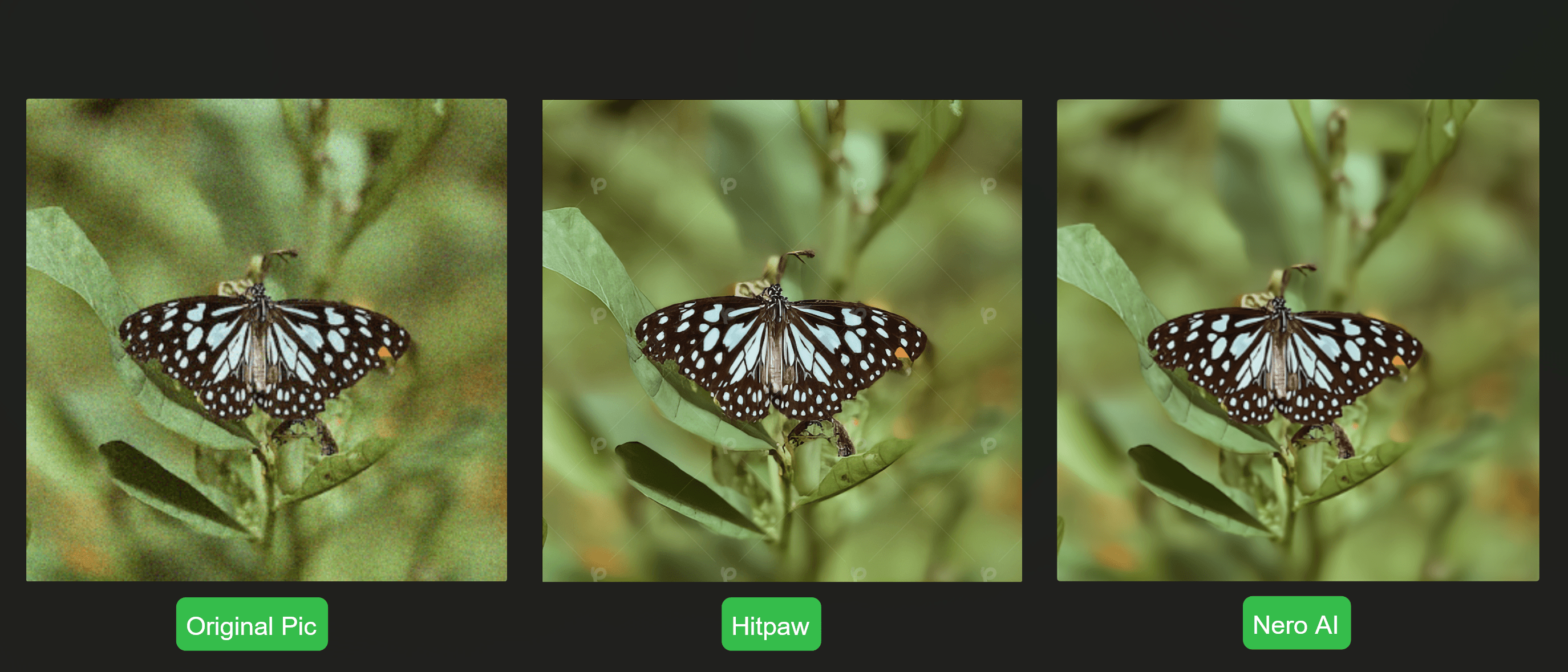
In the denoise comparison, Nero AI delivered a smoother and more natural result. It reduced visible noise and compression artifacts while keeping transitions in skin, hair, fabric, shadows, and small details more balanced. The Nero output looked cleaner without the harsh or overly processed texture that can make denoising feel artificial.
Test 3: Anime or AI-Generated Image
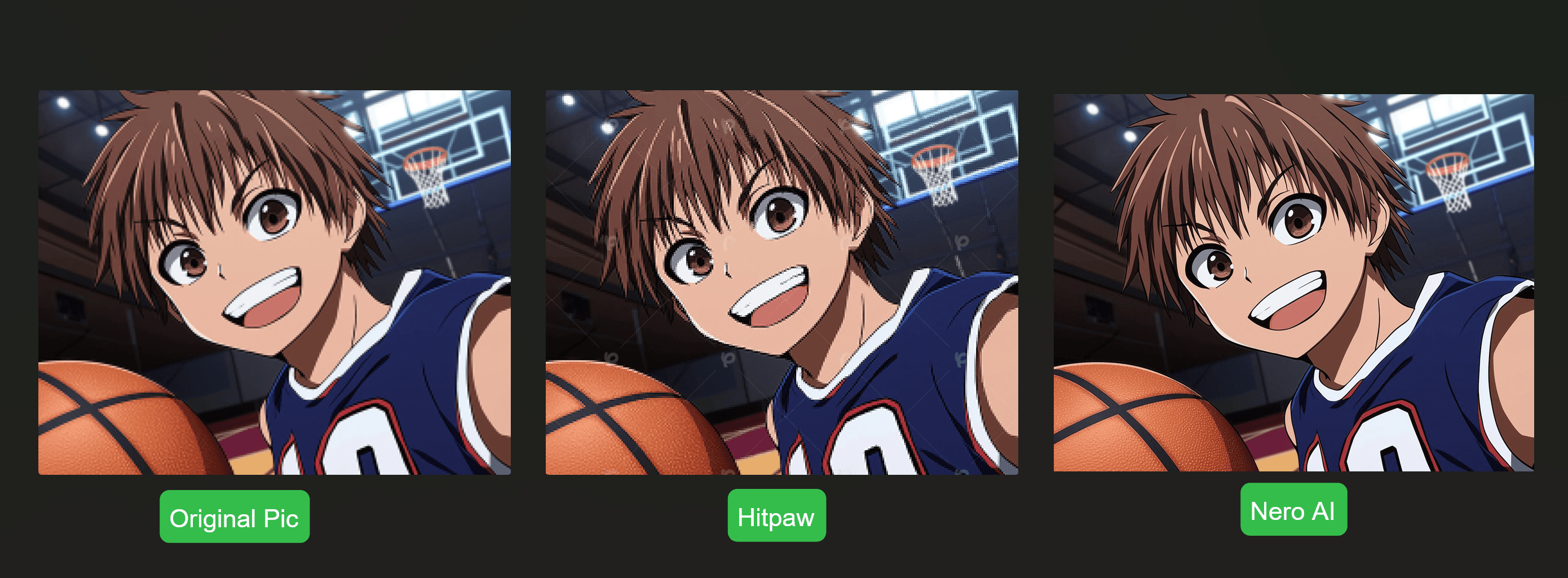
Nero AI was the clear winner in the anime and AI-generated image test. Its Anime model preserved line art, gradients, repeated patterns, hands, fabric, and lettering much more cleanly while maintaining the original illustration style. The advantage was immediately visible: Nero AI produced sharper, cleaner edges and fewer distracting artifacts without adding unwanted photographic texture.
Overall, the three tests favor Nero AI Image Upscaler Online: it keeps portraits more natural, produces smoother denoising, and shows a particularly clear quality advantage for anime and AI-generated artwork.
Nero Online Does More Than Upscaling
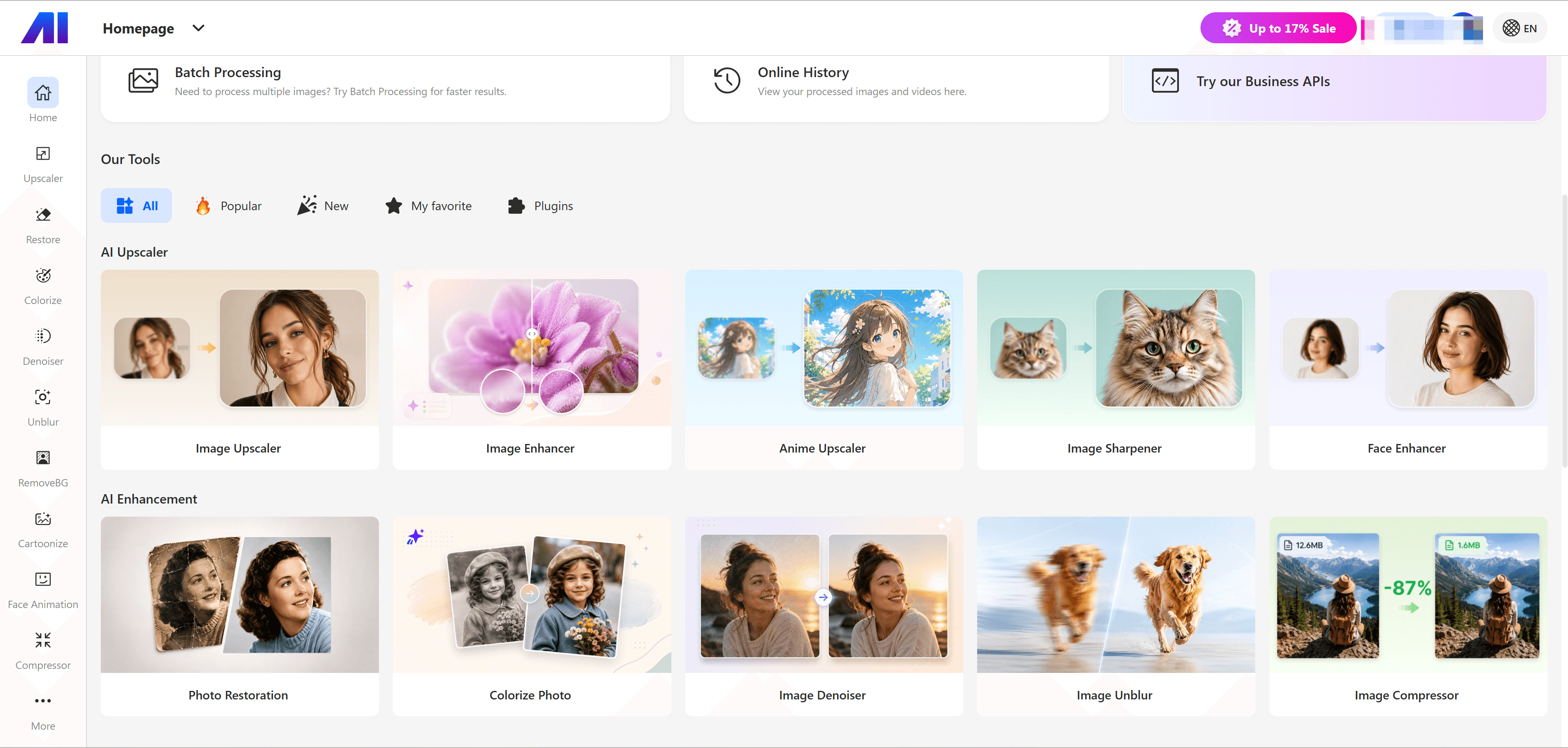
Once a user has tried the online upscaler, the wider Nero AI platform becomes another reason to stay. It provides separate browser tools for common tasks that often happen before or after enlargement:
Image Denoiser, Image Sharpener, and Image Unblur for grain, softness, and blur.
Photo Restoration, Face Enhancer, and Colorize Photo for old or damaged photos.
Background Remover, Background Generator, Background Changer, and Object Remover for product images and creative assets.
Image Compressor for reducing the final file size before publishing or sharing.
These are separate online tools—not extra model switches inside Nero AI Image Upscaler. That separation keeps the main upscaler simple while allowing a more targeted sequence when an image needs extra work.
For example:
A clean product photo can go directly to the upscaler.
A noisy night photo can use Image Denoiser first.
A scratched family scan can use Photo Restoration and Face Enhancer before enlargement.
A finished 8× image can use Image Compressor before going on a website.
This creates a flexible browser-based image workflow without requiring a full desktop editor for every step.
Need More Than Online Upscaling? Move to Nero Desktop
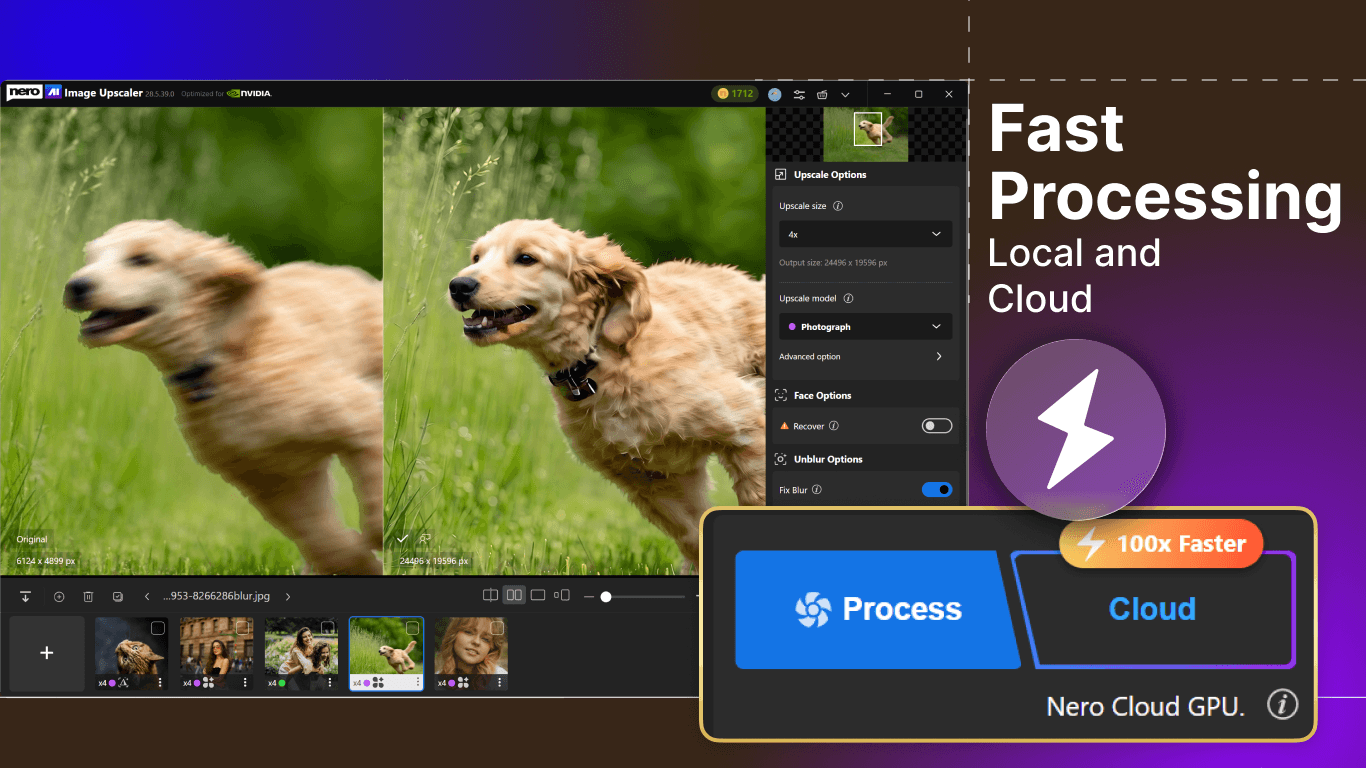
Nero Online should be the first recommendation for this title, especially because it already supports up to 8× enlargement. However, some projects will still outgrow a browser workflow. Download Nero AI Image Upscaler Desktop when you need:
output up to 32K or 1024 MP;
batches of up to 100 images;
local CPU/GPU processing or Nero Cloud GPU, depending on the plan;
a broader desktop model set, including dedicated Sharpen and Unblur models alongside Standard, Photo, Anime, and Iris; or
Face Recovery/Face Enhancement options, depending on version and plan.
These are the main reasons to move to the desktop version. Core upscaling models, 8× enlargement, and Single/Slider/Split comparison views are already available online; the desktop advantage is larger maximum output, much bigger batches, local processing, and its expanded model set.
The free desktop version supports local processing with a watermark. Cloud processing, Face Recovery, and some advanced features require the appropriate paid entitlement and may consume credits.
The product path is simple: try Nero Online first for enlargement up to 8×; download Nero Desktop only when maximum output resolution, batch size, local-processing, privacy, or quality-control requirements make it worthwhile.
Photoshop and Figma Are Separate Nero Plugins
Nero also offers integrations for designers, but these are separate plugins—not features built into Nero Online or Nero Desktop.
The Nero AI Image Toolkit for Photoshop provides 2×/4× upscaling and background removal inside Photoshop. This is the plugin's own range; Nero Online separately supports up to 8×.
The Nero AI Image Tools Figma plugin provides upscaling, compression, and background removal inside Figma.
HitPaw also offers a separate Photoshop plugin. No official HitPaw Figma plugin was listed on the FotorPea product page at the time of fact-checking.
HitPaw Photo Enhancer Pricing: Try the Browser Before Paying for Desktop
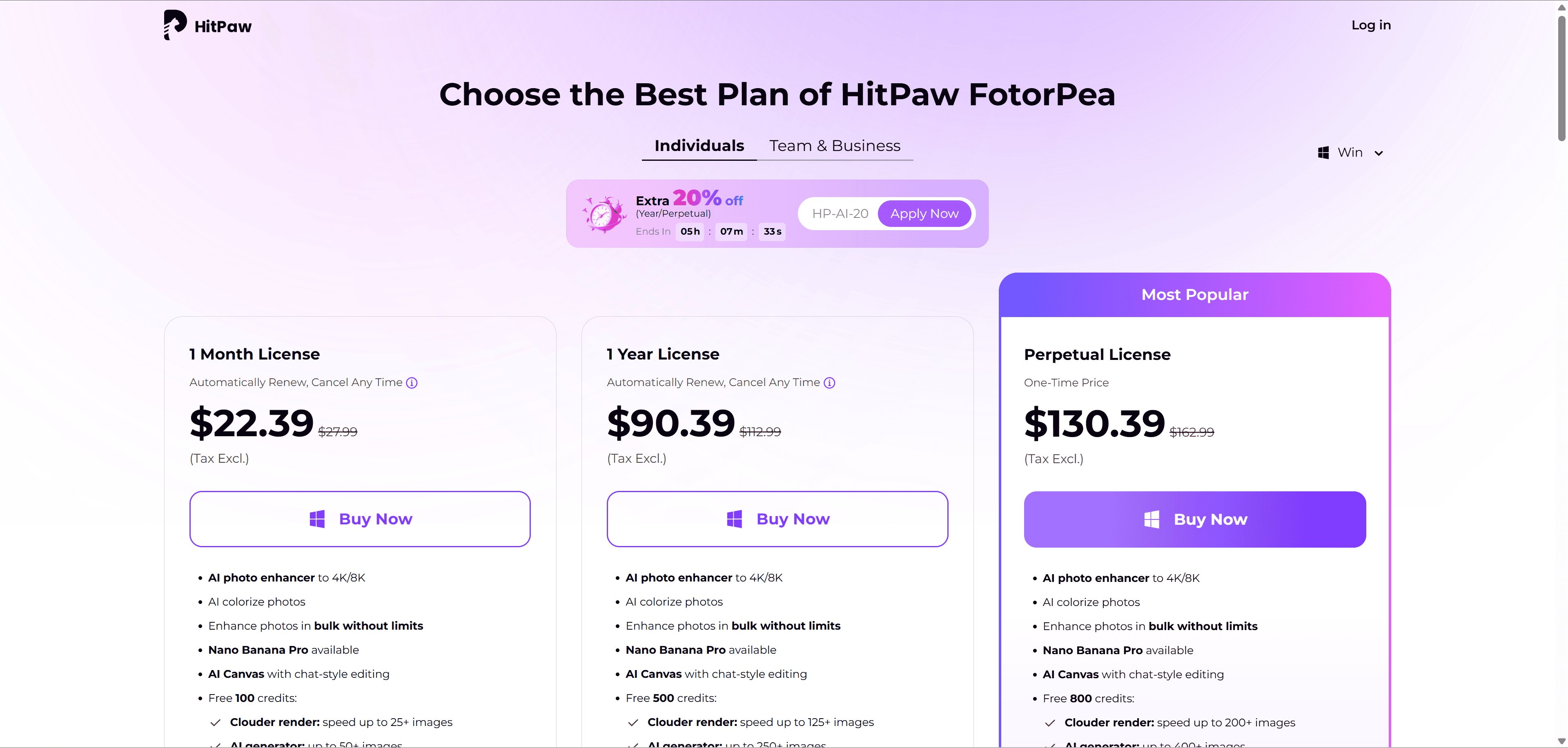
HitPaw’s Windows individual page displayed approximately $22.39 monthly, $90.39 annually, and $130.39 for a perpetual license on August 3, 2026. Users searching for HitPaw Photo Enhancer free should note that its current guide says the free core enhancer can preview results but cannot export the enhanced photo.
Nero Online currently gives new accounts 10 free credits, and users can earn additional credits by checking in daily. Its free batch page accepts up to 5 images at once. Allowances can change, but the useful difference for an occasional user is that the browser workflow can be tested before deciding whether a desktop license is necessary.
For users who need the advanced desktop workflow, Nero AI Image Upscaler Desktop is priced at $44.95 annually or $109 for a lifetime license. Prices, promotions, tax, renewal terms, and entitlements can change, so verify the checkout page before purchase.
Final Verdict: Start With Nero Online
If HitPaw FotorPea feels slow because you only need to upscale a few images, replacing one desktop application with another desktop application is not the most direct answer. HitPaw Online exists, but its limited feature coverage makes it a weak substitute for the full desktop workflow and leaves little room for common follow-up tasks.
Start with Nero AI Image Upscaler Online. It opens in a browser, uses cloud processing, offers models for faces, photographs, general images, anime, and reconstruction, and connects to a wider collection of online image tools.
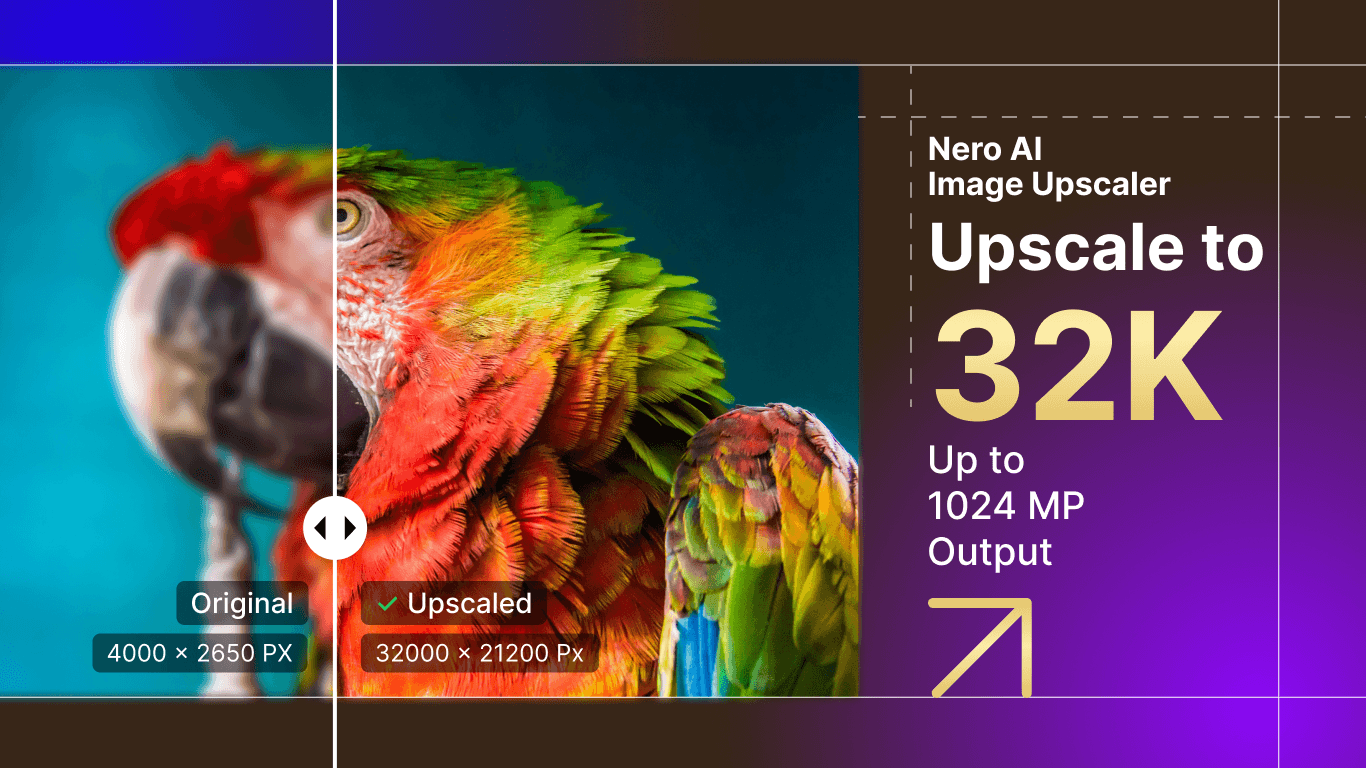
If the online result is enough—even at 8× enlargement—you are finished, with nothing to install. If you later need 32K/1024 MP output, local processing, dedicated desktop enhancement models, or a 100-image batch, download Nero AI Image Upscaler Desktop.
That online-first, desktop-when-needed path makes Nero one of the best HitPaw photo alternative routes to try: users can start with the fastest option for the task instead of committing to the heaviest workflow from the beginning.
For more comparisons, see Best AI Image Upscaler in 2026, the best Fotor alternative, and the AVCLabs Photo Enhancer AI review. If you also work with video, read the HitPaw Video Enhancer alternative guide.
FAQ
Is Nero Online the same as Nero AI Image Upscaler Desktop?
No. Nero Online is a browser/cloud workflow with 2×, 4×, and 8× enlargement, plus Single, Slider, and Split comparison views. Nero Desktop adds local and cloud processing options, output up to 32K/1024 MP, batches of up to 100 images, and an expanded desktop model set.
Can Nero Online match HitPaw FotorPea quality?
It can for suitable images, but results depend on the source and model. Compare both products at the same output size and inspect faces, texture, edges, color, and artifacts at 100% zoom.
Does Nero support batch processing?
Nero Desktop supports up to 100 images in one run in the current release. Nero Online has a separate batch page that currently supports up to 5 images at once on the free tier, while paid limits may be higher.
Does HitPaw also have an online image upscaler?
Yes, but HitPaw Online is a separate and much more limited browser service. It offers only a narrow set of functions and does not provide enough workflow coverage to serve as a practical replacement for FotorPea in many real tasks. By comparison, Nero Online combines upscaling with a broader collection of tools for denoising, sharpening, unblurring, restoration, background editing, object removal, and compression, making it the more complete browser-based option.