If you want to watch a physical DVD on a Windows 11 computer, you need a DVD drive that can read the disc and compatible DVD playback software. Many newer laptops do not include a built-in optical drive, and Windows 11 does not guarantee universal built-in DVD movie playback. Microsoft directs users to Windows DVD Player or another compatible app when an edition of Windows does not play DVDs. Microsoft Support
Quick Answer
To play a DVD on Windows 11:
Connect an internal or external DVD drive.
Insert the disc.
Open a DVD player such as Nero DVD Player or VLC.
Select the disc or optical drive and start playback.
If Windows does not detect the drive, the disc does not play, or the video has no sound, use the short troubleshooting section below.
What You Need to Play a DVD on Windows 11
Before choosing software, check the hardware and the type of disc you have.
Check for a DVD Drive
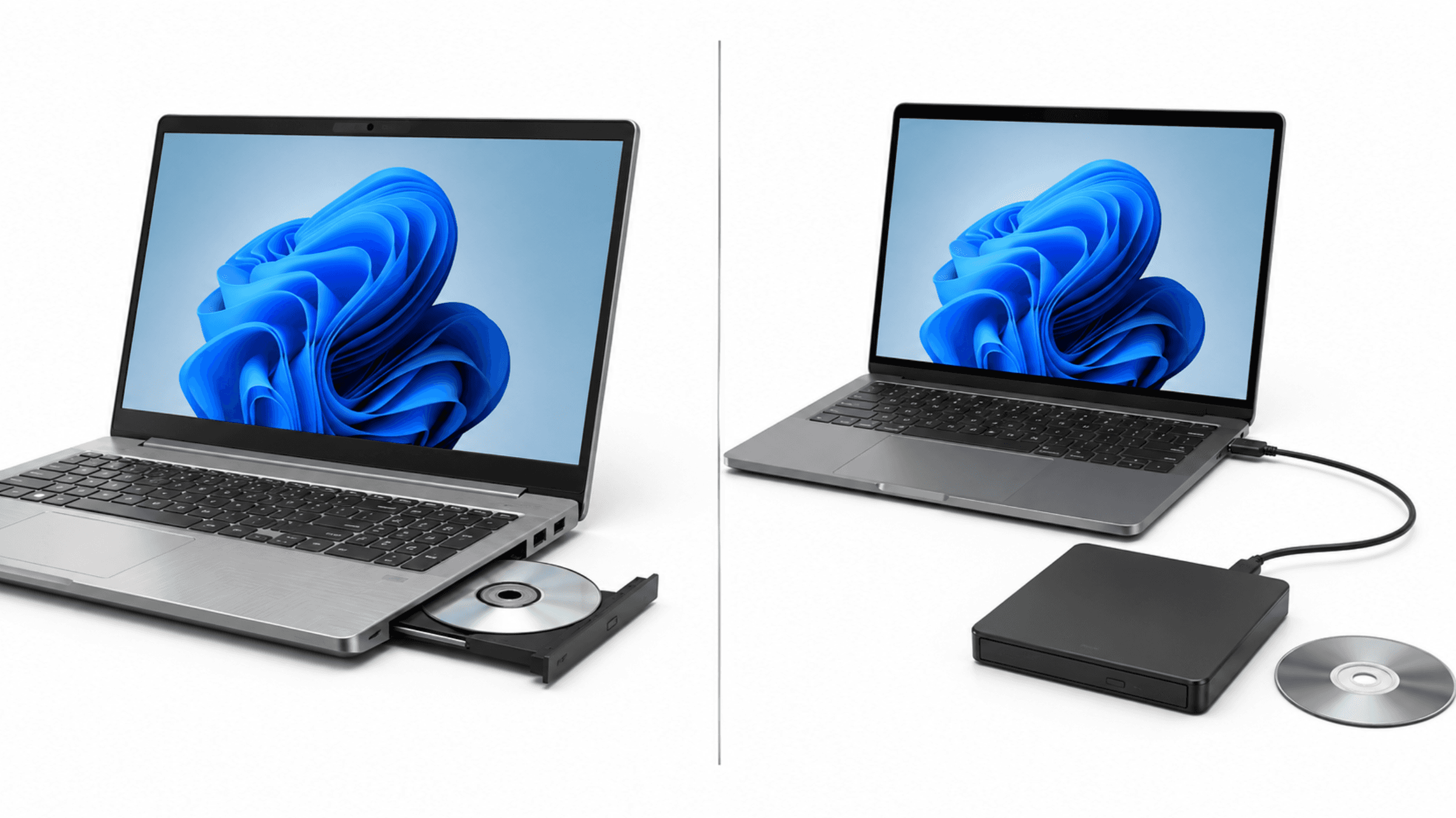
Some desktop computers and older laptops include an internal optical drive, but many modern laptops do not. Open File Explorer and look under This PC for a DVD drive.
If your computer does not have one, connect an external USB DVD drive. After Windows 11 detects it, you can use the drive with compatible playback software. If it does not appear, try another USB port.
Make sure the drive can read DVDs, not only CDs.
Check the Disc Type
A movie DVD is usually a DVD-Video disc, while a data DVD opens as files and folders. If the disc appears in File Explorer instead of starting a movie, use your player’s Open Disc command and confirm that the disc is a DVD-Video disc. This distinction is especially useful when troubleshooting playback.
How to Play a DVD with a DVD Player
Once Windows 11 detects your optical drive, choose compatible DVD playback software. The exact interface may vary by version, but the normal process is to insert the disc, open the player, select the optical drive, and start playback.
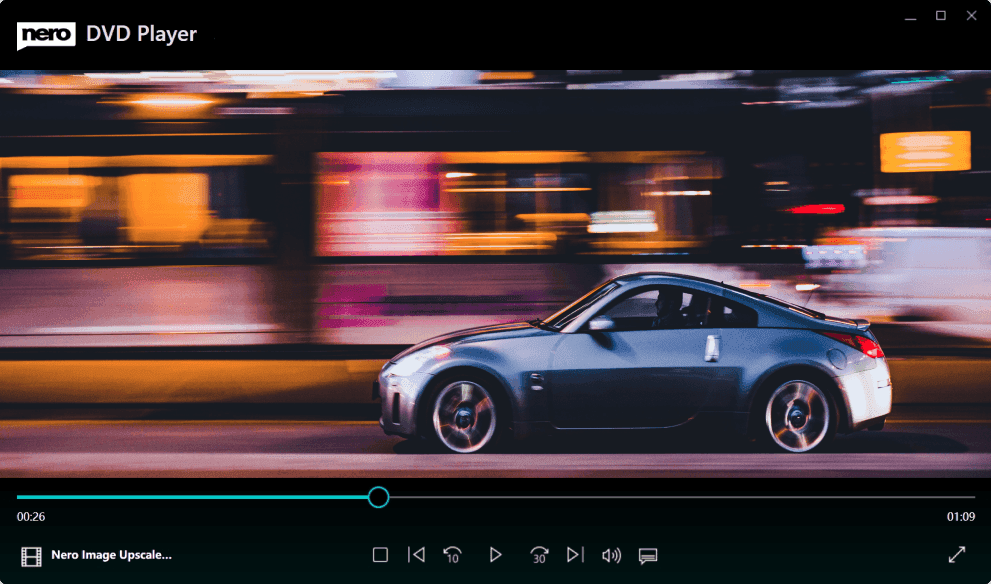
Nero DVD Player
Choose Nero DVD Player if your main goal is watching DVDs on Windows and you prefer a dedicated Windows DVD application instead of a general media player. Nero’s current product page lists DVD and common video formats including MP4, MKV, AVI, and MOV. System requirements, available features, licensing terms, and interface details can change, so check the current product and Microsoft Store pages before installation.
Connect your external USB DVD drive if necessary, insert the disc, open Nero DVD Player, select the detected optical drive or DVD, and start playback. If the disc does not open automatically, use the player’s open or browse control to choose the drive manually. For a detailed application walkthrough, see How to Use Nero DVD Player.
VLC Media Player
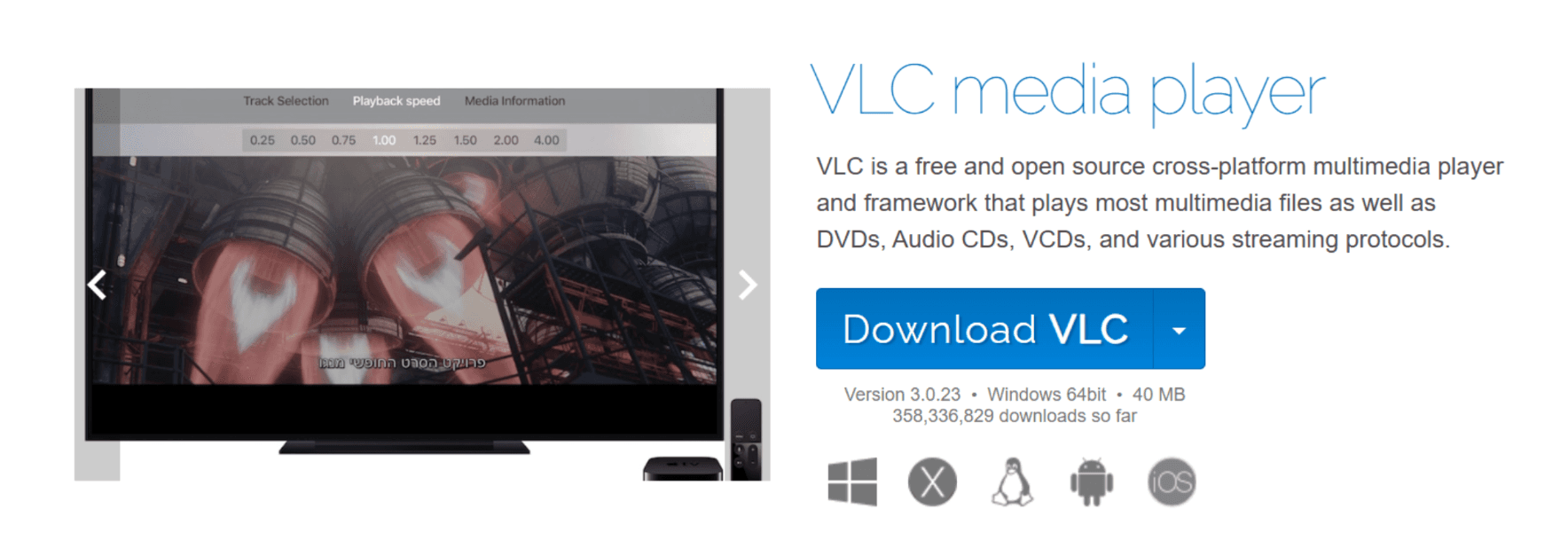
VLC Media Player is a free, open-source player that supports DVDs. VideoLAN also notes that an optical drive is required for physical discs. Choose VLC if you want a free general-purpose player rather than a dedicated Windows DVD application.
Install VLC, insert the DVD, and open the disc through the player. Select DVD, choose the optical drive, and start playback. The exact menu names may vary by version, and playback can still depend on the disc and drive.
Windows DVD Player
Windows DVD Player is a Microsoft Store option for DVD movie playback on computers with an optical drive. Microsoft has documented the app as a way to play DVD movies, but current availability, pricing, eligibility, and compatibility may vary by Windows version and market. Check the current Microsoft Store listing before relying on it.
If the app is available, install it, insert the DVD, and open the application. The current Microsoft Store listing is the best place to confirm whether it is available for your Windows version and market.
Common Windows 11 DVD Playback Problems
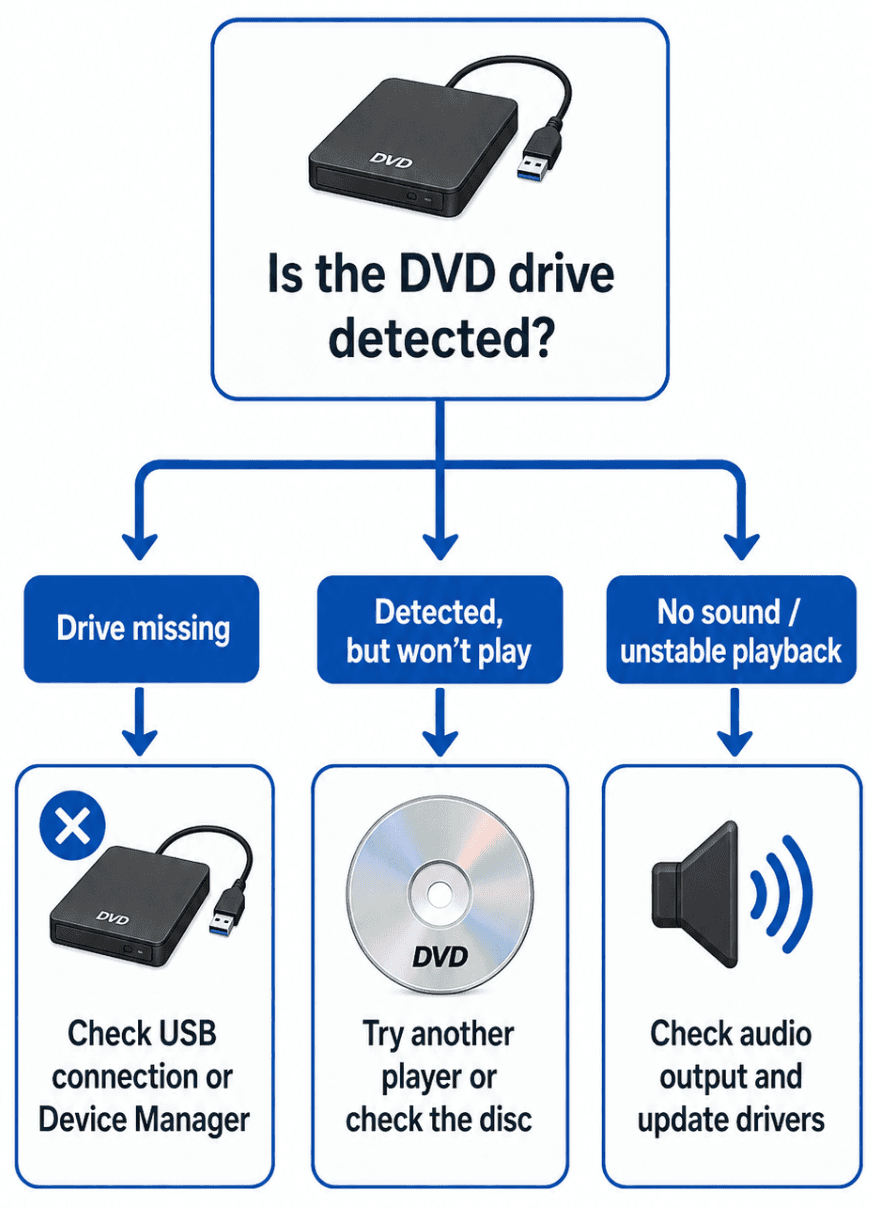
Most failed playback attempts come down to one of three points: Windows cannot see the drive, the drive sees the disc but the player cannot start it, or the video starts without working audio.
Windows Does Not Detect the DVD Drive
If the DVD drive does not appear in File Explorer, start with the connection rather than the player software.
Disconnect and reconnect the USB cable.
Try another USB port on the computer.
Avoid an unpowered USB hub if the drive needs more power.
Check Device Manager for the DVD/CD-ROM drive.
Look for a warning icon or device error.
Test the drive with another disc if one is available.
Microsoft notes that a CD or DVD drive may fail to appear because of driver or configuration problems. See Microsoft’s troubleshooting guidance if Windows still cannot detect the device after these checks. You can also look for current driver information from the computer or drive manufacturer. Installing a different DVD player will not fix a drive that Windows cannot see.
The DVD Is Detected but Will Not Play
First, confirm that the disc is a DVD-Video disc rather than a data DVD. A data disc may show files and folders in File Explorer, while a movie disc should be opened through the player’s disc playback function.
Then try the following:
Remove and reinsert the disc.
Check the disc for dirt, scratches, or visible damage.
Close other programs that may be using the drive.
Open the disc from the player instead of opening individual files.
Test another DVD to determine whether the issue is limited to one disc.
Restart the player after Windows has detected the drive.
Commercial discs may also behave differently depending on their structure, protection, or regional settings. If a disc displays a region-related message or another specialized error, check the player and drive documentation rather than repeatedly changing system settings.
There Is No Sound or Playback Is Unstable
If the picture appears but there is no sound, check the Windows volume, the player volume, the mute control, and the selected audio output device. If the disc offers more than one audio track, try another track from the player’s DVD controls.
For stuttering, freezing, or a black screen, check the disc and the connection to the optical drive, then try another DVD. This can help separate a disc problem from a drive or software problem.
Detailed subtitle settings, region-code analysis, and codec troubleshooting are separate technical topics. They should not be necessary for the normal playback path described here.
Which DVD Playback Method Should You Choose?
Your situation | Recommended starting point |
|---|---|
You want a Windows-focused DVD player | Nero DVD Player |
You want a free general-purpose player | VLC Media Player |
You prefer a Microsoft Store option, if available | Windows DVD Player |
Your laptop has no optical drive | External USB DVD drive |
The software choice comes after the hardware check. If Windows cannot detect a compatible DVD drive, changing players is unlikely to solve the problem. If the drive works but one player cannot open a particular disc, trying another compatible player can help identify whether the problem is software-specific.
Frequently Asked Questions
Does Windows 11 Have a Built-In DVD Player?
Windows 11 does not guarantee universal built-in DVD movie playback. To play a physical DVD, you generally need an optical drive and compatible DVD playback software. Windows Media Player Legacy is available as an optional feature on Windows 10 and Windows 11, but it should not be treated as a universal solution for DVD-Video playback.
Can VLC Play DVDs on Windows 11?
Yes. VideoLAN states that VLC supports DVDs and runs on Windows. You still need an optical drive for a physical disc, and actual playback can depend on the disc, drive, and local configuration.
Why Does My DVD Show Files Instead of Playing a Movie?
The disc may be a data DVD rather than a DVD-Video disc. You may also be browsing the disc in File Explorer instead of opening it through the player’s DVD or disc playback option.
Start Playing DVDs on Windows 11
To play a DVD on Windows 11, first confirm that your computer has a compatible DVD drive. If it does not, connect an external USB DVD drive. Then insert the disc, open Nero DVD Player, VLC, or another compatible application, and select the optical drive.
If playback fails, check the drive connection, disc type, player selection, and audio output before assuming that the disc is damaged. For more Windows Media Player alternatives, see 7 Best Windows Media Player Alternatives for Windows 11.
Need a Windows-focused way to play DVDs and supported video files? Visit the Nero DVD Player product page to check the current download and compatibility information.