If you own CDs, you know the drill. Discs scratch. Laptops don't have disc drives anymore. And streaming services? They pull albums without warning.
Rip your CDs once, and all of that stops mattering. You get digital files you can play on anything, they never degrade, and nobody can take them away from you.
We spent two weeks testing every major CD ripper on Windows 11 and macOS. Here's what we found. Our top pick for most people is Nero CD Ripper (it's free, on the Microsoft Store). If you need more power — burning, copying, pro-level control — go with Nero Burning ROM.
Quick Comparison: 7 Best CD Rippers at a Glance
CD Ripper | Price | Best Formats | AccurateRip | Metadata | Windows 11 | Best For |
|---|---|---|---|---|---|---|
Nero CD Ripper ⭐ | Free | MP3, FLAC, WAV, AAC, AIFF, OGG | Yes | Gracenote® | ✅ | Best overall, free |
Nero Burning ROM ⭐ | Paid (one-time) | MP3, FLAC, WAV, AAC, WMA, OGG | Yes | Gracenote® | ✅ | Professionals, power users |
Exact Audio Copy (EAC) | Free | WAV, FLAC, MP3 (external) | Yes | MusicBrainz, freedb | ✅ | Audiophiles, bit-perfect accuracy |
dBpoweramp | $39 one-time | FLAC, MP3, AAC, ALAC, WMA | Yes | GD3, MusicBrainz, Discogs, freedb | ✅ | Large CD collections, batch ripping |
Windows Media Player (Legacy) | Free | WMA, MP3 | No | ❌ Discontinued (Dec 2025) | ⚠️ | Casual users, basic MP3 only |
iTunes / Apple Music | Free | AAC, MP3, ALAC, WAV | No | Gracenote® (limited) | ✅ / ⚠️ | Apple ecosystem users |
X Lossless Decoder (XLD) | Free | FLAC, ALAC, WAV, AAC, MP3 | Yes | MusicBrainz, freedb | ❌ macOS only | Mac users who want FLAC |
The short answer: For one-click ripping with accurate album art and metadata, get Nero CD Ripper from the Microsoft Store. It's free. If you also need burning, disc copying, and custom encoder settings, Nero Burning ROM has been the go-to for over 20 years.
Why Trust Our Testing
Nero has been building disc software since 1995. We've been at this longer than most CD rippers have existed.
For this guide, we ripped 50 CDs through every application on a Windows 11 (24H2) machine with an LG BP60NB10 Blu-ray drive. The CDs included brand new discs, scratched library copies, and rare independent pressings. We measured extraction speed, bit-for-bit accuracy (checked against AccurateRip), metadata completeness, and how the software actually felt to use.
We also threw in some classical recordings where track boundaries aren't obvious, because those can trip up even decent rippers.
Detailed Reviews
1. Nero CD Ripper — Best Overall (Free)
This is the newest tool in Nero's lineup, and honestly, it's the one most people should start with. Download from the Microsoft Store, insert a CD, click rip. That's the whole workflow.
The thing that genuinely sets it apart is Gracenote® media recognition. It doesn't just count how many tracks are on the disc. It reads the audio fingerprint of each track and matches it against Gracenote's database — the same one Spotify and Apple Music use.
What that means in practice: you get correct artist names, album titles, track listings, genre tags, and high-resolution album art. No "Unknown Album." No manual typing. Even obscure regional pressings come through correctly.
Format support covers MP3, FLAC, WAV, AAC, AIFF, and OGG, with adjustable bitrates. AccurateRip is built in, so every rip gets verified against a community database of checksums.
For a step-by-step walkthrough of every feature, see our complete Nero CD Ripper tutorial.
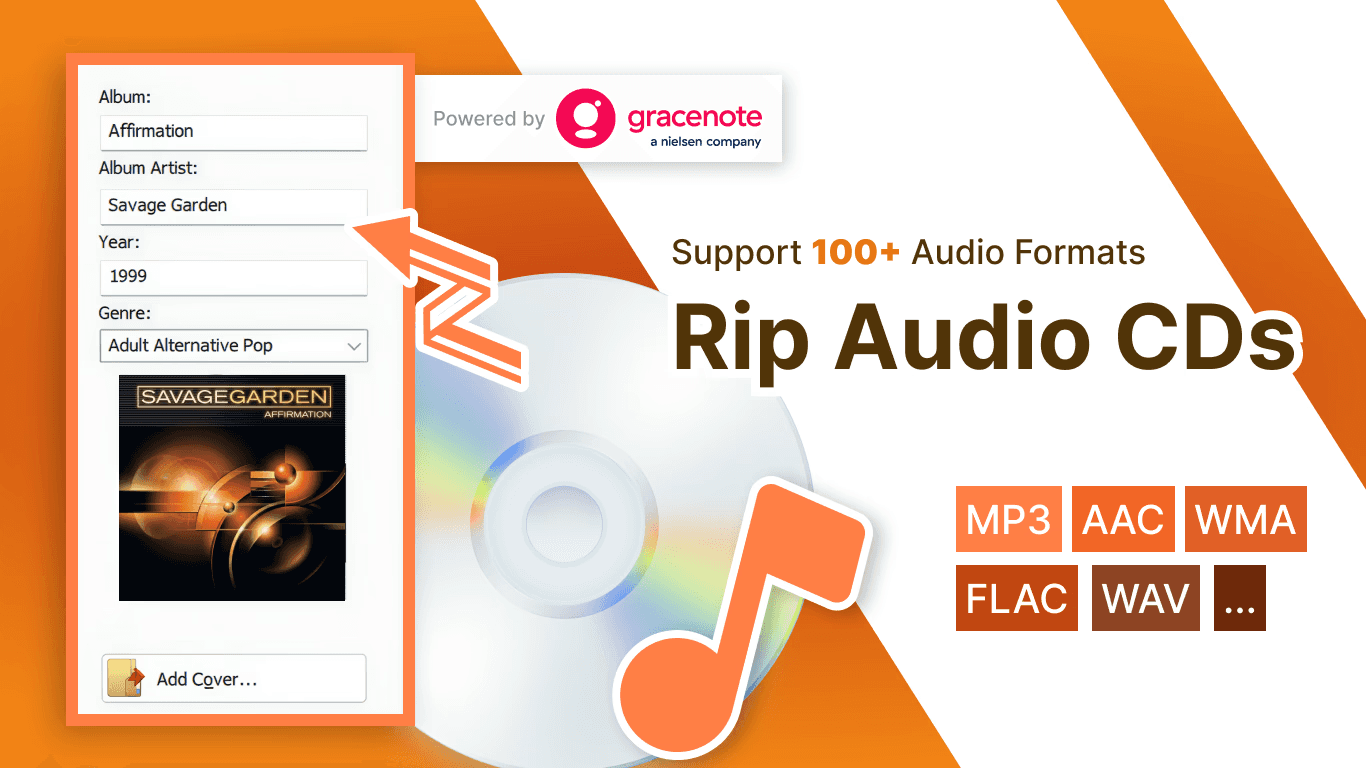
Pros: Free. Gracenote metadata. Clean interface. Installs in 30 seconds. Handles scratched discs well.
Cons: No multi-drive batch ripping. Fewer advanced settings than Nero Burning ROM. Windows only.
Best for: Anyone who wants professional results without spending money. Casual users, new CD collectors, people leaving Windows Media Player behind.
Download Nero CD Ripper from Microsoft Store →
2. Nero Burning ROM — Best Professional CD Ripper
If Nero CD Ripper is a family sedan, Nero Burning ROM is the workshop with every tool on the wall. It's been the standard for disc burning and ripping since the late 1990s, and the 2026 version is the best one yet.
The extraction engine uses refined read methods that minimize jitter — timing errors that happen when a drive laser doesn't read data at perfectly uniform intervals. On a clean CD, you won't notice the difference. On an older disc with light scratches, it's the difference between a clean rip and artifacts you can actually hear.
It has the same Gracenote integration as the free version. Every track gets correct metadata and album art.
Where it pulls ahead: custom encoder parameters, format-specific normalization, burning ripped files back to disc, pro-grade audio CD burning with CD-TEXT, and disc copy features. If you're building a serious archive and want one tool that does everything, this is the one.
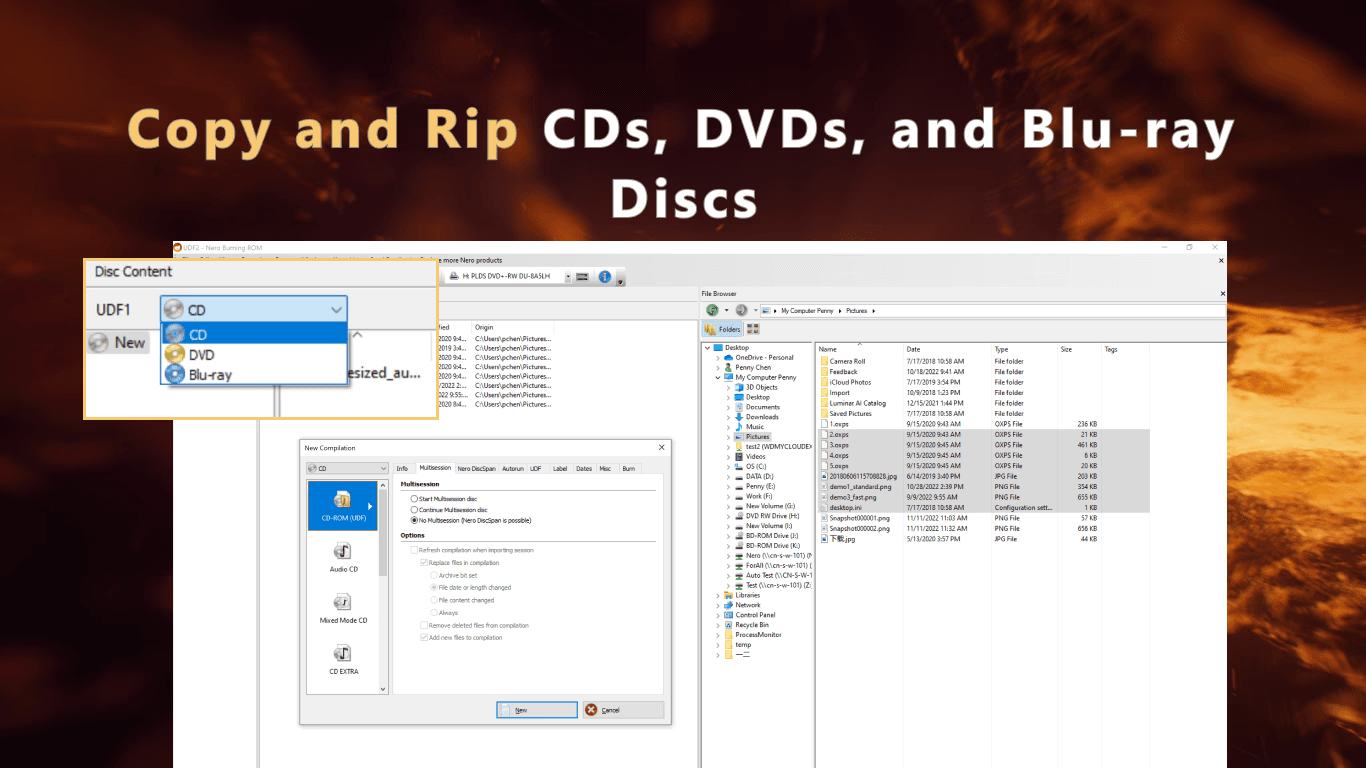
Pros: Pro-level extraction quality. Full encoder customization. Integrated burning and copying. Gracenote metadata. One-time purchase, lifetime license. Windows 11 optimized.
Cons: Paid software (though the value is strong). Overkill if you just need to rip a few CDs. Windows only.
Best for: Serious collectors, DJs, musicians, anyone who wants top-quality ripping plus full disc burning.
Learn more about Nero Burning ROM →
3. Exact Audio Copy (EAC) — Best Free Bit-Perfect Accuracy
EAC has been the audiophile pick for over 20 years. The reason is simple: its secure ripping mode is obsessive about accuracy.
It reads each sector of a CD multiple times, compares results, and only accepts data that matches. If a sector is damaged, it retries — up to 82 times if you let it. This means EAC can pull clean audio from discs that other rippers give up on.
AccurateRip integration lets you check your rip against thousands of other users' results for the same disc. If your checksums match the consensus, you're golden.
The trade-off is complexity. EAC's interface hasn't been updated in 16 years. It looks like a Windows XP app. First-time setup takes 15–30 minutes, and you will need to understand offset correction, C2 error reporting, and gap detection.
Once it's configured, though, it's set-and-forget for lossless archiving.
Pros: The most accurate ripping engine available. Free. Extensive error recovery. AccurateRip verified. Works on Windows 11 24H2.
Cons: Steep learning curve. Dated interface. Slow on clean discs (by design, not a bug). Needs a separate LAME encoder for MP3. No burning features.
Best for: Audiophiles building FLAC archives. Anyone with scratched or aging CDs. Users who enjoy technical configuration. See how EAC stacks up against Nero CD Ripper and dBpoweramp in our detailed three-way comparison.
4. dBpoweramp — Best for Large CD Collections
dBpoweramp is the productivity pick. If you have hundreds (or thousands) of CDs to digitize, this is the tool that will save you dozens of hours.
Here's why: you can connect up to five USB drives to one PC, load them all with discs, and dBpoweramp rips everything simultaneously. Finished discs eject automatically and you swap in new ones. At 5–10 minutes per disc per drive, that's 30–60 CDs per hour.
Metadata is where dBpoweramp really shows its strengths. Its PerfectMeta feature queries five databases at once — GD3, MusicBrainz, Discogs, freedb, and an AMG-derived source — then picks the most complete data from each.
If you've ever had a ripper label your classical collection as "Rock" or mangle an artist name with three different spellings, PerfectMeta fixes that.
At $39 for a lifetime license (21-day free trial), it's fair value. But no Gracenote means album art quality is hit-or-miss compared to the Nero tools.
Pros: Fastest batch ripping. Multi-drive support. PerfectMeta resolves conflicting metadata automatically. Windows and macOS.
Cons: $39. No Gracenote (album art varies). Interface feels utilitarian. No burning features. Mac version has fewer features.
Best for: Users with 300+ CD collections, archivists, anyone who wants to rip an entire shelf in one session. For a closer look at how dBpoweramp compares to Nero CD Ripper and EAC on metadata accuracy and workflow speed, read our Nero CD Ripper vs EAC vs dBpoweramp comparison.
5. Windows Media Player (Legacy) — Built-In but Crippled
WMP was once the default CD ripper for millions of Windows users. Technically, it still works on Windows 11. But there's a catch.
In December 2025, Microsoft quietly shut down the metadata service that WMP used to look up album info. Insert a CD today and you'll see "Track 01," "Track 02," and blank album art. Every time. No matter what disc.
You can still rip to MP3 or WMA. The audio quality is fine for casual listening (up to 320 kbps MP3). But without metadata, you'll spend more time typing track names than actually ripping.
No FLAC. No AAC. No WAV. No error correction. No AccurateRip.
Pros: Free. Already on your PC. Simple interface. Adequate for MP3 ripping if metadata doesn't matter to you.
Cons: No album info retrieval. No lossless formats. No error correction. Slower than modern rippers. Outdated interface.
Best for: Honestly? As a last resort. If WMP is what you've been using, Nero CD Ripper will feel like a completely different experience. Read our full guide on Windows Media Player alternatives →.
6. iTunes / Apple Music — Best for Apple Ecosystem
Apple Music (formerly iTunes) is the default ripper on macOS. It does a capable job within the Apple ecosystem.
Ripped tracks show up in your library with album art and metadata from the Apple Music catalog (powered by Gracenote). They sync automatically to iPhone, iPad, and HomePod via iCloud.
The big limitation: no FLAC support. Apple Music rips to AAC, MP3, ALAC, WAV, or AIFF. Notice what's missing. Apple has never supported FLAC as a library format, and iPhones won't play FLAC natively. If you want lossless in the Apple world, you use ALAC — same audio quality as FLAC, but far less support outside Apple devices.
Pros: Free on macOS and Windows. Seamless Apple integration. Gracenote metadata. Rips lossless via ALAC.
Cons: No FLAC. Bloated on Windows. Minimal configuration options. No AccurateRip. More of a media manager than a dedicated ripper.
Best for: People fully invested in the Apple ecosystem.
7. X Lossless Decoder (XLD) — Best Free Mac FLAC Ripper
XLD is the tool every Mac FLAC user discovers eventually. Unlike Apple Music, it treats FLAC as a first-class format.
It supports FLAC, ALAC, WAV, AAC, MP3, and OGG. AccurateRip and CUETools verification are built in. It generates detailed logs and cue sheets, and handles gapless albums correctly — important for live recordings and classical works where tracks flow into each other.
The interface is a single window with tabs. First-time setup means configuring encoder paths and output settings. On the upside, it offers secure ripping with error detection and automatic offset correction.
Pros: Free. Best FLAC support on macOS. AccurateRip verified. Cue sheet and log generation. Lightweight.
Cons: macOS only. Requires initial configuration. No Gracenote (uses MusicBrainz/freedb). No multi-drive batch ripping. No burning.
Best for: Mac users who want FLAC archives. macOS audiophiles. Anyone who needs cue sheets.
CD Ripping Format Guide: MP3, AAC, FLAC, WAV
The format you pick determines file size, sound quality, device compatibility, and how much storage you'll need.
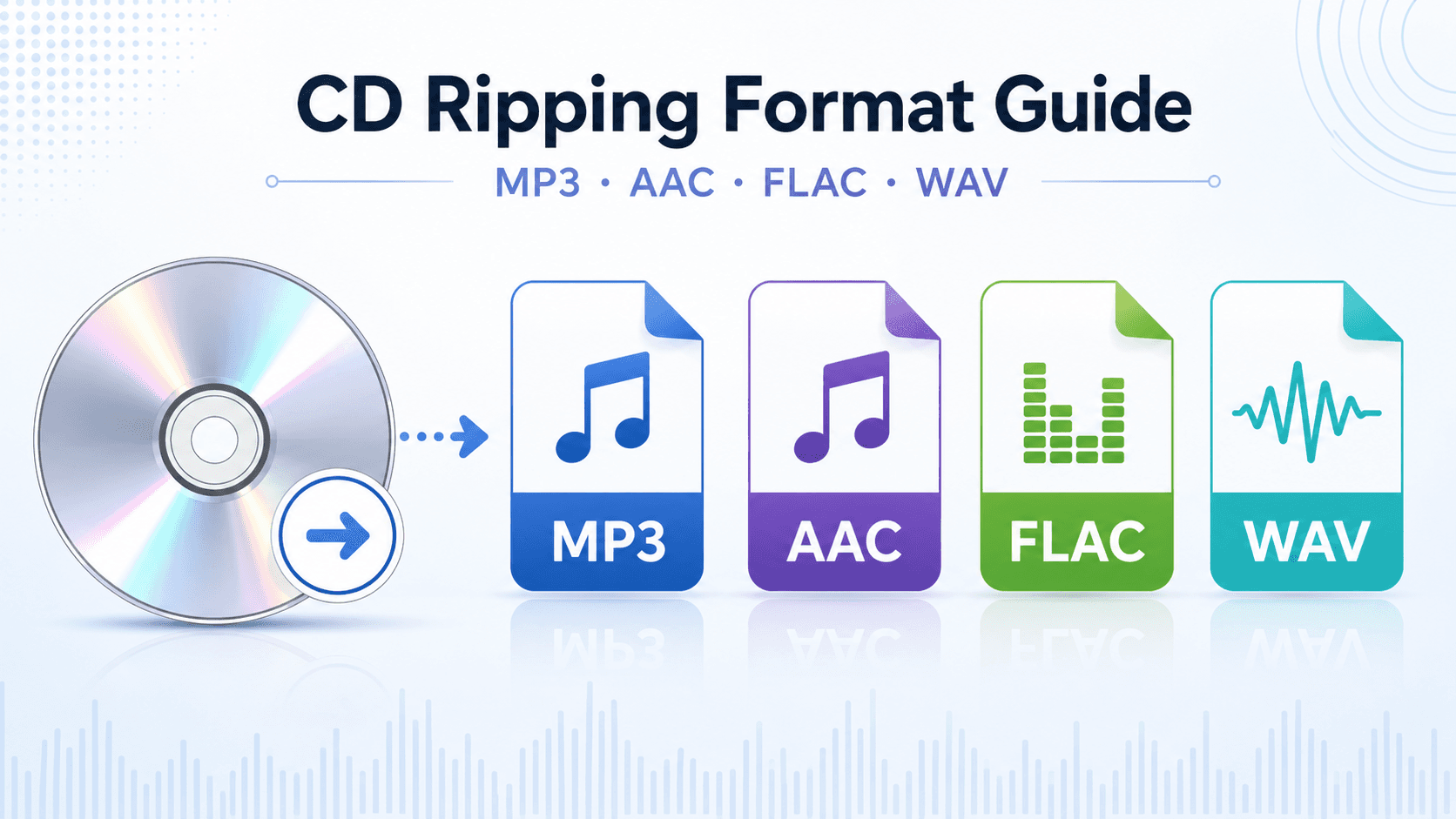
FLAC (Free Lossless Audio Codec) saves every bit of audio from the CD. Same quality as the original, in about half the file size of WAV. Figure 300–400 MB per album. Full metadata support — artist, album, track, cover art all embedded in the file.
It's the right choice for archiving and serious listening. Every modern music player supports FLAC. Except Apple's apps, obviously. For a complete FLAC ripping workflow, follow our guide on how to rip audio CDs to FLAC with perfect metadata.
WAV is the raw, uncompressed original. A single album takes 600–700 MB. The problem: WAV's metadata support is unreliable. Most WAV files can't reliably store album art or even consistent track names. WAV is fine as an intermediate step (rip to WAV, then convert to FLAC), but don't use it as your final library format.
ALAC (Apple Lossless) is Apple's FLAC equivalent. Same quality, similar file sizes. Works on all Apple devices natively. Less support on non-Apple hardware. Pick ALAC if you're all-in on Apple; pick FLAC for cross-platform compatibility.
AAC at 256 kbps sounds indistinguishable from the CD in blind tests for most people, and files are about a quarter the size of FLAC. Default format for Apple Music. Good for portable listening when storage matters.
MP3 at 320 kbps is the most compatible format on the planet. At the highest bitrate, the quality difference from the original CD is extremely subtle. Most people can't hear it on anything but high-end gear. Below 256 kbps, quality drops off — cymbals, strings, and dense bass start showing artifacts. For a full tutorial on ripping CDs to MP3 with complete metadata, see our step-by-step MP3 ripping guide.
Our recommendation: Rip to FLAC for your master archive. Make AAC or MP3 copies for portable devices later. A 1 TB drive costs under $50 and holds about 3,000 albums in FLAC. You can always convert lossless to lossy. You can never get back quality you threw away by ripping straight to MP3.
Metadata Showdown: Gracenote vs. MusicBrainz vs. freedb
Automatic metadata — the software figuring out what CD you just inserted and filling in artist, album, tracks, genre, year, and cover art — is what separates good rippers from frustrating ones. Bad metadata means hours of manual correction.
Feature | Gracenote® | MusicBrainz | freedb |
|---|---|---|---|
Database size | 200M+ tracks | ~39M recordings | Frozen since 2020 |
Identification method | Audio fingerprint + TOC | TOC + acoustic ID | TOC only |
Album art quality | High-resolution, professional | User-submitted, variable | None |
Accuracy on rare CDs | Very high (99%) | Moderate | Low |
Classical music handling | Excellent (composer, work, movement) | Inconsistent | Poor |
Regional variants | Recognized separately | Often merged | Not distinguished |
Cost model | Commercial (included in Nero) | Free, community-driven | Defunct |
Gracenote is what Spotify and Apple Music use. Instead of just checking the CD's table of contents (how many tracks, how long), it analyzes the actual audio waveform. That means it can tell the difference between the original 1985 pressing, the 2004 remaster, and the 2022 deluxe edition.
For classical music — where one disc might have works by three composers played by two orchestras — Gracenote attributes each track to the correct composer, work, and movement. Free databases routinely get this wrong.
MusicBrainz is community-run. Think Wikipedia for music metadata. It's free, it covers popular music well, and it's integrated into EAC, XLD, and dBpoweramp. The downside: community entries come with typos, strange formatting, and genre classifications that sometimes make no sense. For obscure releases, there may be no data at all. Album art quality is all over the place.
freedb shut down in 2020. The data is frozen. Some older rippers still query freedb mirrors, but the database hasn't been updated in six years. Relying on freedb in 2026 means guaranteed missing or wrong metadata.
Bottom line: If you care about metadata — and you should, fixing track names one by one is not fun — pick a ripper with Gracenote. Both Nero CD Ripper (free) and Nero Burning ROM (paid) include it.
Windows 11 Compatibility: What Actually Works in 2026
Windows 11's 24H2 update (late 2025) changed how the OS talks to optical drives. Not every ripper kept up.
Software | Windows 11 24H2 | External USB Drive | Internal SATA Drive | Notes |
|---|---|---|---|---|
Nero CD Ripper | ✅ | ✅ | ✅ | Native Win11 app, fully tested |
Nero Burning ROM | ✅ | ✅ | ✅ | Optimized for 24H2 |
EAC | ✅ | ✅ | ✅ | Updated for 24H2 |
dBpoweramp | ✅ | ✅ | ✅ | Some USB detection issues reported |
Windows Media Player | ⚠️ | ⚠️ | ⚠️ | Ripping works, metadata doesn't |
iTunes / Apple Music | ✅ | ✅ | ✅ | No issues |
XLD | N/A | N/A | N/A | macOS only |
If you're using an external USB drive (which most people are these days), plug it into a rear USB port on your desktop. Front-panel ports sometimes can't deliver enough steady power for sustained high-speed reading. The ripping errors that causes aren't the software's fault.
Best CD Ripper for Your Specific Needs
For Brennan B3 and B2 Owners
Brennan makes standalone CD ripping hardware — popular with people who don't want to use a PC for everything. The B3 and B2 rip CDs to internal storage, but their built-in metadata lookup uses MusicBrainz, which misses things.
Here's a workflow a lot of Brennan owners have adopted: rip on your PC with Nero CD Ripper (Gracenote-quality metadata), then copy the perfectly tagged files to the Brennan over USB or network.
For Classical Music Collectors
Classical CDs are a special kind of metadata nightmare. One disc can contain works by three composers, performed by different orchestras and conductors, with movements that don't map cleanly to "Track 01."
Gracenote handles this better than anything else. It identifies composer, work title, movement number, performer, and conductor as separate fields. It can tell the difference between Karajan's 1963 Beethoven cycle and Rattle's 2003 recording of the same symphonies.
The practical difference: with Gracenote (Nero), your classical library is organized and searchable. With MusicBrainz (EAC, XLD), prepare to spend hours correcting tags.
For DJs and Music Producers
DJs need reliable WAV or high-bitrate MP3, consistent volume across tracks, and clean file naming. Nero Burning ROM's extraction engine has normalization options that level volumes automatically — important when you're mixing ripped CD tracks with purchased downloads. Burning playlists back to CD is also available if you still use CDJs.
Step-by-Step Guide: How to Rip CDs with Nero Burning ROM
Nero Burning ROM has been the go-to for disc burning and ripping for decades. Here's how to get professional results in five steps.
Step 1: Install Nero Burning ROM
Download and install Nero Burning ROM from the Microsoft Store. Installation takes a few minutes.
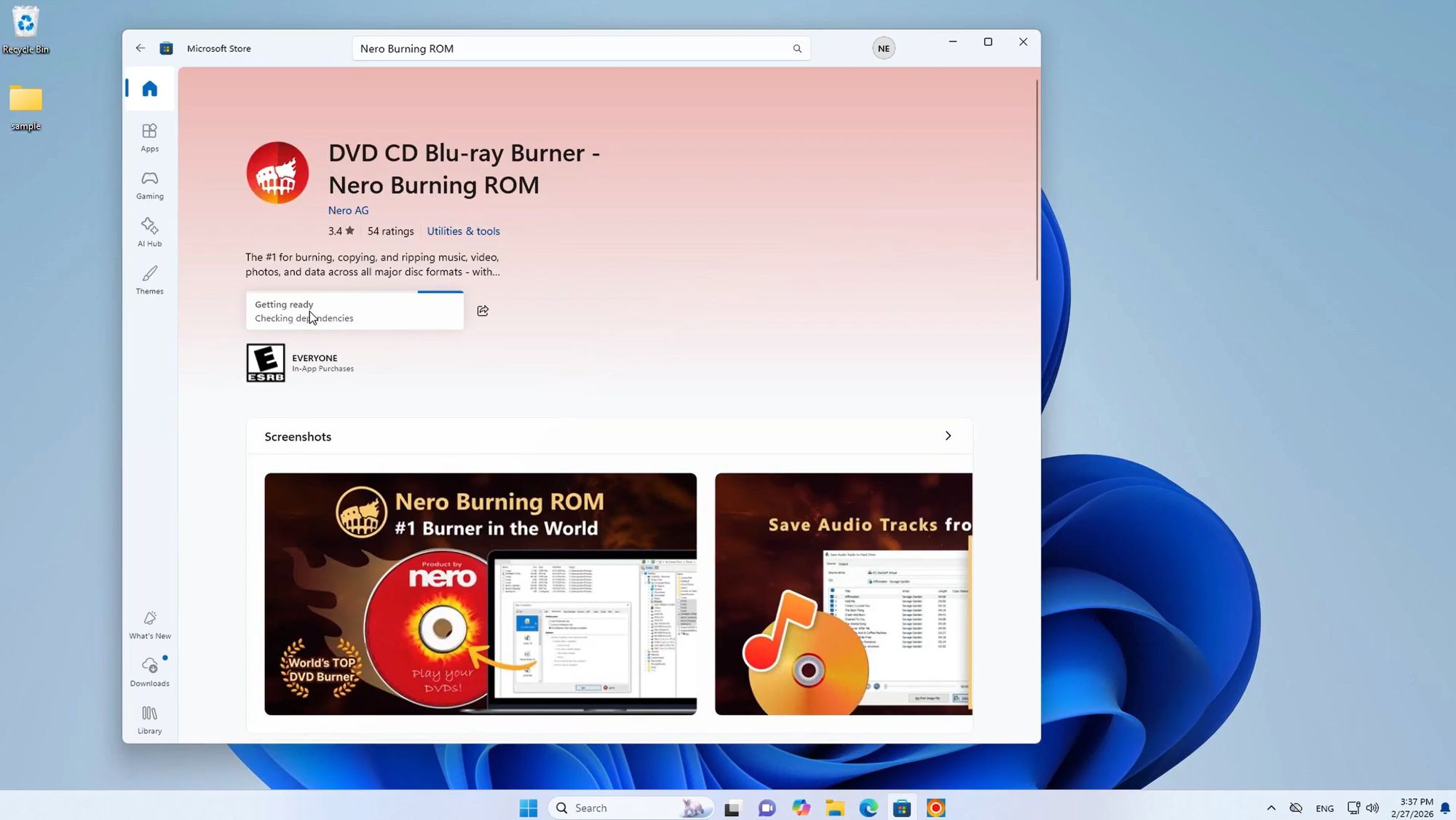
👇 Download Nero Burning ROM
Get Nero Burning ROM from Microsoft Store
👇 Learn More
Official Nero Burning ROM Website
The app is rated for everyone. The interface is clean and intuitive.
Step 2: Access the Save Audio Tracks Feature
Launch Nero Burning ROM. Insert a CD into your disc drive. Then:
Click the "Extras" menu in the top toolbar
Select "Save Audio Tracks..."
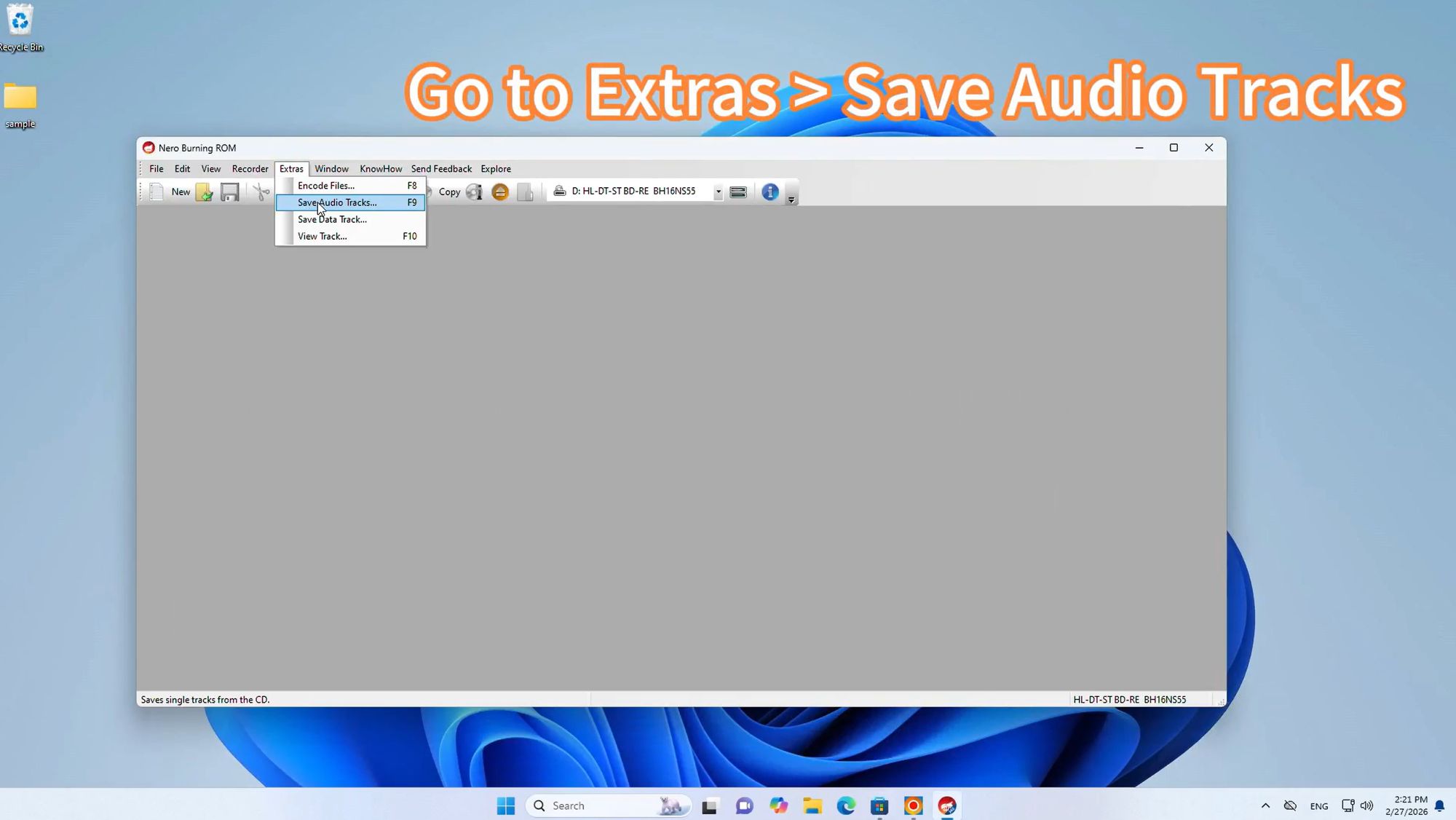
This opens the audio extraction window where you'll set up your ripping options.
Step 3: Configure Output Settings
Pick your audio format and quality settings. Nero Burning ROM gives you a lot of control here.
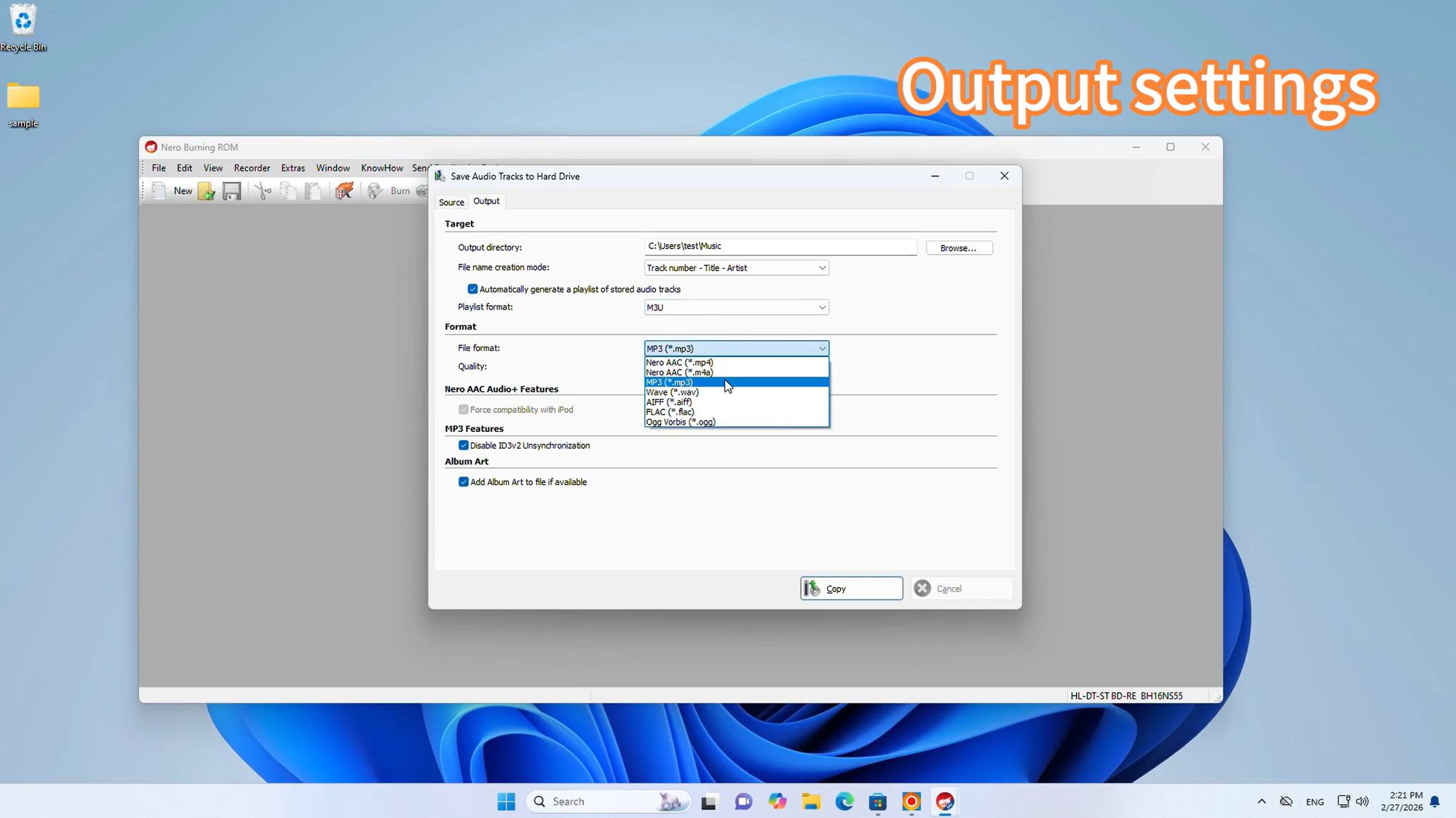
Available Format Options:
FLAC — Lossless. Best for archiving and high-fidelity playback (recommended)
MP3 — Universal compatibility. Adjustable bitrate (320 kbps recommended)
WAV — Uncompressed. Best if you plan to edit files further
AAC — High efficiency. Ideal for Apple devices
WMA — Windows-native. Decent compression and quality
Quality Settings:
For lossless archiving, select FLAC at the default compression level (level 5 is the sweet spot between file size and speed). For portable listening, MP3 at 320 kbps CBR gives you maximum compatibility. Nero Burning ROM also supports VBR (variable bitrate), which allocates more data to complex sections and less to simple ones.
Step 4: Select Files and Start Ripping
The track list shows every song from your disc with full metadata.
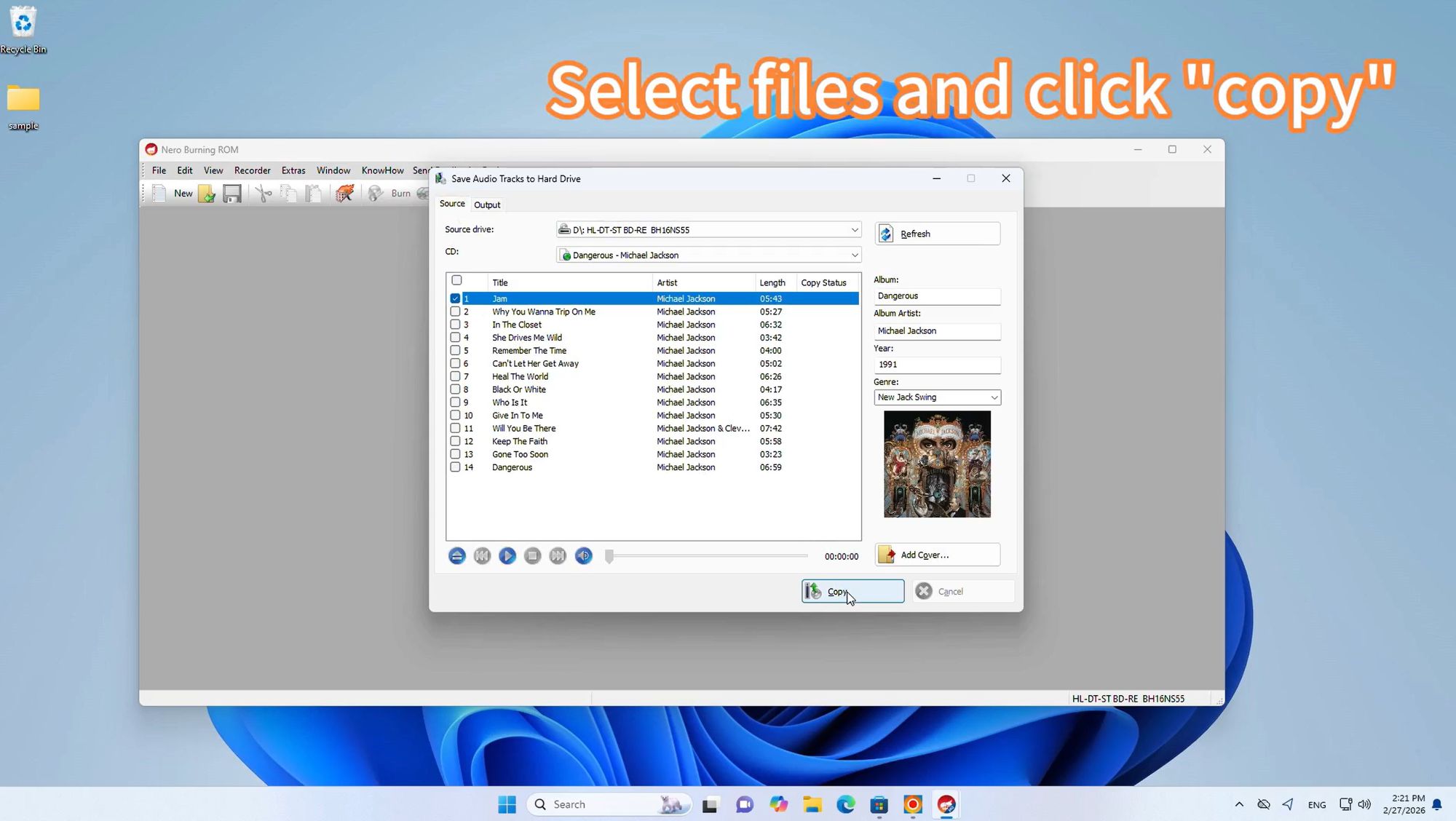
To rip your CD:
Review the track list. Nero automatically pulls album info from Gracenote
Check or uncheck tracks (select all, or pick individual songs)
Make sure the album art looks right in the preview panel
Click the "Copy" button
The software extracts each track and encodes it to your chosen format. Most albums take 3–10 minutes, depending on length and quality settings.
Step 5: Access Your Ripped Music
When it's done, your files are in the output folder you specified.
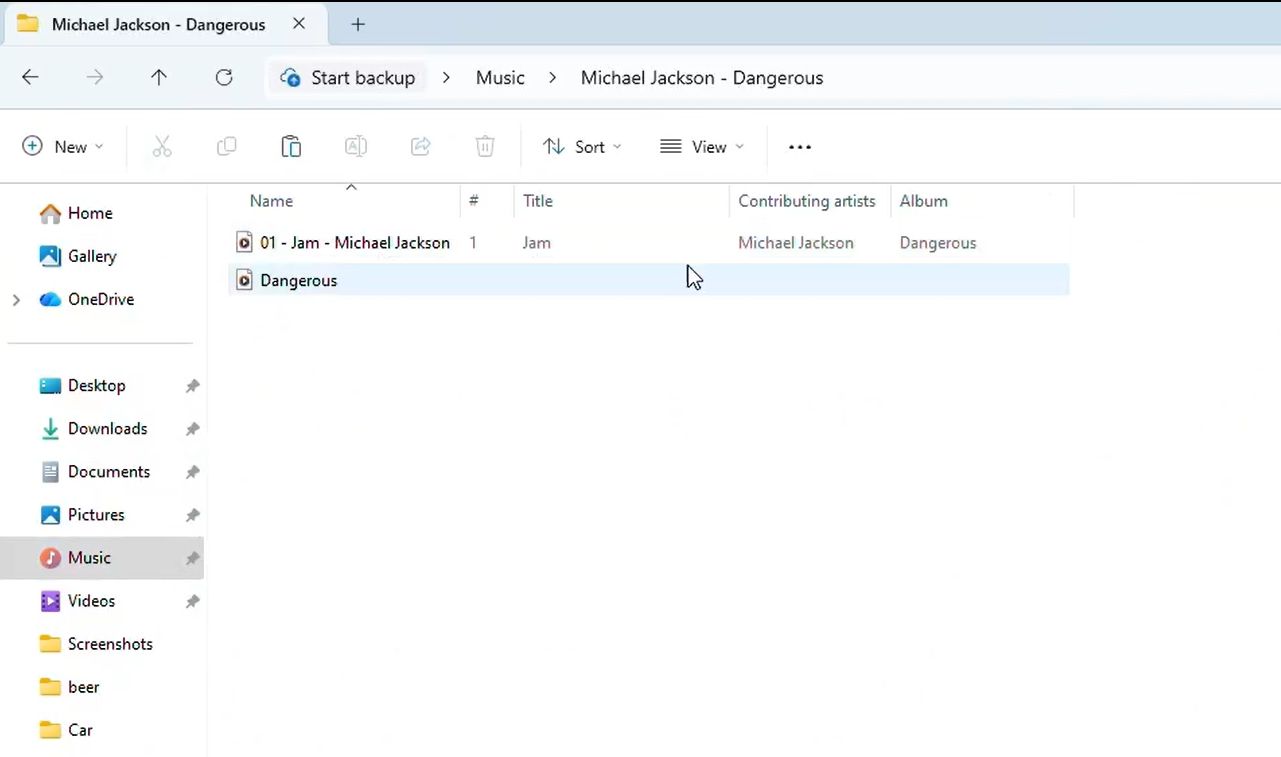
Files are organized with full metadata — artist, album, track number, title, genre, and high-resolution cover art. They import cleanly into Apple Music, Windows Media Player, Plex, Roon, or any streaming service that supports local files.
FAQ
Does ripping a CD reduce audio quality?
No. A CD stores audio as uncompressed 16-bit/44.1 kHz PCM. Rip to FLAC or WAV, and you get a bit-for-bit copy of what's on the disc. Quality only drops if you rip straight to a lossy format (MP3, AAC) at a low bitrate. For archival, always rip to FLAC or WAV first.
What is the difference between FLAC and WAV?
Both are lossless. WAV stores audio uncompressed: about 600 MB per album. FLAC compresses without losing anything: about 350 MB for the same album.
The bigger difference is metadata. FLAC supports artist, album, track names, and cover art embedded in every file. WAV's metadata is unreliable. For a music library, use FLAC. See our guide to ripping CDs to FLAC with full metadata for the full workflow.
Why can't Windows Media Player find album information anymore?
Microsoft shut down WMP's album info service in December 2025. This affects both Windows 10 (WMP Legacy) and Windows 11 (modern Media Player). Insert a CD now and you get blank metadata — no track names, no artist, no album art.
Nero CD Ripper uses Gracenote instead of Microsoft's dead service. See our detailed guide on Windows Media Player alternatives →.
What bitrate should I use for MP3 ripping?
320 kbps CBR is the highest quality MP3 setting. Most people can't hear any difference from the original CD on most equipment.
256 kbps VBR produces files about 30% smaller with no perceptible quality loss for almost all music. Below 192 kbps, you'll start hearing artifacts on cymbals, acoustic guitar, and complex passages. For a complete walkthrough, follow our tutorial on ripping CDs to MP3 with metadata.
Is CD ripping legal?
It depends where you live. In the US, ripping CDs you own for personal use is generally considered fair use. In the UK, a 2014 law legalizing personal backups was overturned in 2015, creating a gray area. Most European countries allow private copying under levy systems.
Check your local laws. This guide assumes you're ripping CDs you own, for personal use.
Can I rip and burn CDs with the same software?
Yes. Nero Burning ROM covers the full pipeline: rip audio CDs, burn audio CDs from files, create MP3 CD compilations, duplicate discs, and burn data CDs and DVDs. For ripping only, Nero CD Ripper is free.
What is AccurateRip and why does it matter?
AccurateRip is a database of checksums for millions of CD pressings. When your ripper finishes, it compares your results against the database. If your checksums match the consensus, your rip is error-free. If they don't match, something went wrong — the CD, the drive, or both — and a good ripper will re-read those tracks.
AccurateRip is supported by Nero CD Ripper, Nero Burning ROM, EAC, dBpoweramp, and XLD. Windows Media Player and iTunes don't support it.
Conclusion: Pick the CD Ripper That Fits You
Whether you go with Nero CD Ripper (free, effortless), Nero Burning ROM (pro-level burning and ripping), EAC (maximum accuracy), or dBpoweramp (speed at scale), the important thing is just to start. Every day you wait is another day your CDs sit on a shelf.
CDs aren't dead. Physical media is coming back — vinyl has been climbing for 19 straight years, and CD sales have leveled off after years of decline. Streaming is convenient, but it's a rental. Albums disappear. Quality gets compressed.
Your CD collection, ripped to lossless, is music you own. Forever. Studio quality. Playable on whatever device you own ten years from now.
The right ripper is the difference between finishing your digitization project in a weekend and abandoning it after three discs. Pick well, rip once, enjoy for decades.
Ready to start? Download Nero CD Ripper (free) or explore Nero Burning ROM for the full professional suite.