Still holding onto a CD collection? Most modern laptops don't come with a disc drive, and streaming services don't always have the albums you own. Ripping your CDs to MP3 lets you digitize everything so you can play it on any device, back it up to the cloud, and leave the physical discs on the shelf.
This guide covers three ways to do it on Windows, and all of them are free to get started. You can use the tool already built into your PC, or grab dedicated software that handles most of the work for you.
CD ripping vs. converting: what's the difference?
When people say "convert a CD to MP3," two things happen at the same time:
Ripping pulls the raw audio data off the CD and onto your computer as a digital file.
Converting (encoding) compresses that raw audio into the MP3 format.
In practice, you don't need to think about the distinction. Every tool here does both in one go. Pop in the CD, pick MP3 as the output, and hit start. The software handles the rest. If you see "rip" and "convert" used interchangeably in settings menus, now you know why.
Windows Media Player to Rip a CD to MP3
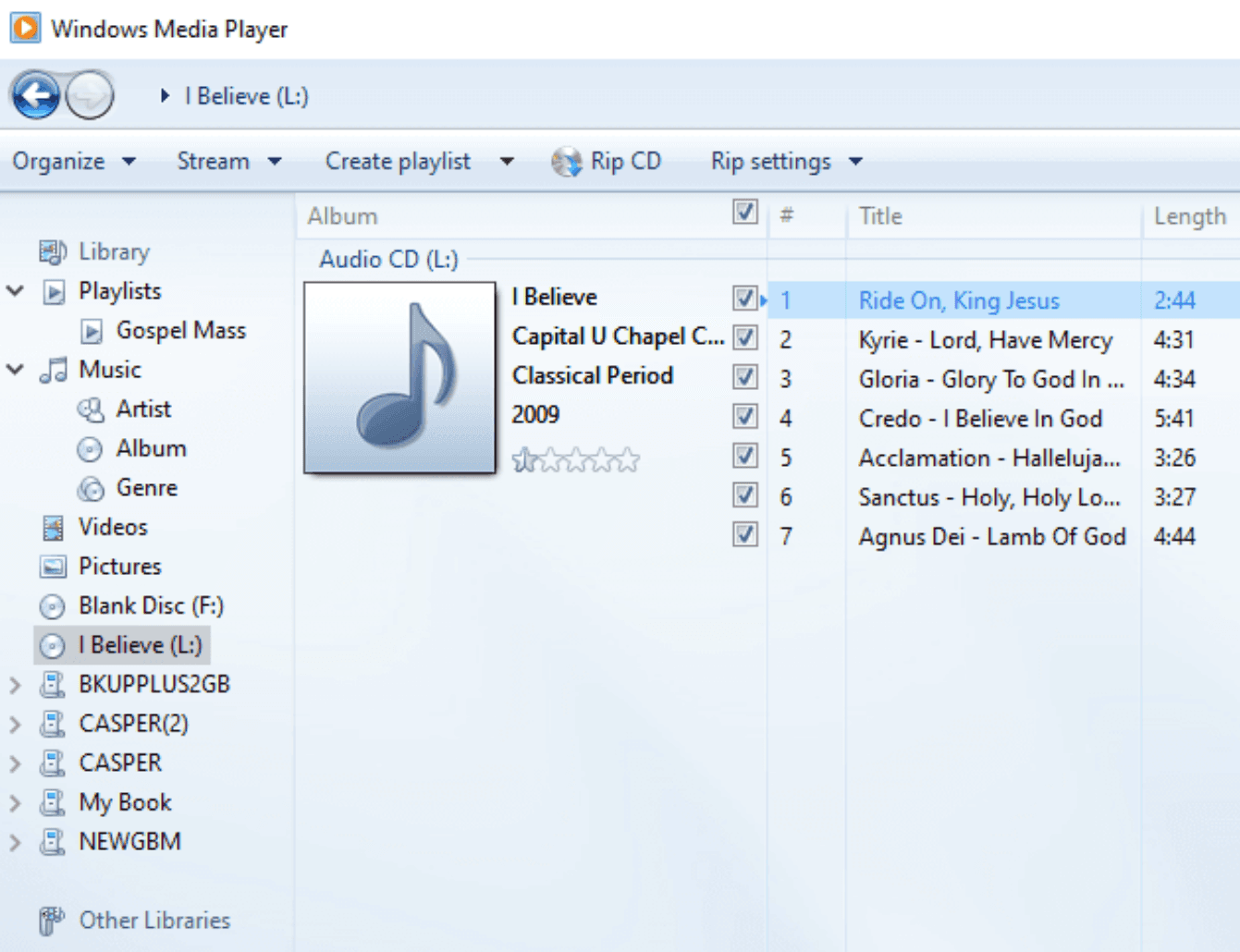
Windows Media Player has been the built-in CD ripping tool on Windows for over two decades. It's already on your PC if you're running Windows 10 or 11. Nothing to install.
Steps
Insert your CD into the computer's CD drive.
Open Windows Media Player. Search for it in the Start menu if it isn't pinned.
Click the "Rip CD" tab at the top of the window.
Go to Rip settings, then choose MP3 under Format. While you're there, pick your audio quality. The default is 128 kbps, but 192 kbps or 320 kbps will sound noticeably better if you have the storage space.
Click "Rip CD" to start. The finished MP3s land in your Music folder.
Pros
Built into Windows 10 and 11, no installation needed
Simple, familiar interface that won't overwhelm beginners
Completely free
Cons
No automatic metadata fetching: Microsoft retired the "Find album info" service in early 2026, so track names and album art won't populate automatically
Slower than dedicated tools, especially with large collections
Requires Windows Media Player Legacy on Windows 11 (the new Media Player app has CD ripping but with different menus)
Nero CD Ripper: The Fast and Simple Method
If you want a tool built specifically for CD ripping, Nero CD Ripper is the standout option. The core ripping functionality is completely free, and it supports a wide range of output formats (MP3, AAC, WAV, FLAC, AIFF, OGG, and more). With an optional Gracenote subscription (€1.99/month), it also automatically fetches track names, album art, and artist info for most CDs.
Steps
Download Nero CD Ripper from the Microsoft Store and install it.
Insert your CD into the computer's CD drive.
Launch Nero CD Ripper.
Select your output format from the dropdown. MP3, WAV, FLAC, AAC, and several others are available. For MP3, you can fine tune the bitrate and audio settings.
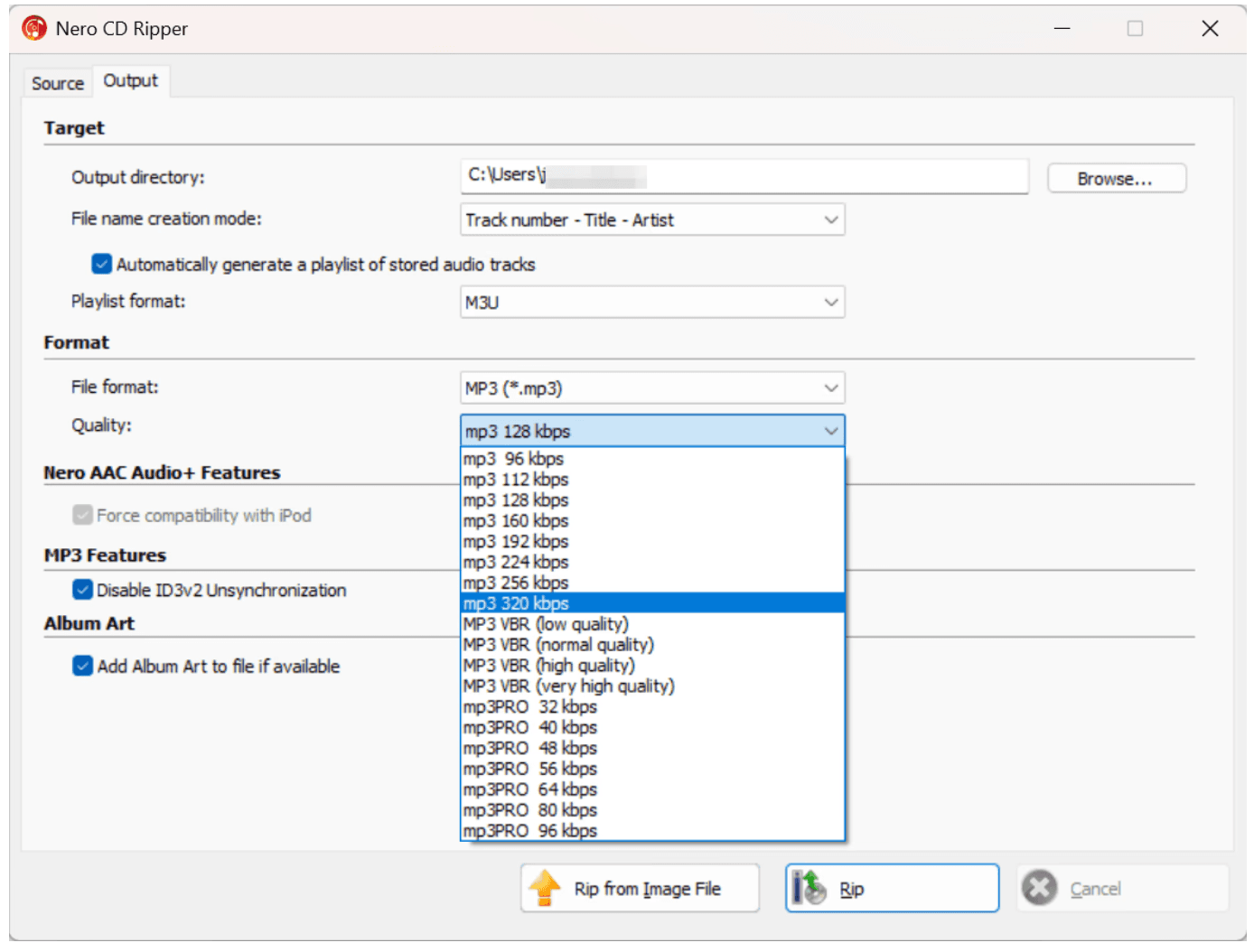
Click the "Rip" button. Nero pulls the tracks off the CD and encodes them automatically.
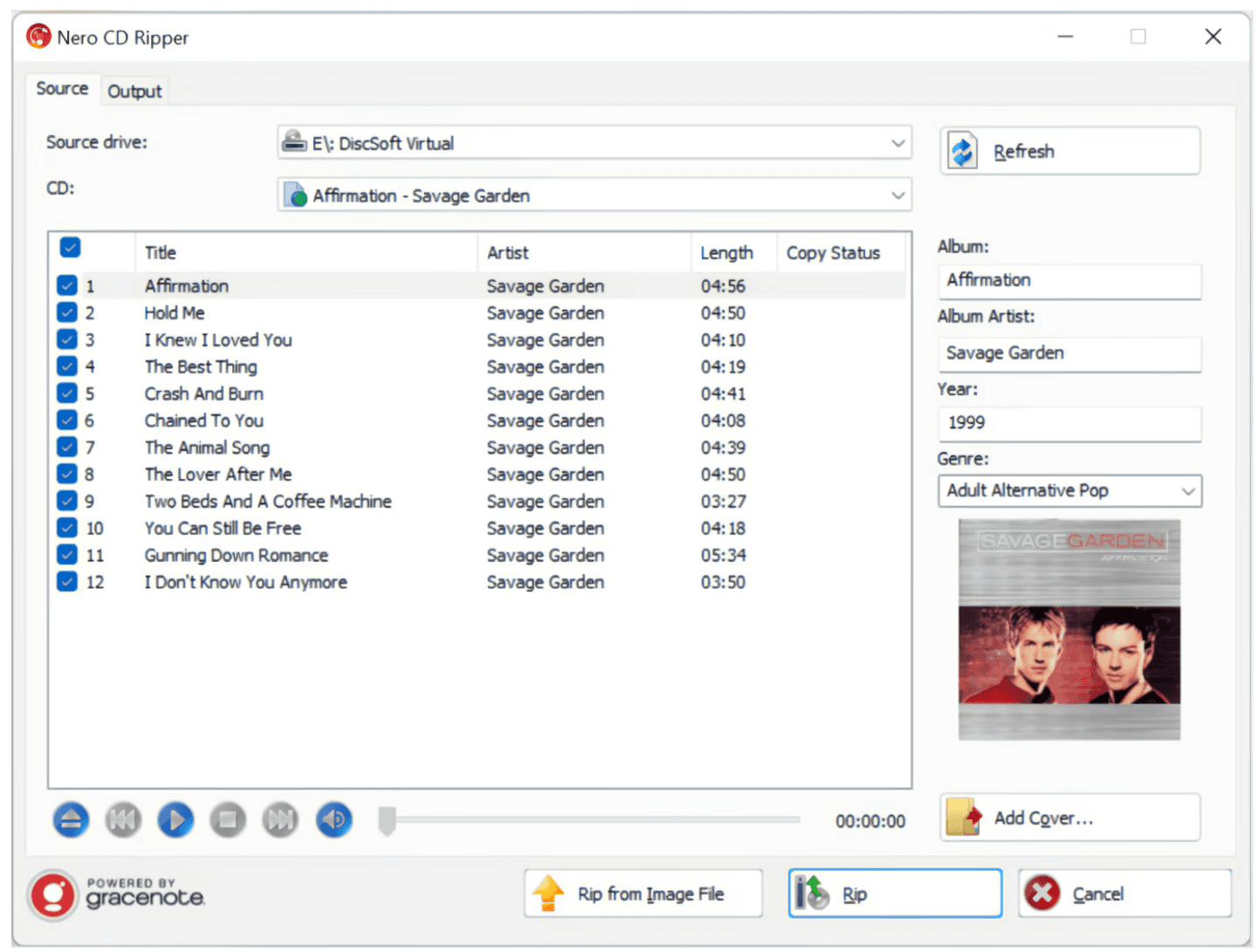
While it rips, Nero can fetch metadata for most CDs (track titles, artist name, album title, cover art) through its Gracenote integration. This requires an optional subscription (€1.99/month). If the auto fetch misses something, or you want to edit any details, switch to the "Source" tab and type in your changes. The entire interface is available in multiple languages.
Want to see the process on screen? This independent YouTube tutorial shows how to use Nero CD Ripper to convert an audio CD to MP3. You can watch it alongside the steps above to get a clearer view of the settings and the complete ripping process.
Pros
Fast and straightforward: pick your settings, click Rip, done. No multi step wizards.
High quality output: full control over bitrate and audio settings for the best conversion.
Gracenote metadata (optional subscription, €1.99/month): high-accuracy album info and cover art from the industry-standard databaseTrusted software: Nero has been making reliable CD and media tools (including Nero Burning ROM) for decades.
Broad format support: MP3, AAC, WAV, FLAC, AIFF, OGG, and more.
Cons
Windows only. No Mac version.
Some advanced features (secure ripping with error correction, audio editing) are part of the paid Nero Platinum suite.
VLC Media Player to Rip CDs to MP3
VLC is famous as the media player that plays everything, but it also has a CD ripping function tucked inside its menus. It's completely free, open source, and runs on Windows, macOS, and Linux. A solid choice if you already have it installed or want one cross platform tool.
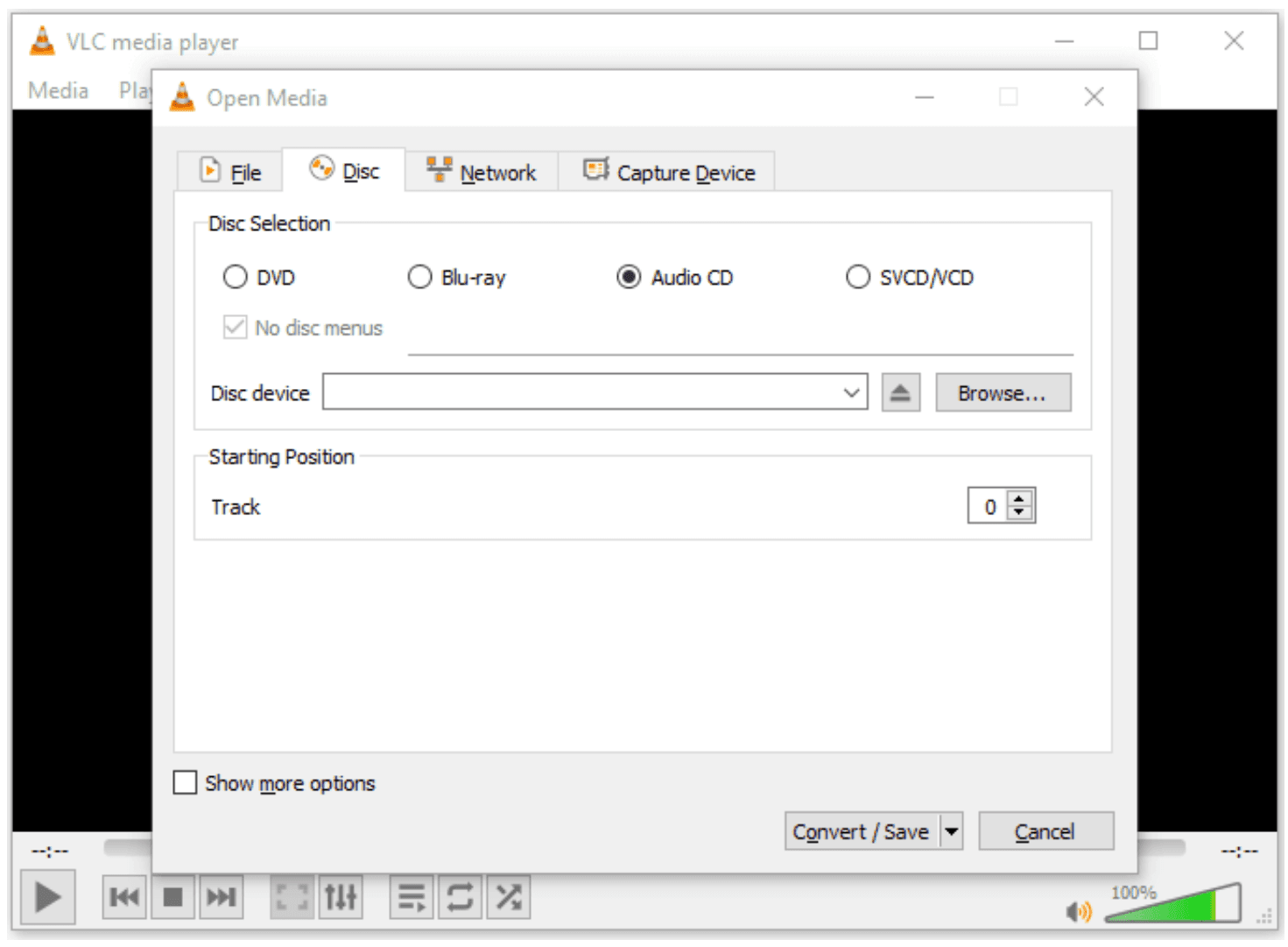
Steps
Download and install VLC if you don't already have it.
Insert your CD into the computer's CD drive.
Open VLC Media Player.
Go to the Media menu and select Convert / Save.
In the window that opens, switch to the Disc tab and choose Audio CD.
Select the CD drive containing your disc.
Click Convert / Save at the bottom.
In the next window, choose Audio - MP3 from the Profile dropdown.
Click Browse to pick where the MP3 files should be saved.
Hit Start. VLC begins ripping and encoding the tracks.
Pros
Completely free and open source. No paid tier, no upsells.
Cross platform: works on Windows, macOS, and Linux.
Extremely versatile media player beyond just CD ripping.
Cons
Ripping workflow is not intuitive. VLC is a media player first, and the CD ripping feature is buried under several menus. Beginners may find the steps frustrating.
No automatic metadata. Unlike Nero, VLC won't grab track names or album art. You'll need to tag everything manually afterward.
More setup steps per rip. The multi window Convert/Save flow adds friction compared to dedicated one click rippers.
Free CD to MP3 tools compared
Tool | Price | OS | Best for | Metadata auto fetch | Format support |
|---|---|---|---|---|---|
Windows Media Player | Free | Windows | Quick rips with zero setup | No | MP3, AAC, WMA, FLAC, ALAC, WAV |
Nero CD Ripper | Free (metadata sub. €1.99/mo) | Windows | Fast, high quality rips with automatic tagging | Yes (paid subscription) | MP3, AAC, WAV, FLAC, AIFF, OGG, and more |
VLC Media Player | Free | Windows / Mac / Linux | Cross platform users who already use VLC | No | MP3, FLAC, OGG, and more |
If you're on a Mac, Apple's built-in Music app (formerly iTunes) can also rip CDs to MP3. Go to Music, then Settings, Files, Import Settings. Choose MP3 Encoder, set your bitrate, and insert the CD. The import happens automatically or on demand.
Choosing the right bitrate: a quick sound quality guide
The bitrate you pick when ripping to MP3 determines the trade off between sound quality and file size. Higher numbers mean better audio but bigger files.
Bitrate | Sound quality | File size (per 4-minute song) | Best for |
|---|---|---|---|
128 kbps | Standard | ~4 MB | Saving storage space; casual listening on phones and Bluetooth speakers |
192 kbps | High | ~6 MB | The sweet spot for most people. Noticeably better than 128 kbps without huge files. |
320 kbps | Maximum | ~10 MB | Audiophiles, archival copies, listening on high end headphones or speakers |
Most tools default to CBR (constant bitrate), which uses the same data rate for the entire song. VBR (variable bitrate) adjusts the rate based on the complexity of the audio. Quieter passages use fewer bits, complex passages use more. You get better quality at the same file size. Nero CD Ripper supports VBR encoding; look for it in the bitrate settings if you want the most efficient balance.
If you want lossless quality with no compression at all, rip to FLAC or WAV instead of MP3. Just know that a FLAC file is roughly 3 to 5 times larger than an equivalent MP3.
FAQ
Is it legal to rip CDs to MP3?
In most countries, ripping CDs you own for personal use is legal. The rule of thumb: ripping your own CDs for your own devices has been standard practice for decades. What's not legal is distributing ripped files to others or uploading them online. One exception to be aware of: if a CD has copy protection and you knowingly bypass it to rip the disc, that may cross the line even for personal use in some jurisdictions.
This is general information, not legal advice. Check your local copyright laws if you're unsure.
What's the best bitrate for ripping CDs?
192 kbps is the sweet spot for most people. It's noticeably clearer than 128 kbps, and the files are still manageable. Go with 320 kbps if you're archiving a collection or listening on high end gear. Stick with 128 kbps if you're tight on storage and mostly listening through Bluetooth earbuds, where the difference is harder to hear.
Why aren't track names showing up automatically?
Three possible reasons: you're offline during the rip (metadata databases need internet access), you're using VLC or Windows Media Player (neither supports automatic metadata fetching — Microsoft retired WMP's "Find album info" service in early 2026), or the CD isn't in the Gracenote or MusicBrainz database. The last one is common with obscure or self released albums. Nero CD Ripper fetches metadata automatically when connected to the internet; Windows Media Player and VLC do not.
My laptop doesn't have a CD drive. What do I do?
Fewer laptops ship with built-in optical drives these days. A USB external CD/DVD drive solves this. They're widely available for $20 to $30 on Amazon and from electronics retailers. Plug it in, insert your CD, and any of the tools in this guide will recognize it.
Can I rip an entire album at once?
Yes, but it depends on the tool. Windows Media Player and Nero CD Ripper both display all tracks after you insert the CD, with every track selected by default. Hit Rip and the full album converts in one batch. VLC Media Player can rip multiple tracks too, but the standard Convert/Save flow requires you to specify a save destination and filename, which makes handling a full album more cumbersome than with dedicated ripping tools. For ripping entire albums efficiently, stick with Windows Media Player or Nero CD Ripper.
What's the easiest method overall?
If you want the fewest clicks and the best out of the box experience, Nero CD Ripper is the clear winner. One Rip button, automatic metadata, and support for every format you're likely to need. If you would rather not install anything, Windows Media Player works fine for occasional rips.
Final Thoughts
Converting CDs to MP3 is simpler than most people expect. You don't need expensive software or technical know how. Any of the three tools above will get the job done.
If you just want it done with no fuss, pick Nero CD Ripper. It's fast, it's free, and the metadata auto fetch alone saves you from typing out track names by hand.
If you prefer built-in tools, Windows Media Player is already on your PC and handles basic rips without any setup.
If you're already a VLC user, stick with what you know. The CD ripping feature works fine. Just budget a few extra minutes for tagging afterward.
Try whichever fits your style. They're all free to start with, so there's no risk in testing a couple and seeing which one clicks.