Windows Media Player can still rip audio CDs, but its metadata workflow may not suit everyone. When album information is missing or incomplete, tracks can end up with generic names, missing artwork, or incorrect tags.
Nero CD Ripper, Exact Audio Copy and dBpoweramp all offer an alternative. Each one suits a different kind of user.
Nero CD Ripper has the simplest workflow and offers Gracenote metadata. EAC provides more control over the extraction process. dBpoweramp works on Windows and macOS and suits larger collections.
This comparison covers metadata, price, compatibility and everyday use.
Quick Comparison
Feature | Nero CD Ripper | Exact Audio Copy (EAC) | dBpoweramp CD Ripper |
Price | Core ripping is free; selected metadata and NRG features require a subscription | Free for private, non-commercial use; optional paid GD3 plugin | Personal license currently listed at $48; 21-day trial available |
Platform | Windows | Windows | Windows and macOS |
Online metadata | Gracenote with a subscription | Built-in metadata service; optional MusicBrainz, CTDB and GD3 integrations | PerfectMeta combines several providers |
Output formats | MP3, AAC, WAV, FLAC, AIFF and OGG | WAV, FLAC and formats added through supported encoders | FLAC, MP3, AAC, ALAC, WAV, AIFF, OGG, Opus and others |
Setup | Easy | Technical | Moderate |
Best suited to | Windows users who want a short, metadata-focused workflow | Users who want detailed settings and extraction logs | Large collections and cross-platform use |
Pick Nero CD Ripper if you want a simple Windows app with automatic Gracenote metadata.
EAC is better suited to users who want detailed settings, logs and more control over difficult discs.
dBpoweramp makes sense for larger collections. It also works well if you use both Windows and macOS or need several output formats.
Why CD metadata matters
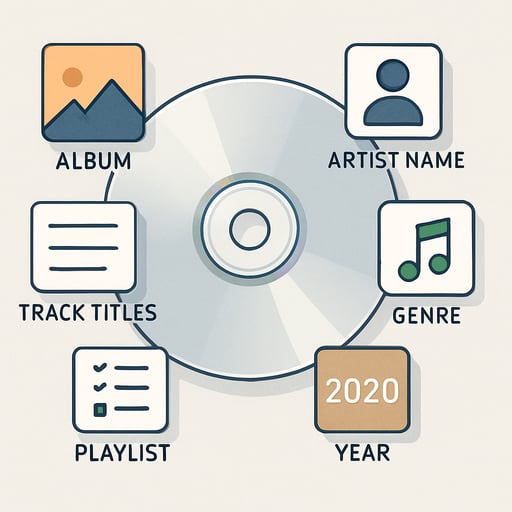
A CD contains audio, but it may not hold all the information needed to organize a digital library.
Ripping software often relies on an online service to find the album, artist and track names. The same service may also supply artwork, release dates, genres and composer details.
Without those tags, even a clean rip can be awkward to use. Music apps may file it under "Unknown Artist" or display every song as a numbered track.
Metadata quality is not the same as extraction quality. Good tags do not prove that a damaged disc was read correctly. A carefully extracted track can also have incomplete or incorrect tags.
That distinction matters when comparing CD ripping software. Nero puts more emphasis on an easy metadata workflow. EAC focuses on extraction control, while dBpoweramp sits somewhere between the two.
Nero CD Ripper
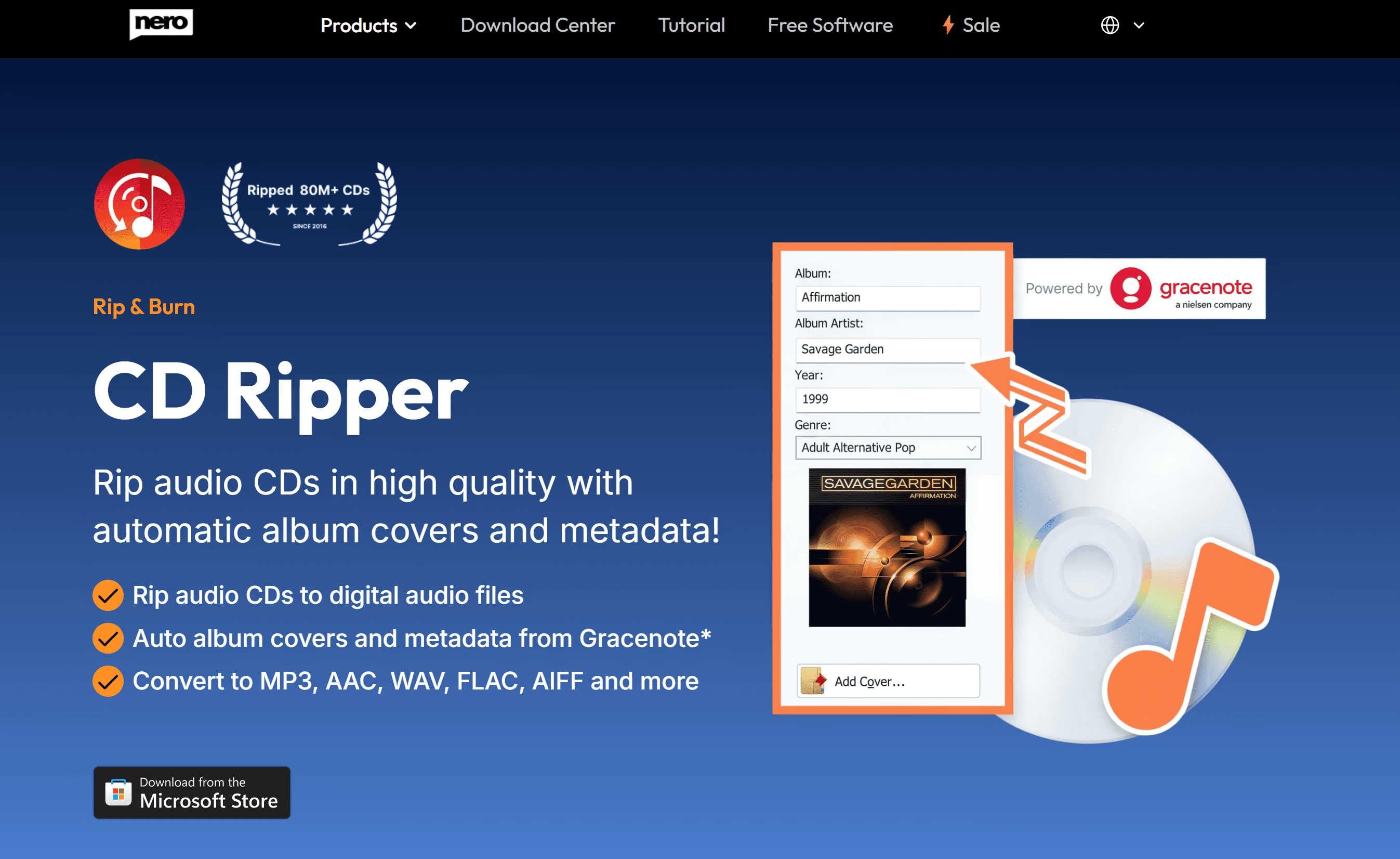
Nero CD Ripper keeps the process simple. It is intended for Windows users who do not want to configure an audio toolkit before ripping a CD.
The app is available through the Microsoft Store. Core CD ripping works without a paid subscription.
Gracenote metadata and a few additional features are paid. This split is important because "free CD ripper with metadata" can otherwise be misleading.
Metadata
With a subscription, Nero CD Ripper retrieves album information and artwork from Gracenote.
The lookup can provide artist names, track titles, album details and cover art. Users can review and edit the result before saving the files.
No metadata database gets every edition right. Reissues and regional releases can be easy to confuse, even when the songs match.
Classical CDs often need extra attention. Composer, work, movement, conductor and performer information may be organized differently across databases.
A quick review before ripping is usually enough to catch an incorrect cover or release year.
Price and compatibility
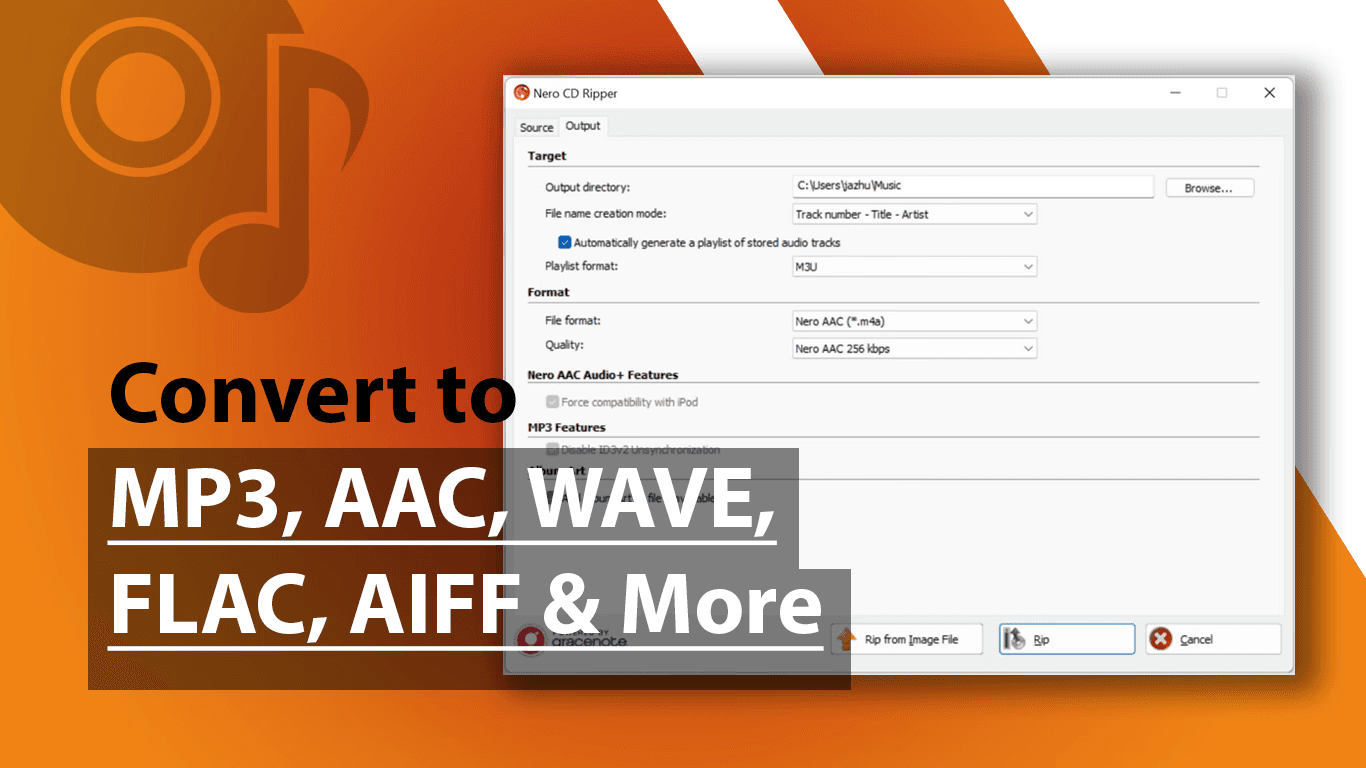
Core ripping is free. Users can save CDs as MP3, AAC, WAV, FLAC, AIFF or OGG without subscribing.
Online Gracenote lookup, automatic artwork and NRG audio-image support require a paid plan.
Nero does not publish a fixed subscription price on its main product page. The Microsoft Store shows the current price for each region.
The software is available only for Windows.
Where Nero CD Ripper fits
Nero is the easiest of the three programs to learn. Most users can select a format and start without changing technical drive settings.
This makes it a natural option for people who previously relied on Windows Media Player for album information.
The supported formats cover both common use cases. FLAC works well for a lossless archive, while MP3 and AAC produce smaller files for portable devices.
Playlist generation is also included. Tags can be adjusted before the files are saved.
Limitations
The best metadata features require a subscription. Users who need a completely free online lookup may prefer EAC.
Nero also offers fewer extraction controls than EAC. That is part of what makes it easier, but advanced users may miss the extra settings.
Mac owners will need another program. dBpoweramp is the only cross-platform choice in this comparison.
For help replacing the old Windows Media Player workflow, see our guide to Windows Media Player alternatives for CD metadata.
Exact Audio Copy (EAC)
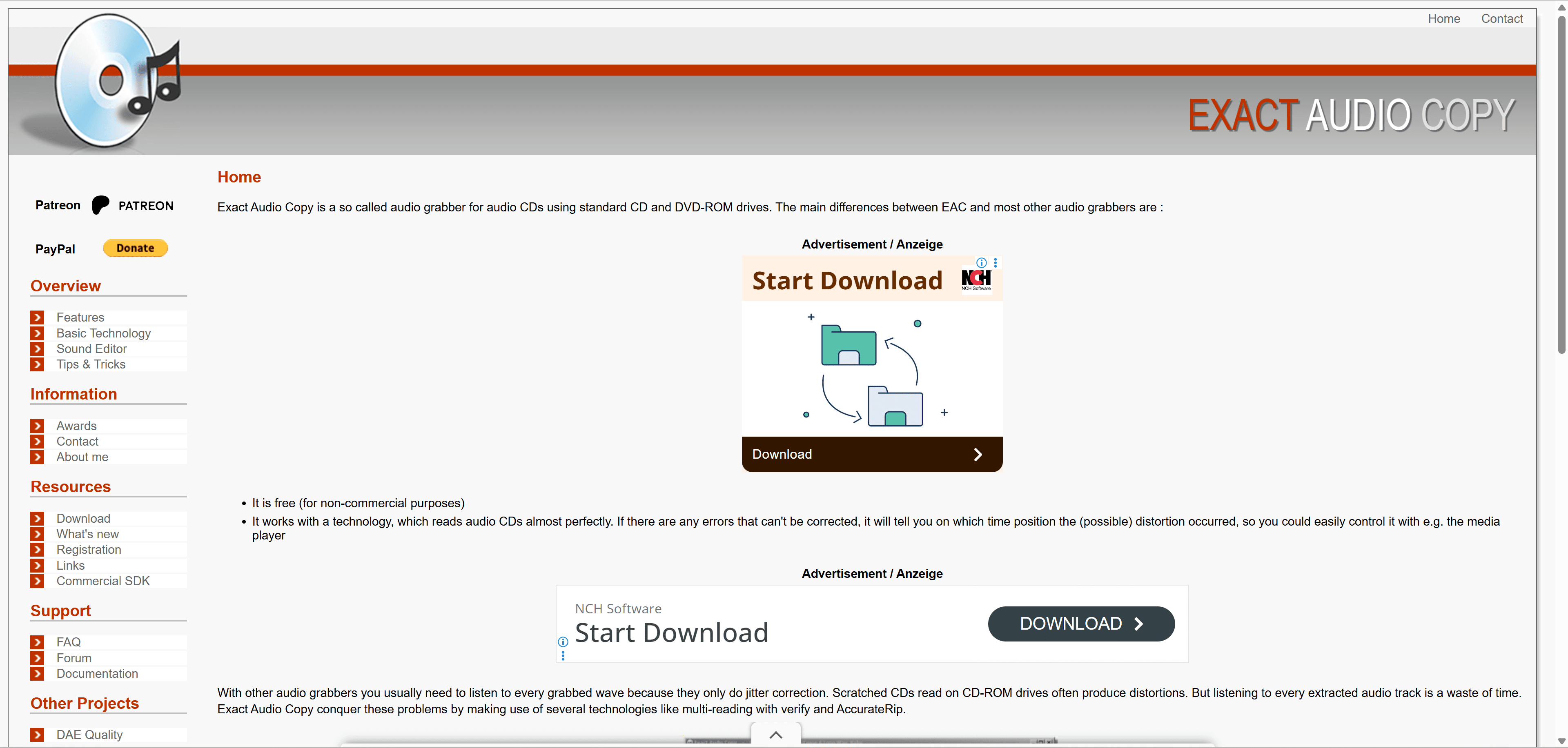
Exact Audio Copy is the most technical option here. Its settings give users close control over how an optical drive reads a disc.
That extra control can help with scratched or aging CDs. It also makes EAC slower to learn than Nero CD Ripper or dBpoweramp.
Metadata
Many older comparisons still list freedb as EAC's main metadata source. That information is out of date.
EAC removed freedb support in version 1.7. The release introduced a new built-in metadata service and updated the MusicBrainz and CTDB plugins.
GD3 remains available as a separate plugin. It includes ten test lookups before requiring a one-time plugin fee.
The latest version on the official EAC download page is 1.8, released in July 2024.
Results depend on the source and the disc. Rare pressings, compilations and regional editions may still need manual corrections.
Price and compatibility
EAC is free for private, non-commercial use. Commercial use requires a separate license.
The software runs on Windows. There is no native macOS version.
WAV and FLAC are common choices for EAC users. Other formats can be configured through supported encoders.
Where EAC fits
Collectors often choose EAC because it provides detailed settings and extraction logs. The software can also report places where the disc may not have been read cleanly.
That information is useful when working with older or damaged CDs. It gives the user more to inspect than a simple success message.
EAC also suits people who want to understand and configure the ripping process. Once set up, it can become a dependable tool for building a lossless archive.
Limitations
The interface is not especially friendly to beginners. New users may need time to understand drive settings, error handling and encoder options.
Metadata can also require more attention than it does in Nero's Gracenote workflow. The exact experience depends on the selected source and the release being ripped.
For someone who wants to insert a CD and finish with a few clicks, EAC may feel like too much software.
dBpoweramp CD Ripper
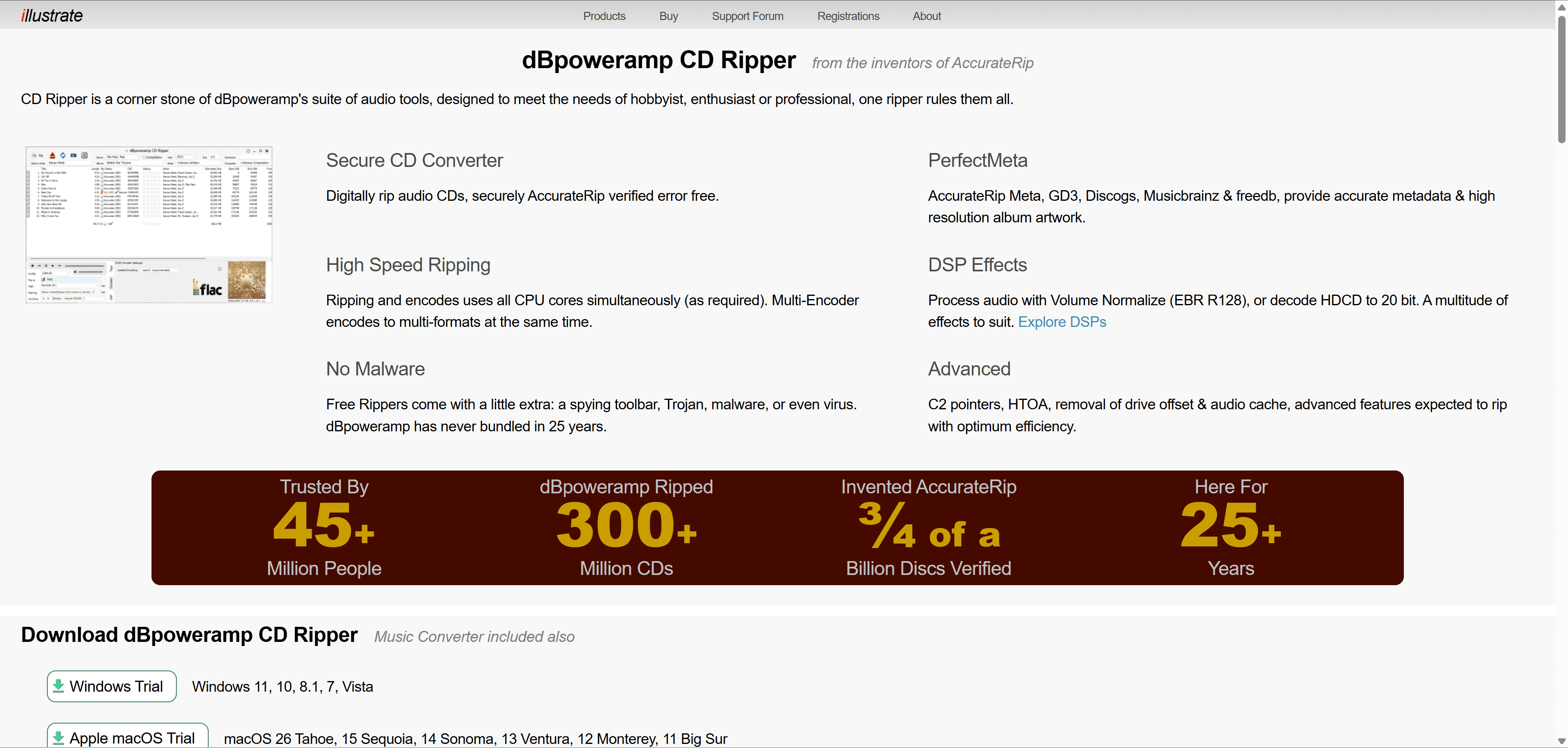
dBpoweramp CD Ripper offers advanced controls in a more approachable interface than EAC.
It is available on Windows and macOS. The software also supports a broad range of output formats.
Those qualities make dBpoweramp a practical choice for a large music library. It can create a lossless archive and a smaller portable copy in the same workflow.
Metadata
dBpoweramp uses a system called PerfectMeta. It compares album information from several providers and builds a combined result.
Current dBpoweramp pages list sources such as GD3, Discogs, MusicBrainz, SonataDB and freedb. Availability may vary by product version or license.
Using several sources can help when one record has missing fields or inconsistent spelling. It does not guarantee that every result will match the exact CD edition.
Artwork deserves a quick check too. Reissues and regional releases often share a track list while using different covers.
Price and compatibility
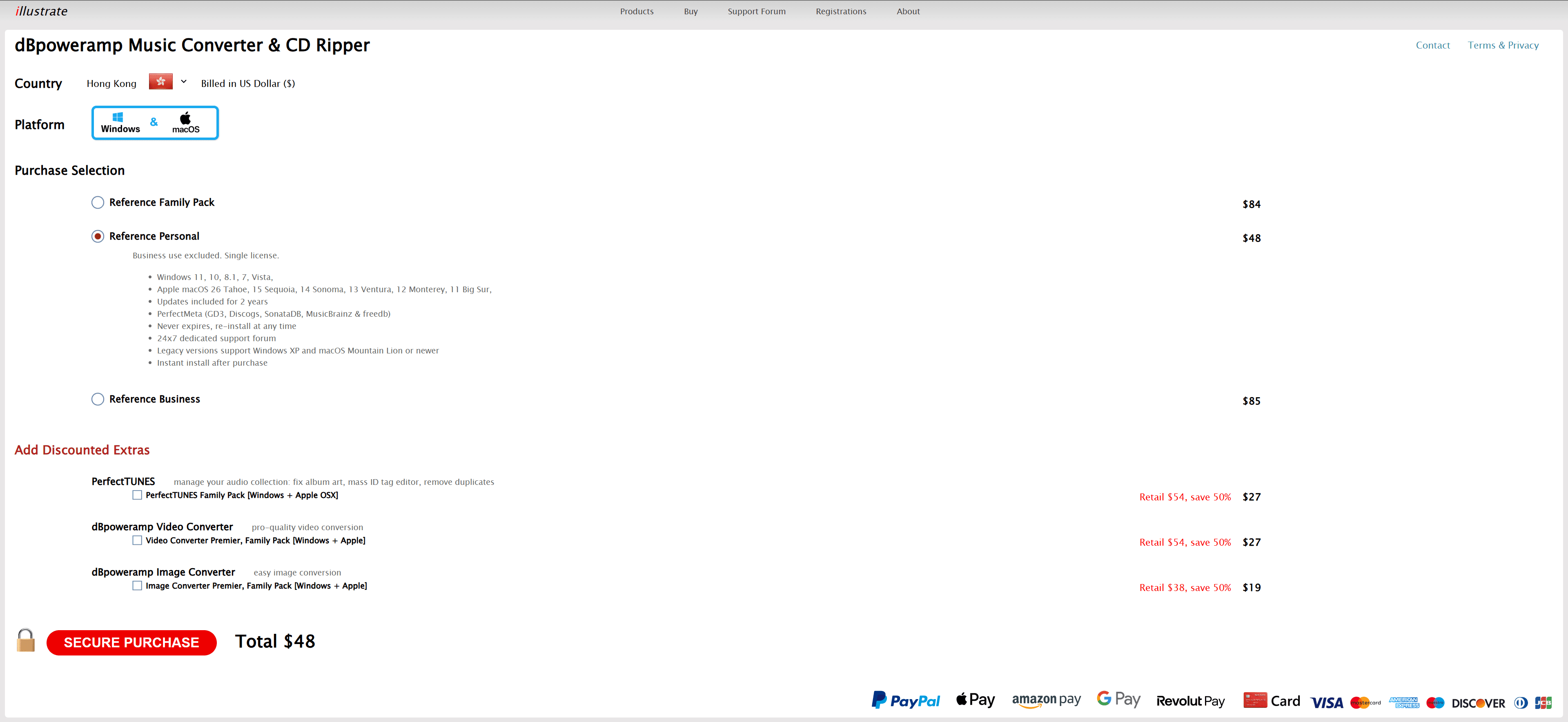
The official dBpoweramp store currently lists the Reference Personal license at $48.
Music Converter and CD Ripper are included. The license does not expire, although the included update period is limited.
A fully functional 21-day trial is available for Windows and macOS. Regional prices and promotions may change.
Supported formats include FLAC, MP3, AAC, ALAC, WAV, AIFF, OGG and Opus. Other codecs are also available.
Where dBpoweramp fits
dBpoweramp works well for people with hundreds of CDs to process. Its interface is easier to navigate than EAC, but it still provides room for customization.
Multi-Encoder can create several versions during one rip. You might save FLAC for the archive and MP3 for a phone or car stereo.
The included Music Converter can process files already in your library. It is useful for changing formats or correcting tags after the original rip.
Mac support is another advantage. Neither Nero CD Ripper nor EAC offers a native macOS version.
Limitations
After the trial, dBpoweramp requires a paid license. EAC is the less expensive option for private use.
The extra metadata, encoding and DSP settings can also feel unnecessary if you only have a few CDs.
Users who want the shortest possible Windows workflow may prefer Nero. Those who want the deepest extraction controls may still lean toward EAC.
Side-by-side recommendations
Choose Nero CD Ripper if you:
Use Windows
Want the easiest setup
Prefer Gracenote metadata
Need common formats such as MP3, AAC or FLAC
Want to try the core ripping tools for free
Do not need detailed extraction settings
Download Nero CD Ripper from the Microsoft Store.
Choose Exact Audio Copy if you:
Want more control over the extraction
Work with scratched or aging CDs
Need detailed logs
Do not mind a technical setup
Want free software for private use
Use Windows
Choose dBpoweramp if you:
Have a large CD collection
Use Windows or macOS
Want several output formats
Need conversion and tagging tools
Prefer an interface that balances control and convenience
Want to test the complete product before buying
A practical CD ripping workflow
A good archive starts with the output format. Choose FLAC if you want lossless audio with reliable support for tags and cover art.
Portable copies can come later. Converting FLAC to MP3 or AAC is easier than finding and ripping the original CD again.
Before starting the rip, check the album edition, track order and artwork. Classical releases may also need a closer look at composer and performer fields.
Keep any extraction logs the software creates. They can help if you notice a problem after the CD has been stored away.
Finally, back up the library. A collection on one hard drive is still one hardware failure away from being lost.
For step-by-step instructions, read how to rip a CD to MP3 with metadata.
Our guide to avoiding quality loss and metadata problems when ripping CDs covers format and tagging choices in more detail.
Final verdict
Nero CD Ripper is the easiest option for Windows users who want automatic metadata. Core ripping is free, while Gracenote and selected extras require a subscription.
EAC gives Windows users more control over the extraction process. It costs nothing for private use, but the setup takes longer to learn.
dBpoweramp works on Windows and macOS. Its format support, metadata tools and included converter make it a good fit for larger libraries.
In brief:
Nero CD Ripper: the simplest Windows workflow, with optional Gracenote metadata
EAC: detailed settings and logs for private Windows users
dBpoweramp: broad format support and a cross-platform workflow
For more options, see our guide to the best CD ripping software in 2026.
Frequently asked questions
Which CD ripping software has the best metadata?
Nero CD Ripper uses Gracenote with a paid subscription. dBpoweramp compares records from several metadata providers. EAC has a built-in service and optional plugins.
Each database has gaps. Check the album edition, artwork and release details before ripping.
Is Nero CD Ripper free?
Core CD ripping is free. Supported formats include MP3, AAC, WAV, FLAC, AIFF and OGG.
Gracenote lookup, automatic album covers and NRG audio-image support require a subscription. Current pricing appears in the Microsoft Store.
Can I rip CDs with metadata for free?
EAC is free for private use and includes a built-in metadata service. MusicBrainz and CTDB integrations are also available.
Nero CD Ripper does not charge for core ripping. Its Gracenote service requires a paid plan.
Some CDs contain their own text information. When present, a ripper may use it without contacting an online database.
Is EAC better than dBpoweramp?
EAC offers more detailed controls and logs for Windows users. It is also free for private use.
dBpoweramp has a friendlier workflow and supports macOS. Music Converter and broader format options are included.
Your operating system, collection size and preferred level of control should decide between them.
How much does dBpoweramp CD Ripper cost?
The Reference Personal license is currently listed at $48. It includes Music Converter and CD Ripper.
A fully functional 21-day trial is available. Check the official store because promotions and regional prices can change.
What is the best CD ripper for Windows 11?
Nero CD Ripper is the simplest choice for most Windows 11 users. EAC suits people who want detailed settings and logs.
dBpoweramp is a paid alternative with broader conversion and metadata tools. All three currently support Windows 11.
Which format should I use when ripping a CD?
FLAC is a good choice for a lossless archive. It stores metadata and artwork without discarding audio information.
MP3 and AAC create smaller files for phones, cars and portable players. Both can be generated later from a FLAC master.