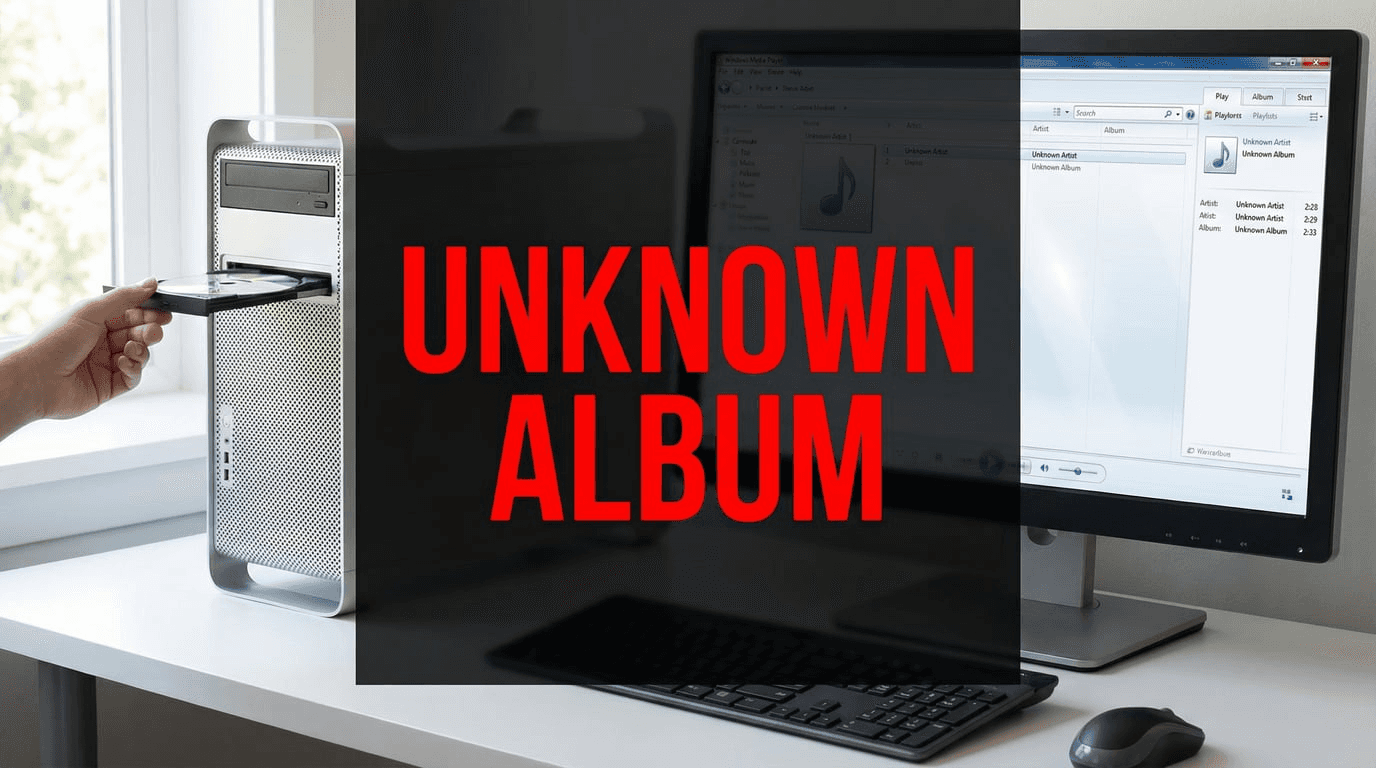
If you’ve recently inserted a CD into Windows Media Player and seen nothing but “Unknown Album” with blank cover art and generic track names like “Track 1,” “Track 2” — you’re not alone, and your PC isn’t broken. Around December 2025, Microsoft quietly shut down the servers behind Windows Media Player’s CD identification service, and they did it without any official announcement.
The service that connected to musicmatch-ssl.xboxlive.com is gone for good. Both the legacy Windows Media Player and the modern Media Player app in Windows 11 are affected. Microsoft Community reports, The Register, and Tom’s Hardware have all confirmed: the “Find Album Information” feature is permanently dead. Microsoft PR offered no comment when asked.
In this article, we’ll cover:
Why Windows Media Player can no longer find album info (and why it won’t come back)
Why free metadata databases like MusicBrainz and FreeDB aren’t a real fix
How Nero CD Ripper with Gracenote® delivers accurate metadata, high-resolution album art, and lossless CD ripping
A step-by-step guide to rescuing your CD collection today
Why "Free" Metadata Databases Aren't Good Enough
With Windows Media Player out of the picture, many users turn to free CD ripping software that relies on community databases like freedb or GnuDb. While these cost nothing, they come with serious limitations:
User-Submitted Errors: Community databases are filled with typos ("The Beatles" as "Beetles"), inconsistent formatting ("01" vs "Track 1"), and artist names that vary wildly between albums.
Missing or Poor Artwork: Free databases typically lack high-resolution album covers or provide tiny, pixelated images that look terrible on modern 4K displays.
Limited Coverage: Obscure releases, international variants, and newer albums are often completely missing from community databases.
If you're investing time to digitize your music collection properly, these inconsistencies quickly become frustrating. You deserve better than manually fixing metadata errors for every album.
Why Did Microsoft Kill Windows Media Player's Album Info Feature?
A timeline of the shutdown
Date | Event |
|---|---|
May 2025 | Microsoft announces end-of-servicing for Windows Metadata and Internet Services (WMIS), without explicitly mentioning CD metadata |
Mid-December 2025 | Users begin reporting that WMP can no longer connect to |
Late December 2025 | A Microsoft External Staff member confirms on Microsoft Q&A that the metadata retrieval feature "has been retired" — no official blog post, no press release |
January 2026 | The Register, Tom's Hardware, and HowToGeek independently verify the shutdown. Microsoft PR declines to comment |
Why Microsoft walked away
The short answer: money and strategy. Windows Media Player's CD metadata service relied on a third-party provider (historically MusicMatch, later a Gracenote-adjacent backend). Microsoft was paying licensing fees for a feature used by a shrinking number of people. With the company's business model now centered on subscriptions (Microsoft 365, Xbox Game Pass, Azure), maintaining a free CD-identification service for a legacy media player simply wasn't a priority.
The result: whether you're using Windows 10 with WMP Legacy or Windows 11 with the new Media Player app, inserting a CD now gives you nothing but "Unknown Album" and nameless tracks. This is not a bug, and it will not be fixed in a future update. Microsoft has moved on.
The Solution: Nero CD Ripper with Gracenote®
While Microsoft walked away from CD users, Nero kept investing. Nero CD Ripper is a dedicated audio CD ripping application for Windows that solves the metadata problem at its root — by using Gracenote® media recognition technology instead of the now-defunct Microsoft service.
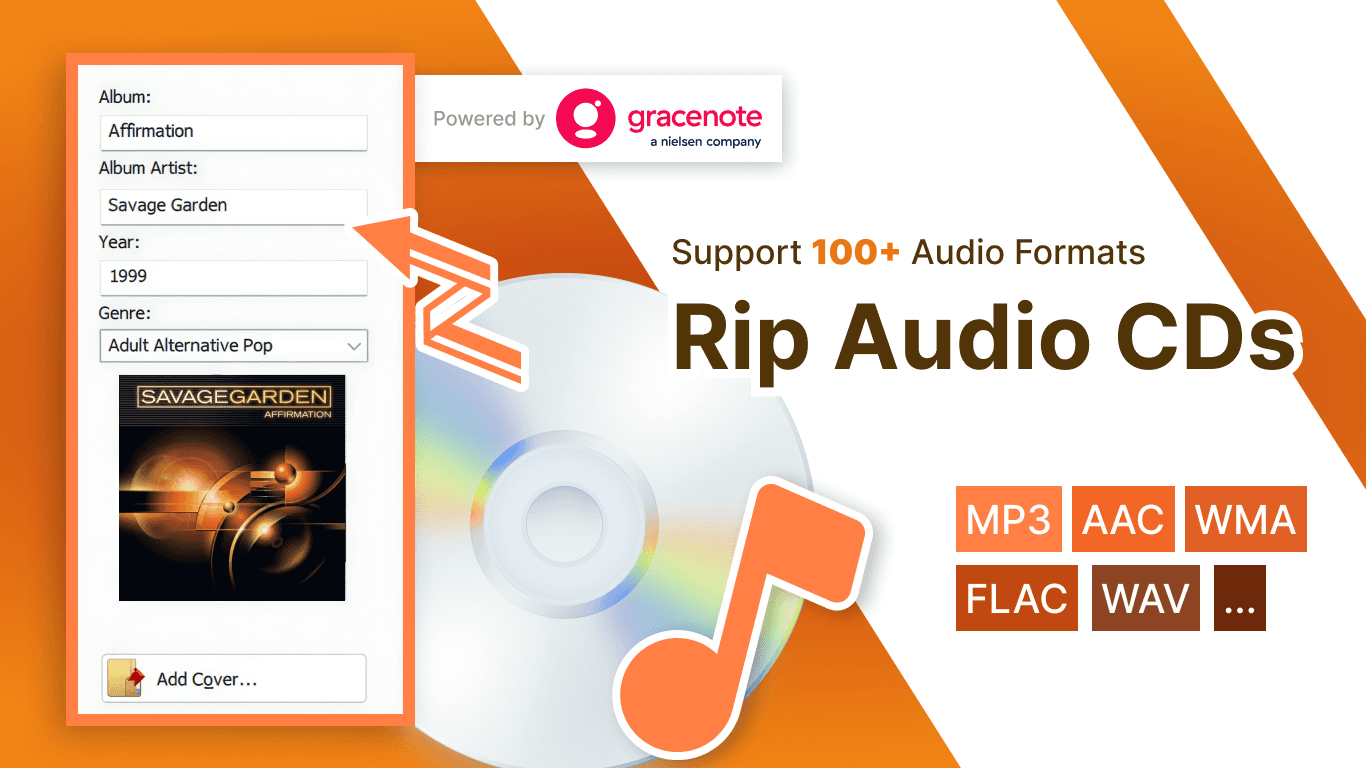
How Gracenote® works (and why it beats everything else)
Gracenote doesn’t guess based on track lengths. It generates a digital fingerprint from your CD’s actual audio waveform and matches it against the world’s largest music metadata database — over 100 million tracks. This means:
100% accurate identification, even for different editions of the same album (original vs. remaster vs. greatest hits)
Full coverage of international releases, independent labels, soundtracks, and regional pressings
Native-language metadata — artist names and track titles in their original language
High-resolution album artwork (up to 1000×1000 pixels and above) that looks sharp on 4K displays, smartphones, and large TV screens
What happens when you insert a CD
Nero CD Ripper connects to Gracenote automatically
Within seconds, you get: artist name, album title, all track names, genre, release year, and high-resolution cover art
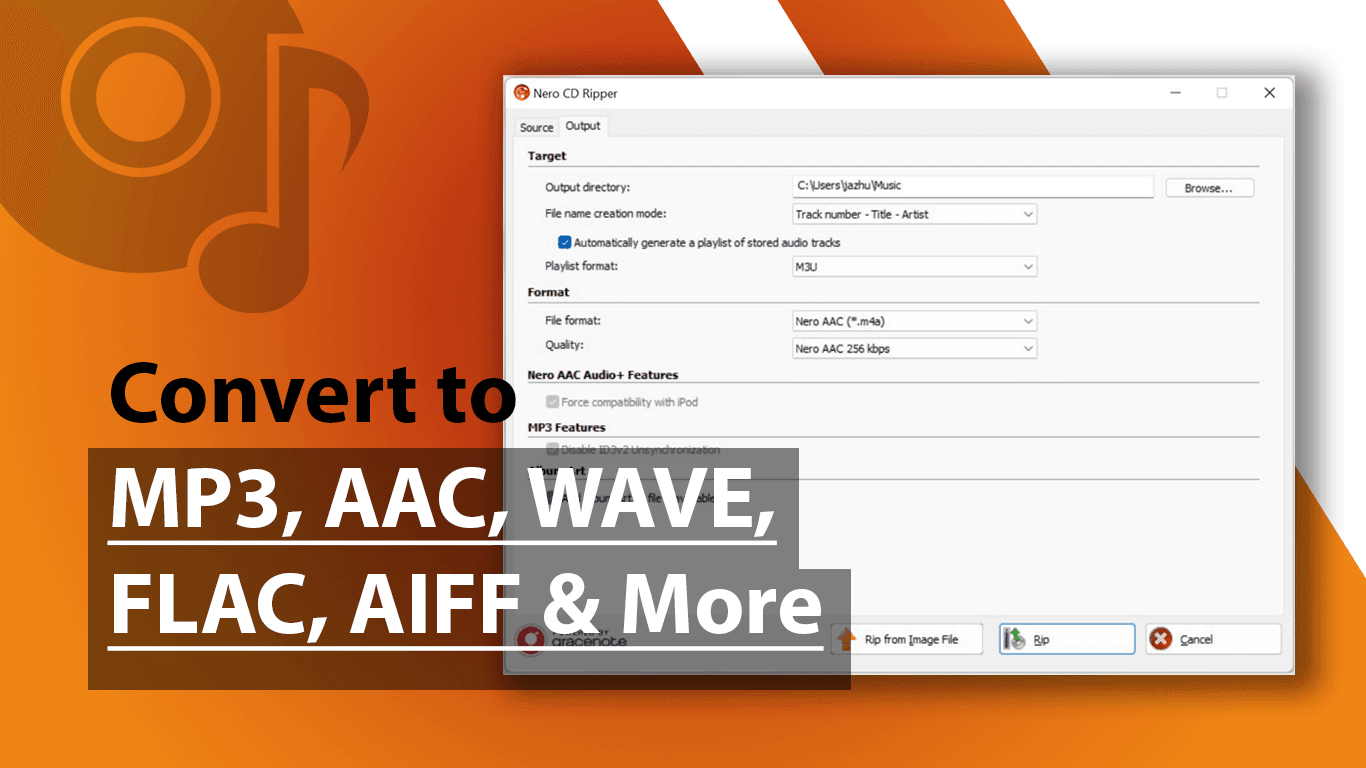
Choose your output format — FLAC for lossless archiving, MP3 or AAC for portable devices
Click “Rip” — files are automatically named and organized
Built on decades of disc technology
Nero CD Ripper inherits the refined CD-reading algorithms from Nero Burning ROM, with jitter reduction and error correction designed to preserve audio fidelity during extraction. It also supports ripping directly from Nero .NRG audio CD image files.
*Subscription required for selected features.
Get Nero CD Ripper:
→ Download from the Microsoft Store
→ Visit Nero’s official website
Quick Guide: Rescue Your CD Collection in 3 Steps
Step 1: Download and Install
Get Nero CD Ripper from the Microsoft Store or from Nero’s official website. The application is compatible with both Windows 10 and Windows 11. Installation takes under a minute.
Step 2: Insert Your CD
Place any audio CD into your computer’s disc drive. Nero CD Ripper automatically connects to Gracenote and retrieves all album information — artist, album title, track names, genre, release year, and high-resolution cover art — usually within seconds. If the CD is extremely rare or a self-produced disc not in Gracenote’s database, you can manually enter the metadata once and Nero CD Ripper will remember it.
Step 3: Choose Your Format and Rip
Select your preferred output format:
FLAC (recommended for archiving): lossless, CD-identical quality, ~300 MB per album
MP3 (320 kbps): excellent quality with smaller file sizes, compatible with virtually every device
AAC: Apple-optimized alternative with comparable quality to MP3
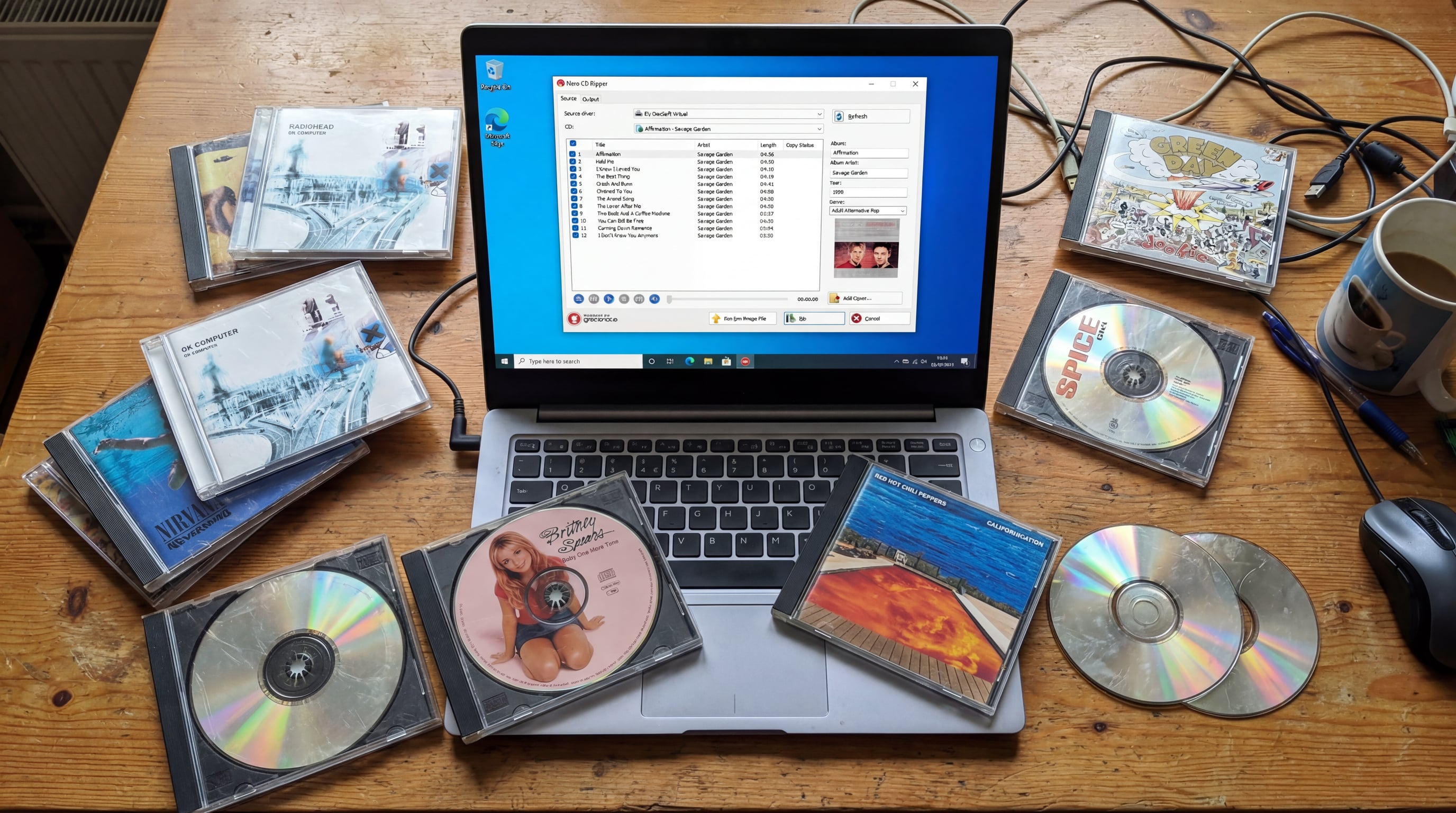
Click “Rip” and your CD will be digitized with all metadata and artwork intact. A typical album takes 3–5 minutes depending on your drive speed. When it’s done, your music library will finally look the way it should — complete, organized, and ready to enjoy on any device.
FAQ
Why is Windows Media Player not finding album info?
Microsoft permanently shut down the CD metadata service behind WMP in December 2025 without any announcement. Both the legacy WMP and Windows 11 Media Player app are affected, and the feature is not coming back.
Can I still rip CDs with Windows Media Player?
Yes, the ripping engine still works — but you'll get no automatic track names, album titles, or cover art. Every CD shows up as "Unknown Album" with generic labels like "Track 1," requiring manual metadata entry for each disc.
How do I get album info back on Windows Media Player?
You can't — Microsoft permanently disabled the online lookup. The only practical fix is switching to a third-party ripper that uses an active metadata service, such as Nero CD Ripper with Gracenote®.
Is there a free alternative for CD metadata retrieval?
Free tools like MusicBrainz Picard can tag audio files using community-sourced data, but accuracy and artwork quality are inconsistent — especially for international or niche releases. For most collections, the time saved with a Gracenote-powered tool outweighs the cost.
What's the best format for ripping CDs?
FLAC for archiving (lossless, CD-identical quality). MP3 at 320 kbps for broad device compatibility at a fraction of the file size. AAC if you primarily use Apple devices.
Does this issue affect both Windows 10 and Windows 11?
Yes. Microsoft shut down the backend server — so the operating system version makes no difference. Both Windows 10 (WMP Legacy) and Windows 11 (modern Media Player) lost album info retrieval at the same time.
Conclusion
In December 2025, Microsoft silently pulled the plug on one of Windows Media Player’s oldest and most relied-upon features — and they didn’t bother to tell anyone. At a time when physical media is making a genuine comeback, this decision leaves CD owners with a frustrating choice: accept a library full of “Unknown Album” entries, or find a better tool.
Nero CD Ripper with Gracenote® technology gives you everything Microsoft took away — accurate metadata in your language, professional-grade album artwork, and high-fidelity audio extraction — with the simplicity of inserting a CD and pressing a button. Your CD collection doesn’t have to become a digital wasteland.
Download Nero CD Ripper from the Microsoft Store or visit Nero’s official website to learn more.