For Windows 11, the right DVD burning software depends on what you need to create. Choose Nero Burning ROM for advanced burning, disc images, and archive-oriented workflows; Nero Express for a simpler guided experience; or Windows tools for basic data discs and ISO files.
This comparison covers five Windows options and explains where each one fits, including the limitations that matter when choosing.
Top 5 DVD Burning Software at a Glance
Feature | Nero Burning ROM | Nero Express | ImgBurn | CDBurnerXP | Windows built-in tools |
Price | Paid — one-time license | Paid — subscription or one-time license | Free | Free | Included |
Windows 11 support | Yes | Yes | Limited — legacy utility | Limited — official OS list ends with Windows 10 | Yes |
ISO burning | Yes | Yes | Yes | Yes | Yes — Disc Image Burner |
ISO creation | Yes | Yes | Yes | Yes | No |
Audio CD burning | Yes | Yes | Yes | Yes | Limited — Windows Media Player Legacy |
Disc copy | Yes — eligible discs | Yes — eligible discs | Limited — image workflow | Limited — unprotected data/audio discs | No |
Burns prepared DVD-Video folders | Yes | Yes | Yes | No | No |
Blu-ray data burning | Yes | Yes | Yes | Yes | No |
Verification | Yes | Yes | Yes | Yes — written data | No |
Advanced archive controls | Yes | Limited vs. Burning ROM | No | No | No |
Note: Burning a prepared DVD-Video folder is different from turning MP4, MOV, AVI, or photo files into a playable DVD. Source files need DVD-Video authoring before burning.
What Are You Trying to Create?
Starting point | Goal | Workflow |
Files or folders | Data DVD or Blu-ray | Burn a data disc |
ISO file | Image or bootable disc | Burn the ISO |
Personal, non-protected disc | Backup copy | Use a disc-copy workflow |
MP4, MOV, AVI, or photos | Playable DVD for a standard DVD player | Author the DVD-Video project first, then burn it |
Important files | An additional physical archive copy | Burn, verify where supported, and keep other backups |
Detailed Reviews of Each Tool
Nero Burning ROM — Best for Advanced Burning Workflows
Nero Burning ROM is a full-featured Windows disc-burning application for CD, DVD, and Blu-ray projects. It supports data-disc burning, disc-image workflows, and copying eligible discs, alongside advanced options such as SecurDisc. It is best suited to people who burn discs regularly or need more control than a basic Windows workflow provides.
Nero Burning ROM is available as a paid standalone product and as part of the Nero Platinum Suite. Pricing can vary by region, while the suite bundles additional Nero applications alongside disc burning. If you only need disc burning, the standalone product is the more focused option. Learn more about Nero Burning ROM →
For archive-oriented projects, Nero’s additional protection and verification features can be useful when paired with verified burns, appropriate media, careful storage, and separate backup copies. Disc spanning can also be useful when a collection of files exceeds the capacity of a single disc.
Before relying on a specific disc format or capacity, confirm that your optical drive and chosen media support it. Nero Burning ROM is intended for advanced optical-disc workflows, but format availability can depend on the drive, media, and installed product version.
For playable DVDs: Nero Burning ROM can burn a prepared DVD-Video folder containing VIDEO_TS files such as VOB, IFO, and BUP. If you are starting with MP4, MOV, AVI, or photo files, create the DVD-Video project first with an authoring workflow such as Nero Video or Nero MediaHome, then burn the finished structure.
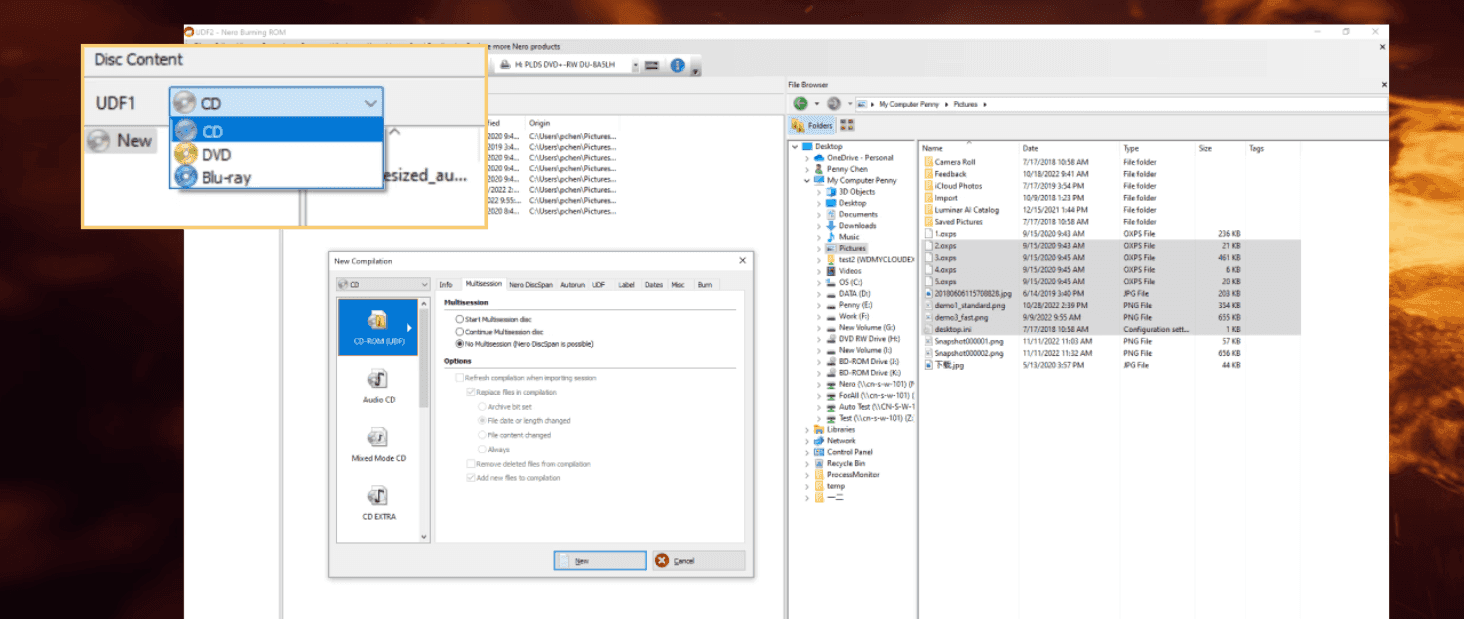
For a step-by-step data-disc walkthrough, see How to Burn a DVD in 2026 — Step-by-Step Tutorial.
✅ Pros: Advanced disc-burning workflow, image and eligible disc-copy options, supported-media features, verification options, and SecurDisc capabilities.
❌ Cons: Paid software, more options than occasional users may need, and separate authoring is required when source video files must become a standard playable DVD.
Nero Express — Best for Guided Everyday Tasks
Nero Express is a streamlined Nero option that focuses on guided disc burning. It is aimed at people who want to create routine data, audio, or compatible disc projects without working through as many advanced controls.
Nero Express offers a guided Nero burning workflow with fewer advanced controls than Nero Burning ROM. Its step-by-step structure can be a better fit when the task is straightforward and the priority is moving from files to a finished disc with minimal setup.
Nero Express is available as DVD, CD and Blu-ray Burner – Nero Express in the Microsoft Store; plan and licensing availability can vary by storefront. It supports CD, DVD, DVD-DL, and Blu-ray burning, plus disc copying and verification for eligible projects. Compared with Nero Burning ROM, Nero Express is the simpler, wizard-driven choice with fewer advanced project controls.

For a guided walkthrough, see How to Burn CDs, DVDs, and Blu-rays on Windows Using Nero Express.
✅ Pros: Guided interface, straightforward CD/DVD/Blu-ray project setup, and a simpler path for routine burning tasks.
❌ Cons: Fewer advanced controls than Nero Burning ROM, including no DiscSpan workflow and fewer archive-oriented options.
ImgBurn — Best for ISO and Image Work, With Caveats
ImgBurn is a lightweight, free utility known for disc-image work. It supports ISO creation and writing, verification, and a broad range of image formats including BIN, CUE, IMG, ISO, MDS, NRG, and PDI. It remains most relevant for users whose main task is writing or verifying an existing image file.
Its focused modes—such as Read, Build, Write, and Verify—make it useful for image-based workflows. That narrow focus is also its limitation: it is not the right choice when you need a modern guided workflow, full product support, or source-video authoring.
The official download page currently lists ImgBurn version 2.5.8.0. Because the project is an older utility, treat it as a legacy option, download carefully, and verify installer source and compatibility with your own Windows version and optical drive. Its official download page lists several mirrors as well as the project-hosted installer.

✅ Pros: Free, lightweight, broad image-format support, and useful tools for image writing and verification.
❌ Cons: Legacy release status, no current Windows 11 certification claim in this article, and installation/source verification deserves extra care.
CDBurnerXP — Free Option for Basic Disc Projects
CDBurnerXP is a free disc-burning application for CDs, DVDs, and Blu-ray projects. Its documented feature set includes data-disc creation, audio-CD work, ISO creation and burning, bootable-disc creation, and a cover designer. It also provides limited copying for eligible unprotected ISO-file-system data discs and audio discs; it does not bypass copy protection.
For a user who needs a free application for several basic disc tasks, that broad coverage can be useful. Its Cover Designer is also convenient for people who want disc labels and case inserts without using a separate application.
The official site continues to provide version 4.5.8.7128 and product documentation. Because the release history is older, it is best treated as a legacy free option. Its published operating-system list ends with Windows 10, so Windows 11 compatibility is not an official claim.

✅ Pros: Free, broad basic disc-burning coverage, audio-CD and bootable-disc workflows, limited eligible disc copying, and a built-in cover designer.
❌ Cons: Legacy release status, copying is limited to eligible unprotected discs, and the interface is dated.
Windows Built-in — Best for Basic Data Discs and ISOs
Windows 11 includes several separate tools for simple optical-disc tasks. File Explorer can burn basic data discs, Windows Disc Image Burner can write ISO files to compatible media, and Windows Media Player Legacy can create audio CDs where it is available. These are useful for occasional, straightforward jobs that do not need advanced project controls.
Windows does not provide a complete disc-copy, verification, or DVD-Video-authoring workflow. File Explorer offers Live File System for ongoing file use on compatible systems and Mastered for a more broadly compatible final disc. Use dedicated software when you need advanced format controls, eligible disc-copy features, or DVD-Video authoring.
How to Choose the Right DVD Burning Software
The right tool depends on what you need to create.
“I just need a basic data disc or ISO” — Use Windows built-in tools: File Explorer for data discs and Windows Disc Image Burner for ISO files.
“I need a playable video DVD for my DVD player” — Start with a DVD-authoring workflow. MP4, MOV, AVI, and similar source files must be converted into DVD-Video structure before burning. Nero Burning ROM can burn a prepared VIDEO_TS folder; Nero Video or Nero MediaHome can be used when you need to create the DVD-Video project from source media.
“I want to make a backup copy of my wedding DVD” — Use a disc-copy workflow for a personal, non-protected disc. Nero Burning ROM offers a fuller copying and verification workflow; CDBurnerXP can handle limited eligible unprotected data-disc and audio-disc copying. Neither recommendation implies bypassing copy protection.
“I need a free option for several basic tasks” — CDBurnerXP covers data discs, audio CDs, ISO work, bootable discs, and limited eligible copying. For image-focused tasks, ImgBurn remains the narrower legacy option.
“I’m burning Blu-ray discs” — Nero Burning ROM is the advanced option in this comparison. Choose a compatible Blu-ray burner and media that match the format and capacity you need.

Free vs Paid DVD Burning Software — What Changes in Practice?
Free software can be enough for occasional data discs, simple audio-CD projects, or writing an existing ISO. The trade-off is usually narrower workflow coverage, older release status, fewer support options, or more time spent confirming that a tool still works with your drive and version of Windows.
Paid software makes more sense when disc burning is a recurring task or when the project needs advanced controls. Nero Burning ROM is positioned for users who want a broader burning workflow, disc-copy options for eligible media, verification features, supported-media options, and product support. Those benefits matter most when you work with optical media regularly, need consistent project handling, or want more control over archive-oriented disc projects.
The decision should not be framed as “free always fails” or “paid is necessary for every burn.” Choose a free option for a simple, compatible one-off job. Choose a maintained paid workflow when your task requires the additional controls, support, or format capabilities it provides.
Windows 11 Compatibility — Why It Matters in 2026
Windows 11 still covers basic optical-disc jobs through separate components. For advanced burning, verification, eligible disc copying, or archive-oriented controls, use dedicated software instead.
Older utilities may still suit a narrow task, but their official support status is limited. Nero Burning ROM is the more advanced Nero option, while Nero Express provides a simpler guided workflow for many of the same everyday disc-burning tasks.
For a practical Windows workflow, see How to Burn a DVD on Windows 11 — Complete Guide.
Frequently Asked Questions
Is Nero still a good choice for DVD burning in 2026?
Nero Burning ROM is a strong fit for people who need a broader Windows disc-burning workflow, including advanced options beyond a basic data disc. It is the better fit in this comparison for recurring burning, eligible disc-copy projects, verification, archive-oriented controls, and supported-media requirements.
What’s the best free DVD burning software?
For a free all-rounder, CDBurnerXP covers a range of basic disc tasks, including data discs, audio CDs, ISO work, and limited eligible copying. For image-focused work, ImgBurn is the narrower legacy option. Windows tools are sufficient for basic data discs and ISO writing.
Can Windows 11 burn DVDs?
Yes. Windows includes File Explorer for data discs, Windows Disc Image Burner for ISO files, and Windows Media Player Legacy for audio CDs where it is available. It does not provide a complete disc-copy or DVD-Video-authoring workflow.
How do I copy a DVD on Windows 11?
Use disc-copy software for personal, lawful copies of non-protected discs. Nero Burning ROM provides a dedicated disc-copy workflow, while CDBurnerXP supports limited copying for eligible unprotected data discs and audio CDs. This article does not cover bypassing copy protection.
What’s the difference between Nero Burning ROM and Nero Express?
Nero Burning ROM is the more advanced disc-burning application, with broader controls for archive-oriented and specialized disc projects. Nero Express is the simpler guided option for routine CD, DVD, and Blu-ray burning.
Do I still need DVD burning software in 2026?
You may not need additional software for a basic data disc, ISO, or—where Windows Media Player Legacy is available—an audio CD. Dedicated software remains useful for advanced burning controls, eligible disc copies, verification, supported-media requirements, and DVD-Video authoring workflows.
Is ImgBurn safe to use on Windows 11?
ImgBurn is a legacy utility whose official download page lists version 2.5.8.0 and several download mirrors. Download carefully, verify the installer source, and confirm compatibility with your Windows version and optical drive before using it for important projects.
The Bottom Line
Choose Nero Burning ROM if you burn discs regularly and need an advanced workflow for data discs, disc images, eligible disc copies, verification, BDXL media, SecurDisc, DiscSpan, or archive-oriented projects.
Choose Nero Express if a guided interface is the priority and your needs are limited to routine CD, DVD, DVD-DL, or Blu-ray burning and eligible disc-copy tasks.
Use Windows built-in tools for basic data discs, ISO files, and—where available—audio CDs. For free legacy tools, choose CDBurnerXP or ImgBurn only when their narrower capabilities fit the task.