Classic anime from the 1990s and early 2000s looks painfully soft on modern 4K and 8K displays. A typical 480p DVD-era episode packs roughly 307,200 pixels per frame. That is about 27 times fewer than what a 4K screen can show. AI video upscaling bridges the gap by reconstructing missing detail frame by frame. Tools with dedicated anime models pull this off while keeping the sharp line art and flat color blocks that define the medium's look.
This guide covers how AI anime upscaling works. It walks through a step-by-step process using Nero AI Video Upscaler's Animation model. You will also find a comparison of leading tools in 2026 and answers to common questions about enhancing classic anime.
What Is Anime Video Upscaling?
Anime video upscaling increases the resolution of animated video — typically from 480p or 720p up to 1080p, 4K, or 8K. The key is that it reconstructs detail not present in the original file. Simple stretching or bilinear interpolation just enlarges existing pixels, which produces a blurry result. AI-powered upscaling takes a different approach. It analyzes each frame, predicts what the missing detail should look like, and generates new pixels that match the anime's art style.
In anime circles, "upscale" specifically means this kind of intelligent enhancement. When fans say a video has been "upscaled," they mean it went through an AI model trained on anime visuals — not just a resize. The distinction matters. Anime relies on clean outlines, flat color regions, and deliberate shading gradients. Generic video upscalers tend to blur or distort all of these.
How AI Anime Upscaling Works
Deep learning models power AI anime upscaling, trained on thousands of anime frames. They learn to spot visual patterns unique to animated content: thin black outlines, cel-shaded color blocks, and gradient shading. At higher resolutions, the models reconstruct these patterns cleanly. Artifacts that plague generic upscalers rarely appear.
The process unfolds in three stages. First, the AI analyzes each frame to identify edges, color boundaries, and texture patterns. Second, it predicts and generates the missing pixels needed for the target resolution. Training on anime-specific visuals ensures the reconstruction matches the original art style. Third, it enforces temporal consistency — keeping colors and edges from shimmering or flickering between frames during playback. That third stage separates true video upscalers from single-image tools. Browser-based Waifu2x frontends can enhance individual frames beautifully. Without temporal processing, though, the resulting video flickers noticeably.
Dedicated anime models — like Nero AI's Animation model or UniFab's Kairo model — outperform general-purpose ones. They understand how 2D drawings behave during motion. General video upscalers trained on live-action footage tend to add texture where there should be none. This creates an "uncanny valley" effect: backgrounds gain false detail that distracts from the character animation.
Why Classic Anime Needs AI Enhancement
Most beloved anime from the 1990s and early 2000s was produced at standard definition. Television broadcasts and DVD releases ran at 480p. Later digital productions managed 720p at best. On a modern 4K TV or monitor, these videos look noticeably soft and pixelated. They lack the visual clarity their animation deserves.
The pixel math makes the problem concrete:
Resolution | Pixels Per Frame | vs. Original 480p |
480p (SD) | 307,200 | 1× |
720p (HD) | 921,600 | 3× |
1080p (Full HD) | 2,073,600 | 6.75× |
4K (Ultra HD) | 8,294,400 | 27× |
8K | 33,177,600 | 108× |
A 4K display shows 27 times more pixels than 480p anime was designed to fill. Without AI, those extra pixels are just stretched duplicates — hence the blur. Upscaling fills them with detail that respects the original art style.
Demand for anime enhancement tools is growing fast. The AI video upscaling software market is projected to expand significantly through 2032. Forecasts from major research firms range from USD 1.4 to 3.4 billion, depending on scope and methodology. Content creators, archival projects, and fans restoring nostalgic classics all drive this growth.
How to Upscale Anime Video with Nero AI: Step-by-Step Guide
Nero AI Video Upscaler is a desktop application built for AI video enhancement. Its dedicated Animation model handles anime and cartoon video specifically. Unlike general-purpose models, it recognizes the line art, shading, and stylization typical of animated content. The result is remarkable accuracy. It understands how 2D drawings behave during motion, sidestepping the distortions that general upscalers introduce on stylized content. Supported features include resolutions up to 8K, frame rates up to 120fps, GPU hardware acceleration, and batch processing for multi-episode workflows.
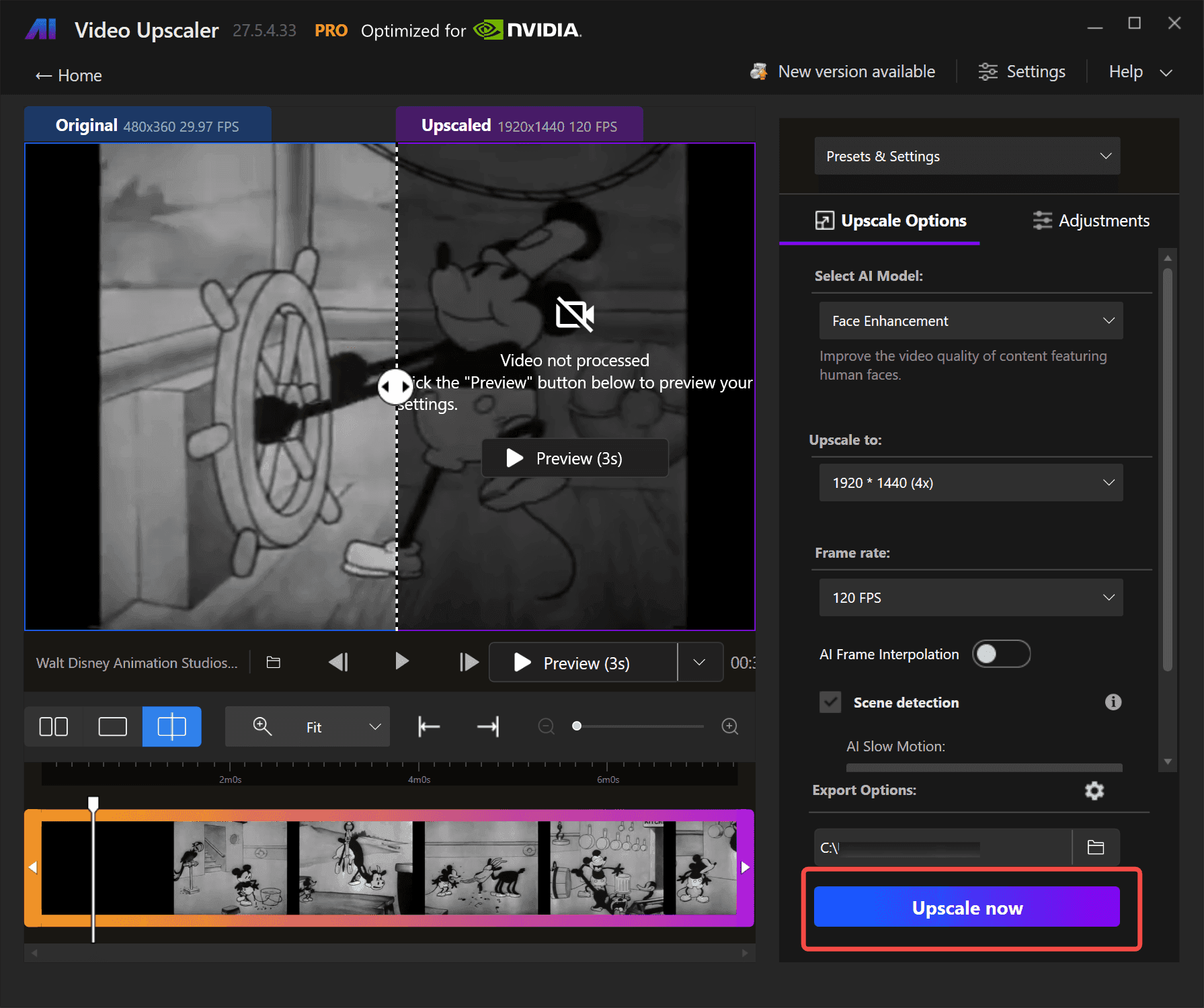
Step 1: Download and Install
Download Nero AI Video Upscaler from the official Nero website. The software runs on Windows desktop.
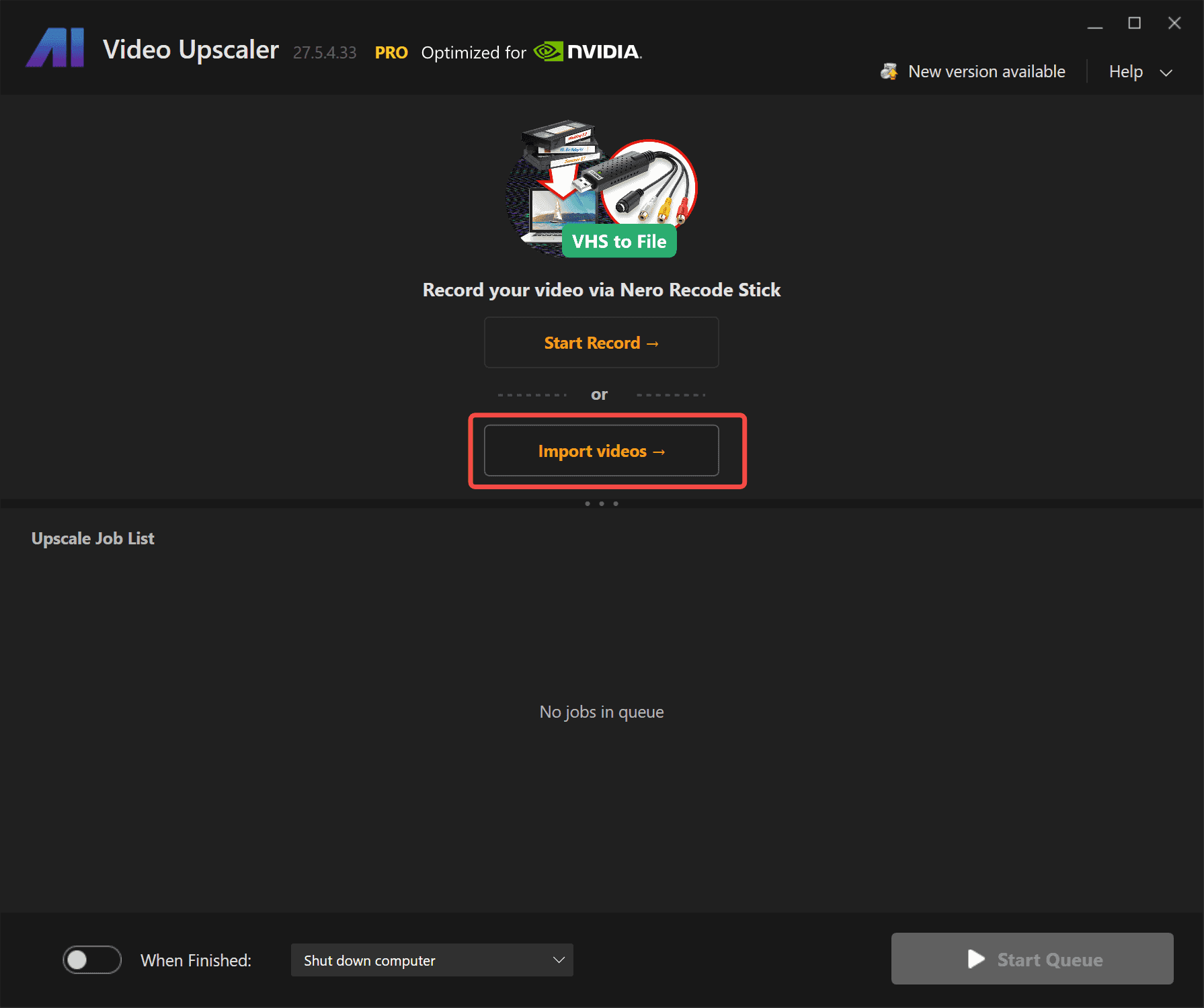
Step 2: Import Your Anime Clip
Launch the application and import the anime or cartoon video you want to enhance. Nero AI supports common video formats. You can also queue multiple files for batch processing — handy when enhancing an entire series.
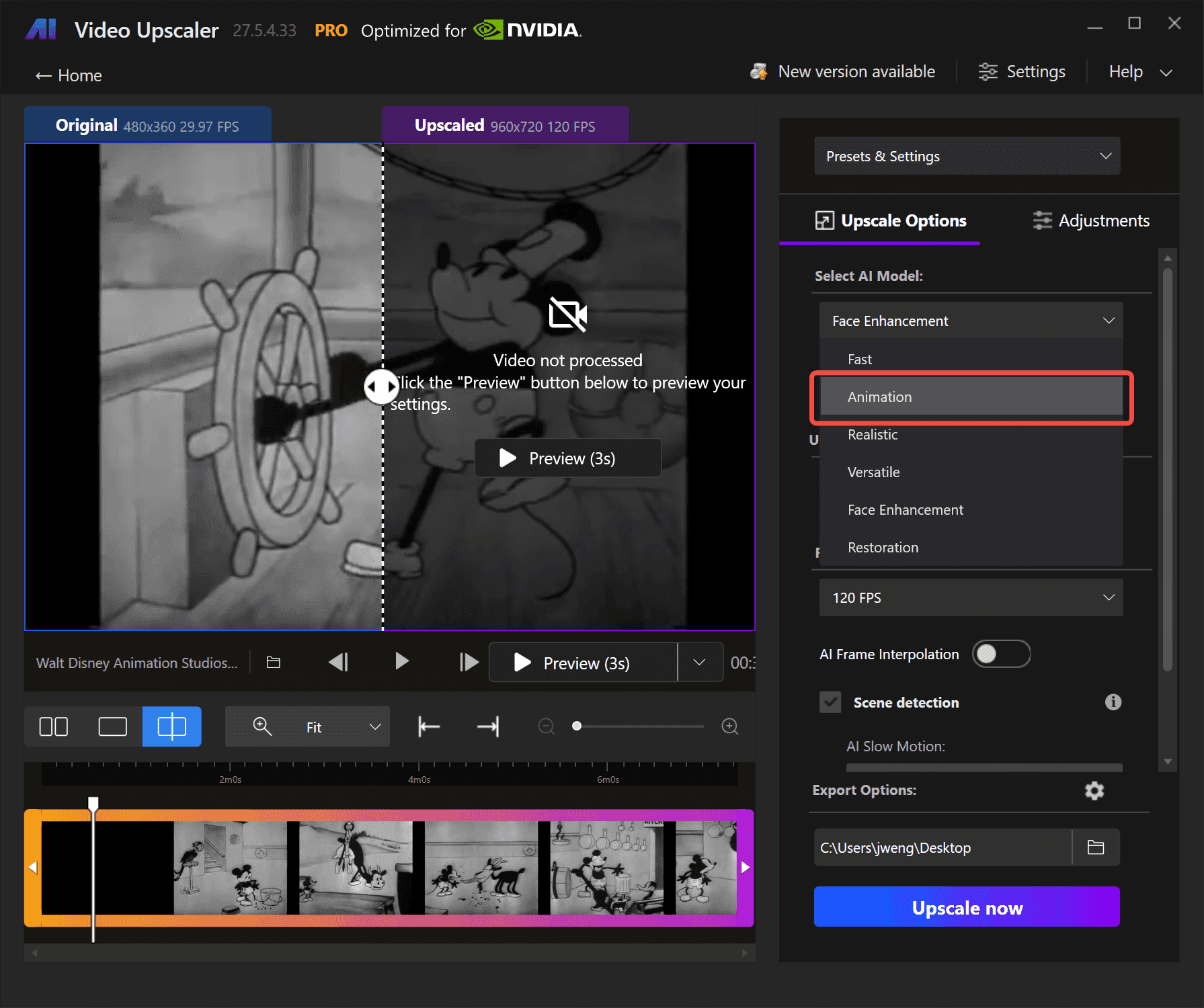
Step 3: Select the Animation Model
Under AI model settings, choose the Animation model. This step matters more than any other. The Animation model is specifically trained on animated content. It produces significantly better results than the general model for anime, cartoons, and other stylized video.
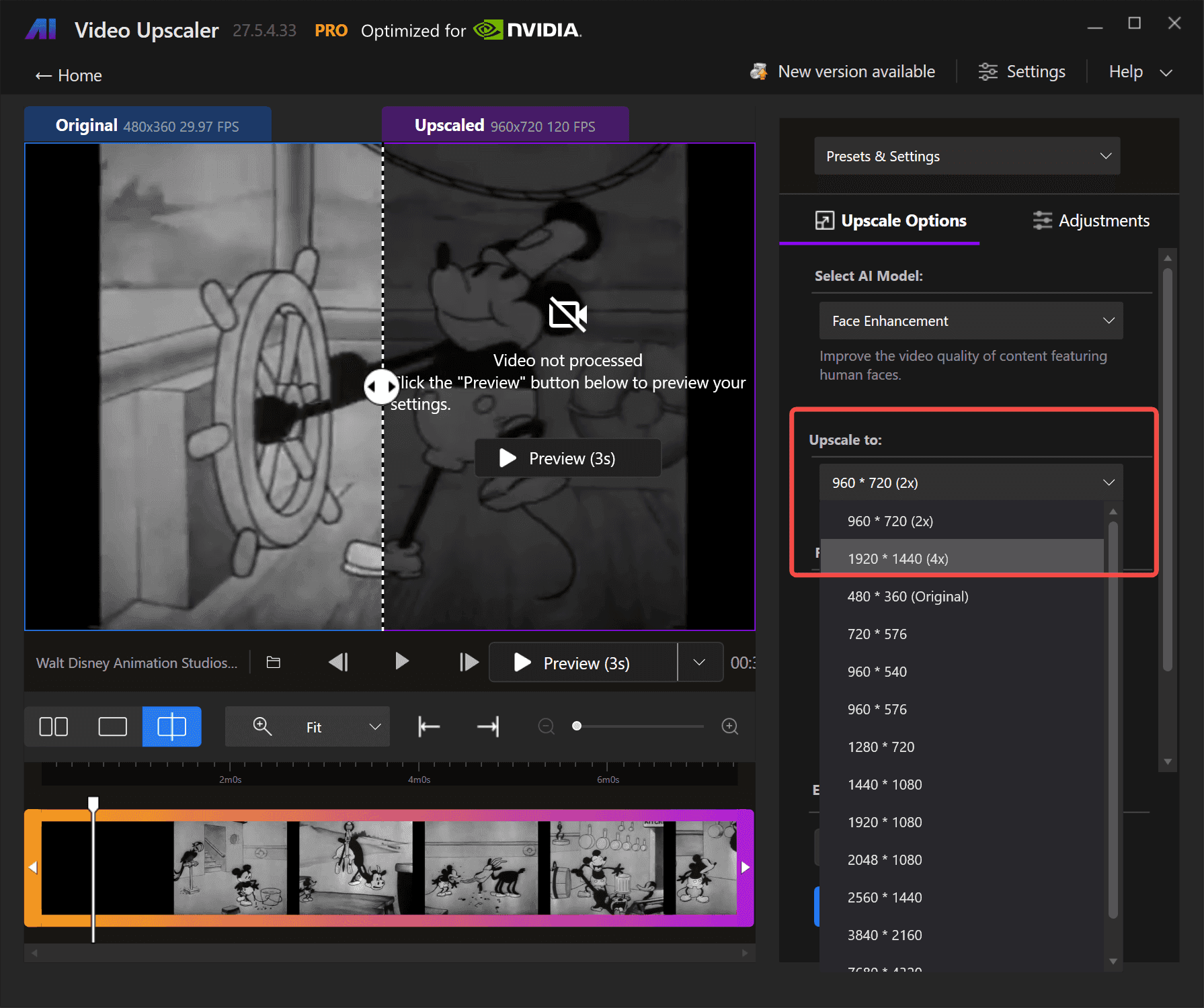
Step 4: Set Your Target Resolution
Choose your output resolution, up to 8K. Most classic anime originating at 480p does well starting at 1080p or 2K. Sources already at 720p or above can target 4K. Check the Best Practices section for guidance on avoiding over-upscaling.
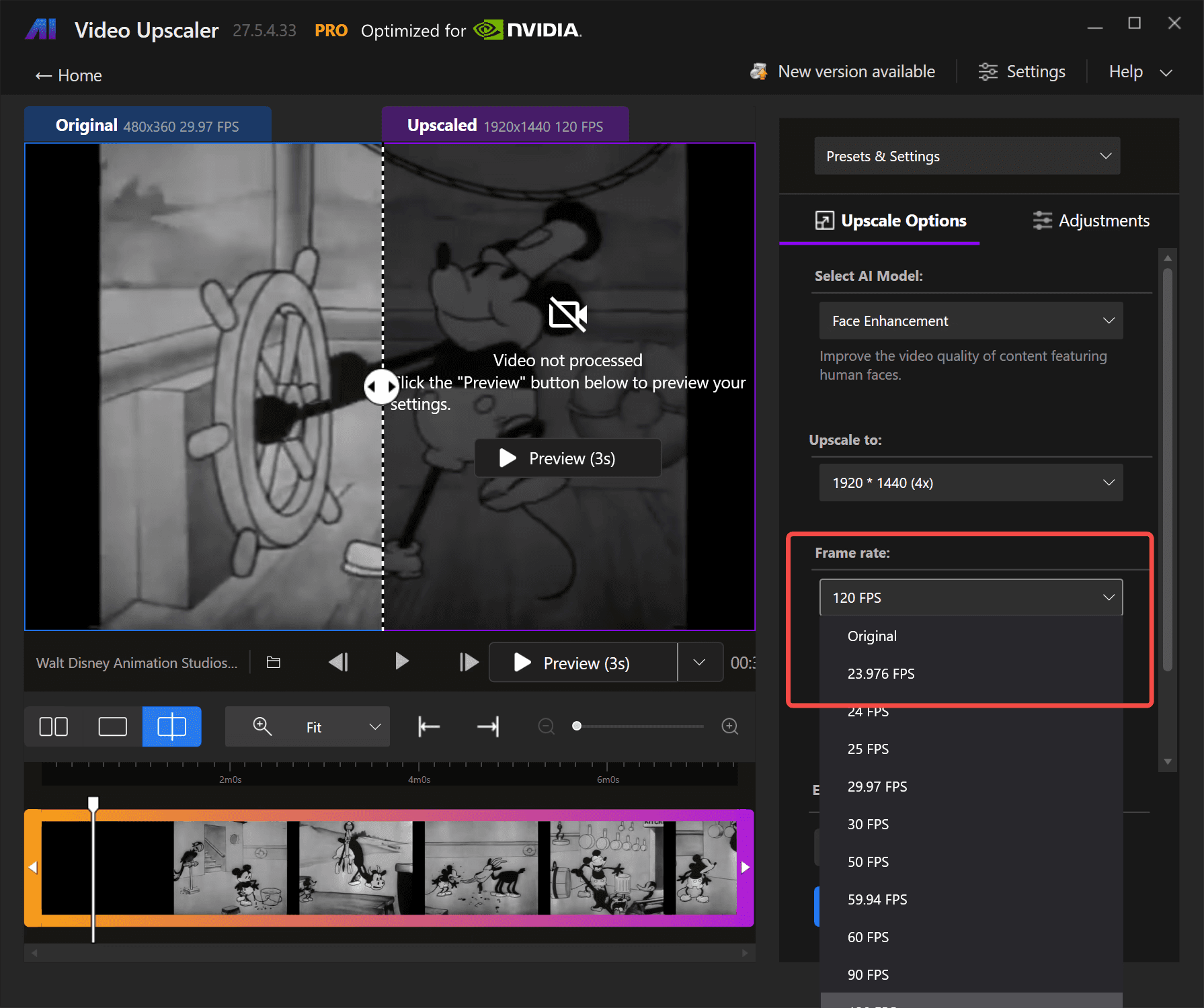
Step 5: Choose Your Target Frame Rate
Select your desired output frame rate, up to 120fps. Boosting from 24fps to 60fps creates noticeably smoother playback, especially for action-heavy scenes. Fight sequences in Naruto or Attack on Titan benefit dramatically from 60fps or higher. Slower, slice-of-life genres should stay closer to the original frame rate to avoid unnatural motion.
Step 6: Preview Your Settings
Click Preview to generate a short test clip. That lets you verify your resolution and frame rate settings before committing to a full run. Always preview — it saves time and prevents wasted processing on settings that do not suit your video.

Step 7: Upscale
Click Upscale Now to begin processing. Nero AI analyzes and enhances your video frame by frame. GPU hardware acceleration makes processing significantly faster. Batch processing lets you queue multiple episodes or an entire series while you multitask.
Real Anime Upscaling Examples: Before & After
Seeing AI upscaling in action is the best way to understand what it achieves. Below are four real examples processed with Nero AI's Animation model. They cover everything from vintage 1960s cartoons to modern anime.
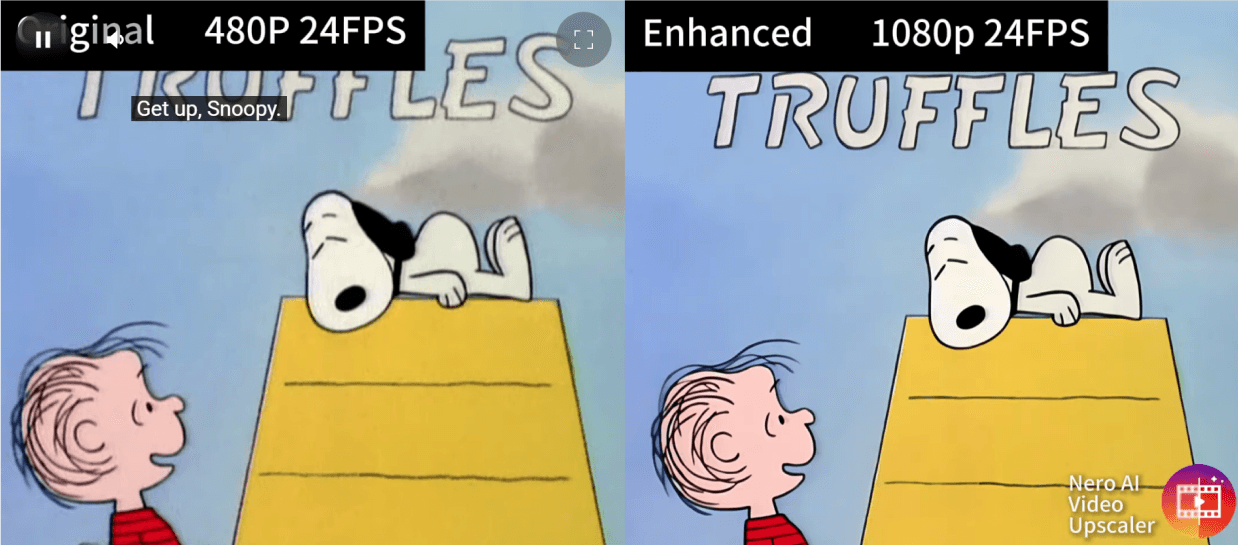
Classic Snoopy Clip Revived in HD
The iconic Peanuts cartoons benefit greatly from line enhancement. Outline enhancement and noise reduction breathed new life into this classic clip. (Click image to watch video)
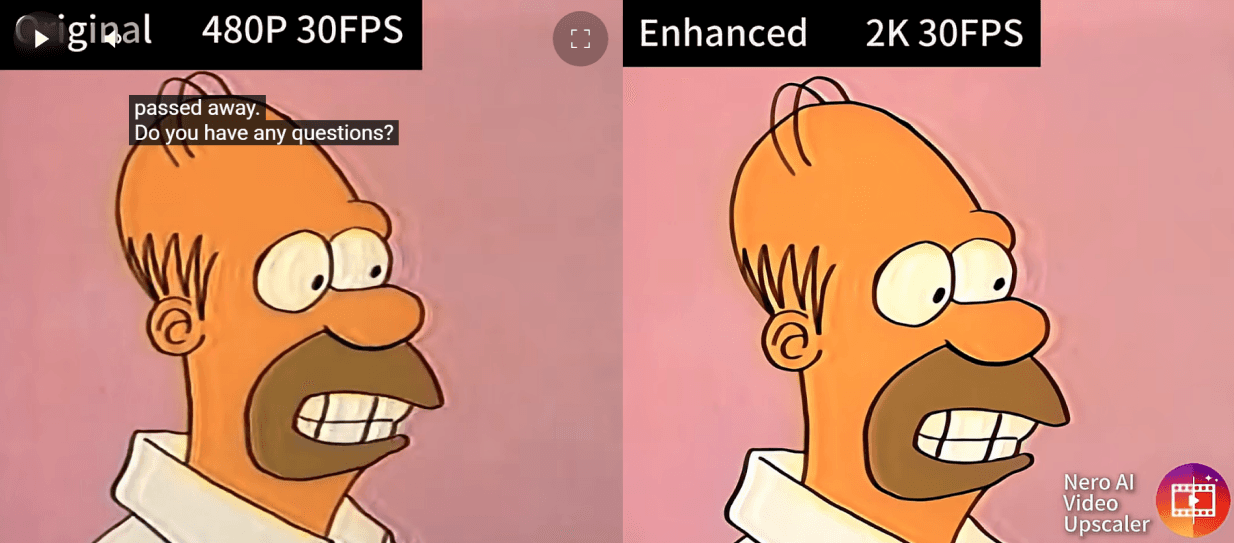
From Blurry to Brilliant: The Simpsons
Early episodes of The Simpsons are notoriously fuzzy. While there're some artifacts in extremely blurry frames, the sharpened outlines and improved color vibrancy made even such an old footage feel fresh. (Click image to watch video)
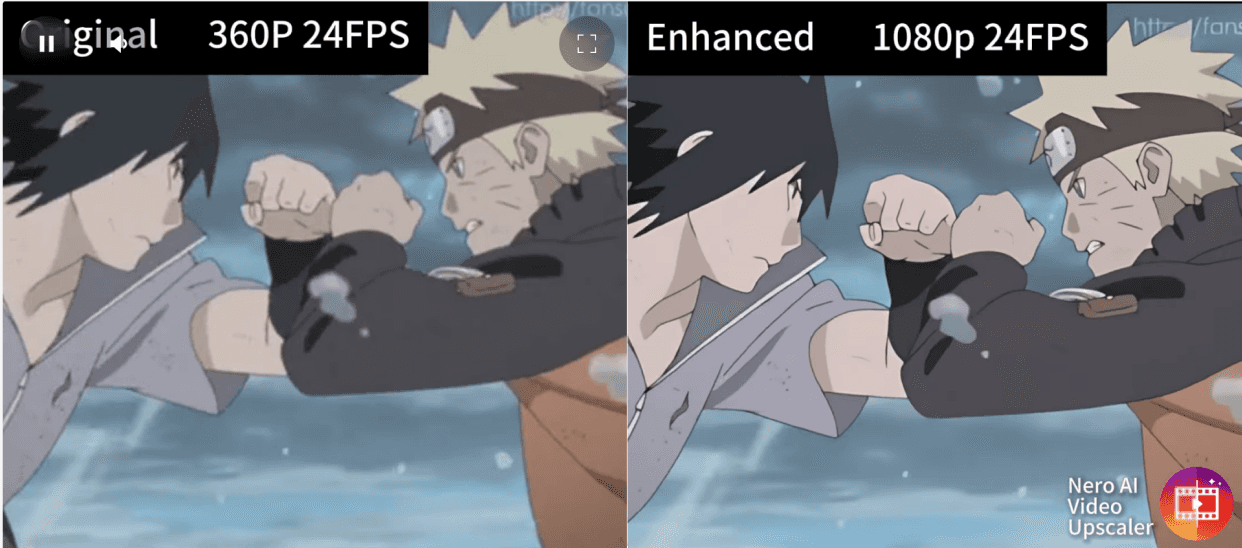
Naruto’s Sharpened Nostalgia
Classic Naruto fights — often pixelated in older torrents — look remarkably fluid and sharp after upscaling with the Animation model. (Click image to watch video)
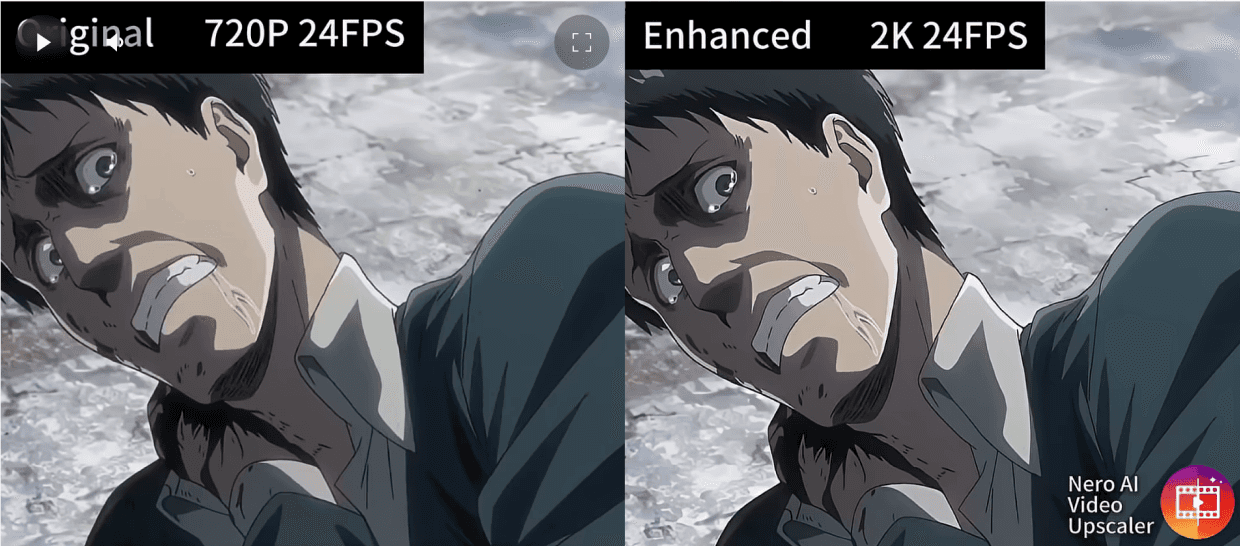
Attack on Titan in 4K: Worth It?
Yes! While newer anime like Attack on Titan are already in SD or even HD, using Nero AI to upscale them to 2K brings out even finer textures. (Click image to watch video)
Best AI Anime Video Upscalers Compared (2026)
Not all AI upscalers handle anime equally well. The key differentiator: does the tool offer a dedicated anime-specific model, or does it apply a general-purpose model to anime content? Here is how the leading options stack up in 2026:
Tool | Dedicated Anime Model | Max Output | Frame Interpolation | Platform | Best For |
Nero AI Video Upscaler | ✅ Animation model | 8K | Up to 120fps (built-in) | Windows | Classic anime & cartoons |
UniFab Video Upscaler AI | ✅ Kairo model | 16K | Up to 120fps (separate Smoother AI module) | Win/macOS | Full-episode archival |
Topaz Video AI | ✅ Gaia (anime/CGI) | 8K | Yes (Apollo/Chronos models) | Win/macOS | Professional workflows |
HitPaw VikPea | ✅ Animation model | 8K | Up to 60fps | Win/macOS | Quick enhancement |
Waifu2x | ✅ (image-focused) | 4K | No | Open-source | Still images, not video |
Anime4K | ✅ Real-time shader | Real-time only | No | Cross-platform | Live playback enhancement |
Here is the practical takeaway. Processing full anime episodes or movies as video files requires a tool with both a dedicated anime model and temporal (frame-to-frame) consistency. Image-only tools like Waifu2x produce excellent still frames. Applied to video, though, they introduce flicker. Real-time shaders like Anime4K work great for live playback but cannot export an enhanced file.
Several tools in 2026 offer dedicated anime models. Nero AI has its Animation model, UniFab uses the Kairo model, Topaz Video AI offers Gaia, and HitPaw VikPea includes an Animation model too. Nero stands out by combining a dedicated anime model, up to 8K output, built-in 120fps frame interpolation, and batch processing in one desktop app. UniFab reaches the highest maximum resolution at 16K. Its frame interpolation, however, lives in a separate Smoother AI module that requires two passes. Topaz boasts the deepest model library for professional workflows. In late 2025, it moved to a subscription model. HitPaw includes an Animation model but caps frame interpolation at 60fps.
This comparison focuses specifically on anime and animated video. For a broader look at tools for animation, realistic footage, old video restoration, and professional workflows, see our guide to the best AI video enhancers for Windows in 2026.
Best Practices for Upscaling Anime
Getting great results from AI anime upscaling takes more than clicking a button. These guidelines help you avoid common pitfalls and achieve professional-quality output.
Increase resolution gradually. Very low-quality sources — 240p or 480p — can produce unnatural results if you jump straight to 4K or 8K. A good rule of thumb: increase in stages. Go from 480p to 1080p first, then to 4K if needed. Always preview to verify your settings before full processing.
Match frame rate to genre. Boosting from 24fps to 60fps or 120fps suits action-heavy anime like Naruto or Attack on Titan. Smooth motion enhances the viewing experience there. Slice-of-life genres are different. Excessive frame interpolation creates an unnatural "soap opera" effect that detracts from the original artistic intent.
Start with the best source available. AI upscaling works best when the input video has decent quality to begin with. Blu-ray rips upscale far better than heavily compressed web streams. Use the highest-quality source you can find. The AI can only enhance what is already there.
Use hardware acceleration. Nero AI supports GPU-enabled hardware acceleration. It dramatically cuts processing time. That matters most when upscaling full episodes or series through batch processing. Turn it on in settings before starting any multi-file workflow.
Nero AI Video Upscaler: Pros and Cons
Pros:
Dedicated Animation model trained specifically for anime and cartoon video
Supports up to 8K resolution and 120fps frame interpolation
GPU hardware acceleration for significantly faster processing
Batch processing for multi-episode and full-series workflows
Built-in preview function to test settings before full processing
One-click workflow — no technical expertise or command-line knowledge required
Cons:
Desktop application (Windows only) — no browser-based option for quick tasks
Very low-resolution sources (240p and below) may still show artifacts after upscaling
Over-upscaling directly from very low resolution to 4K/8K can look unnatural
Frame interpolation may introduce unnatural motion in slow-paced or slice-of-life genres
Frequently Asked Questions
What does “upscale” mean in anime?
“Upscaling” in anime means increasing a video’s resolution — say, from 480p to 4K — using AI to reconstruct missing detail. It is not simple stretching. AI upscalers trained on anime preserve the sharp line art, flat colors, and clean outlines that define the medium’s look. Results blow past basic interpolation methods like bilinear or bicubic scaling.
Can you upscale anime to 4K?
Yes. AI video upscalers like Nero AI Video Upscaler can enhance anime from as low as 480p to 4K (3840×2160). The AI analyzes each frame and predicts missing detail based on its training. New pixels are generated to match the original art style. Start from the highest-quality source available. Increasing resolution gradually works better than jumping straight to 4K from very low resolutions.
What is the best AI video upscaler for anime in 2026?
The best AI video upscaler for anime uses a dedicated anime-specific model. In 2026, several tools fit that bill: Nero AI Video Upscaler (Animation model), UniFab (Kairo model), Topaz Video AI (Gaia, designed for anime/CGI), and HitPaw VikPea (Animation model). Nero AI stands out by combining a dedicated Animation model, up to 8K output, built-in 120fps frame interpolation, and batch processing in one application. Your right choice depends on budget, platform, and workflow needs.
How do I upscale Naruto to 4K?
To upscale Naruto to 4K, grab an AI video upscaler with an anime-specific model. In Nero AI Video Upscaler: import your clip, select the Animation model, set the target resolution to 4K, choose a frame rate (60fps for fight scenes), preview, and click Upscale. Classic Naruto episodes were produced at 480p. Reaching 4K means the AI reconstructs about 27 times more pixels per frame.
Can AI upscale anime to 8K?
Yes. Nero AI Video Upscaler supports upscaling anime to 8K (7680×4320). 8K upscaling works best when the source is already at least 720p or 1080p. Going directly from 480p to 8K — a 108× pixel increase — can introduce artifacts and look unnatural. Very low-resolution sources should go to 4K first.
Does AI upscaling work on old cartoons?
Yes. AI upscaling works effectively on old cartoons and classic animation. Nero AI’s Animation model has enhanced classic Peanuts cartoons, early Simpsons episodes, and vintage anime. The AI recognizes line art and color patterns characteristic of 2D animation. It enhances them while reducing noise and compression artifacts. Content originally produced at 480p or below shows the most dramatic improvement.
What frame rate should I use for anime upscaling?
Action-heavy anime like Naruto or Attack on Titan benefits from 60fps. Fight scenes look noticeably smoother. Slice-of-life or slower-paced anime should stick closer to the original 24fps or 30fps. Higher frame rates can introduce unnatural motion there. Nero AI Video Upscaler supports frame interpolation up to 120fps. Always preview before committing to make sure the result looks natural.
Is Nero AI Video Upscaler free to try?
Nero AI Video Upscaler offers a free trial. You can test the Animation model and preview results before purchasing. Visit the official Nero AI website for current pricing and trial details. The preview function lets you evaluate quality on your own clips before a full processing run.
Start Upscaling Your Anime Today
Classic anime deserves to be seen in the clarity that modern displays can deliver. A nostalgic Naruto fight, a fuzzy Simpsons episode, or a beloved Peanuts cartoon — Nero AI Video Upscaler’s Animation model breathes new life into all of them. It preserves the original art style while adding the detail and smoothness that 4K and 8K screens demand.
Download Nero AI Video Upscaler and start enhancing your classic anime collection today.